# sudo apt install gitInstalling Software on Linux


For the YouTube livestream recording, see here
For screen-shot slides, click here
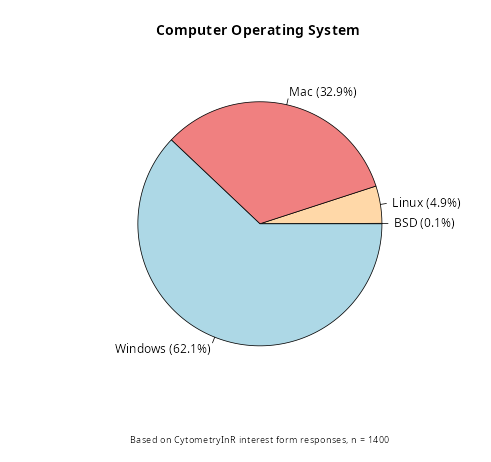
This is the software installation walkthrough for those whose computers are running Linux. First off, welcome! Based on our pre-course interest form, there was a suprising number of you daily-drivers out there! However, a CytometryInR interest form is unlikely to be representative of the general population, so please stash all Year of the Linux desktop banners until further notice.
Background
If you are daily-driving Linux, you are likely not a stranger to the process of getting software installed on your particular distribution.
When it comes to installing R website, the R project supports packaging formats for both Debian (including Ubuntu, Linux Mint, etc) and RHEL (including Fedora) based-distributions. The supported branch for SUSE has not been active since 2012. This is similarly the case when installing Positron. Depending on your distribution, you might also need to install Git via your package manager.
I daily-drive Debian stable (Trixie), so this walk-through documents the installation process for the Debian branch. I plan to circle back with a Fedora version, but if that doesn’t occur by the publishing time, I refer you to the R for Linux documentation to help get you started.
Getting Started
Debian-based Distros
Installing R
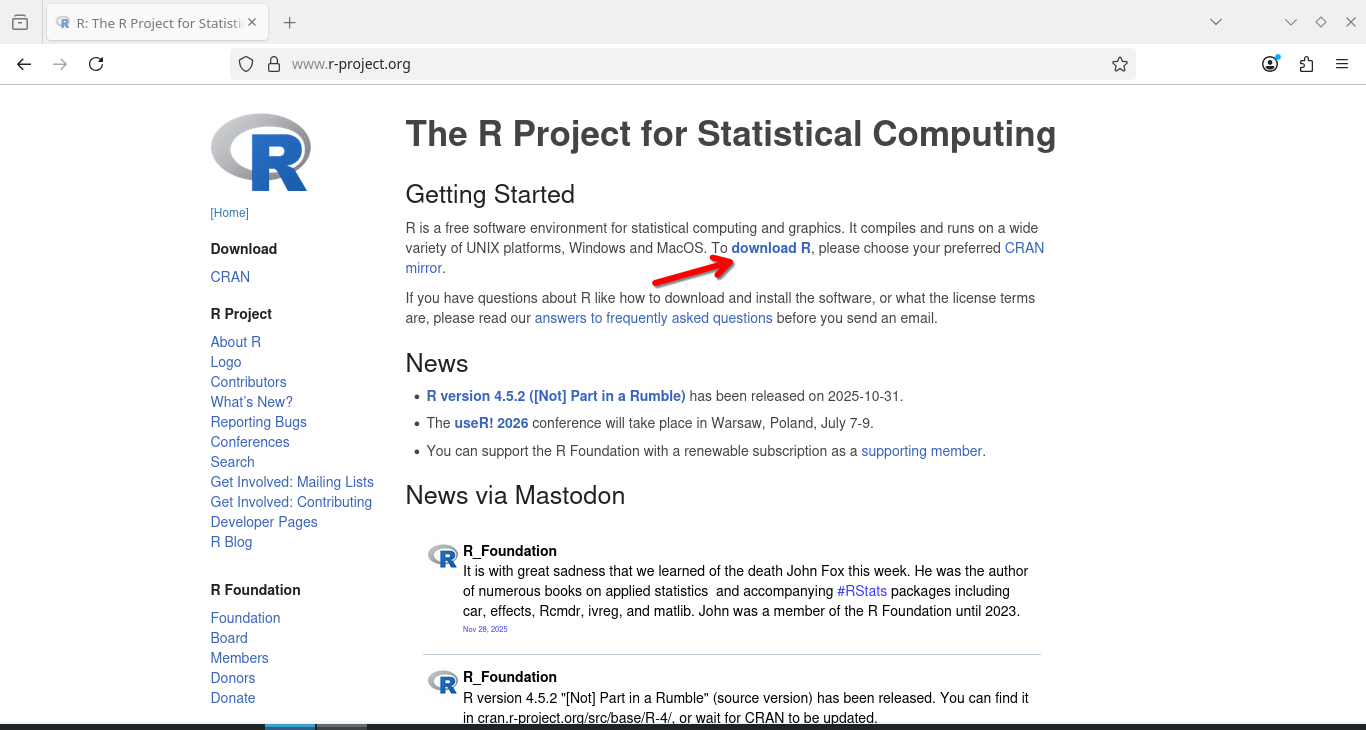
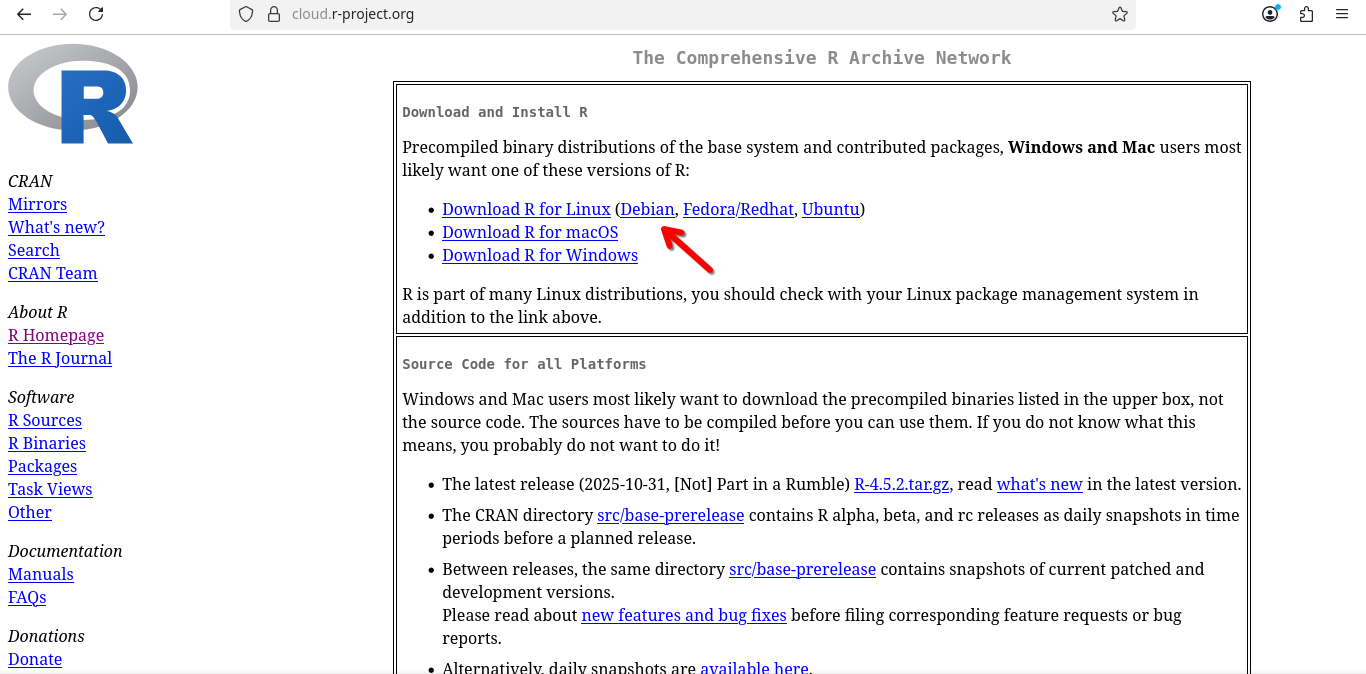
To get started, first navigate to the R website. Once there, click on Download R option towards the top of the page.
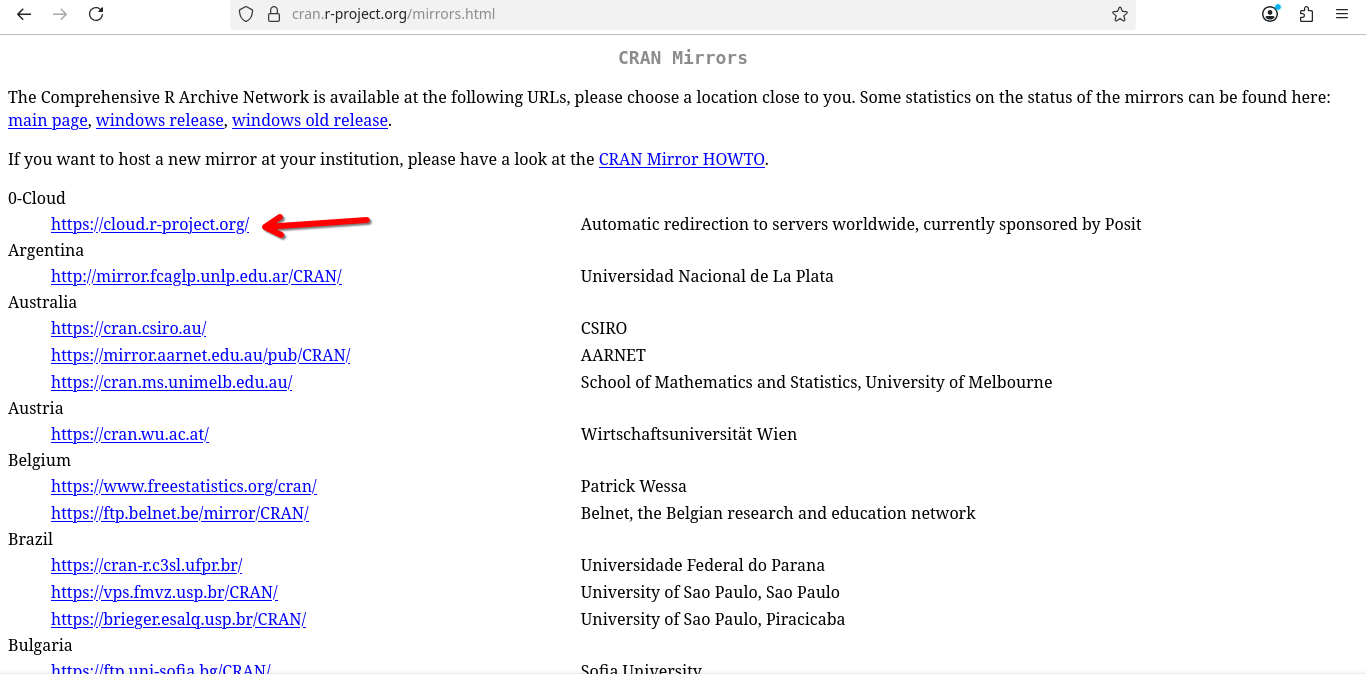
On the next screen, you will need to select a mirror from which to download the software from. You can either select the closest geographic location (which may be faster) or alternatively just select the Cloud option which should redirect you.
Once this is done, select your Linux Distro (or one that shares your package managers format).
On the landing page, you will find a bunch of relevant installation information, which is worthwhile giving a read-through when you have time.
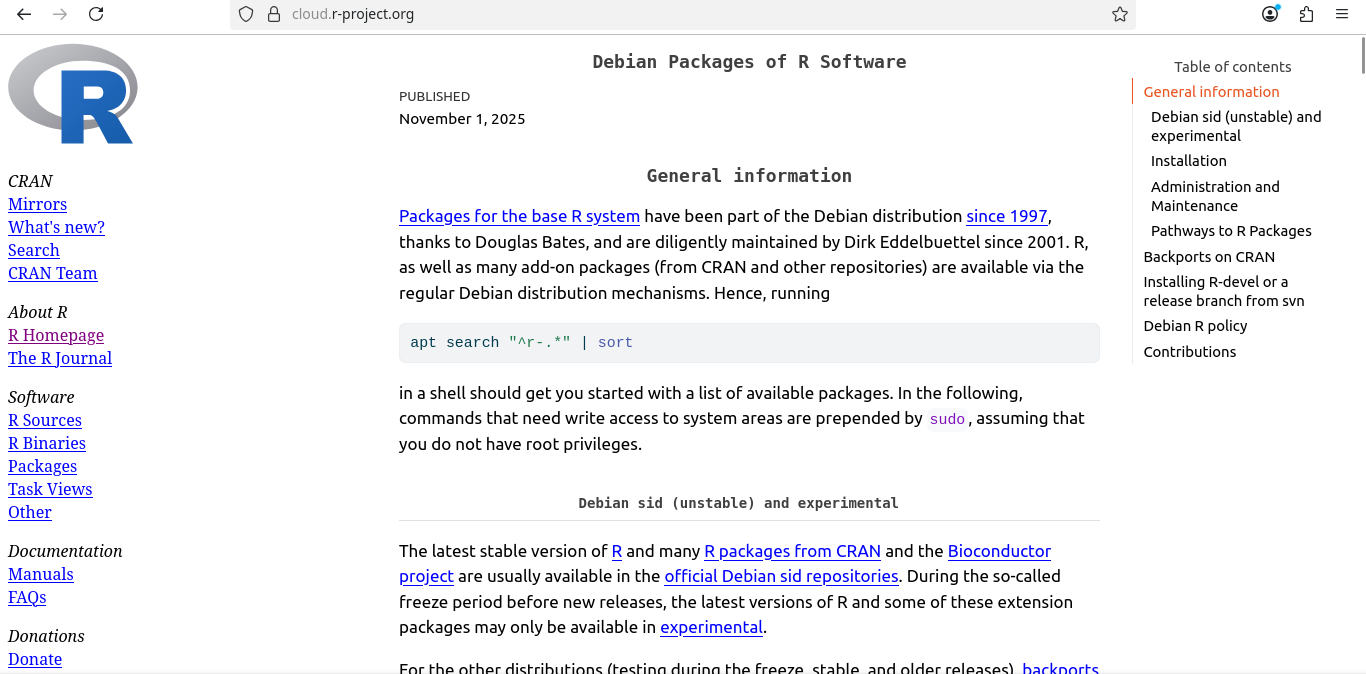
The process to successfully install R can be summarized as follows:
Update apt/sources.list to include the CRAN repository (allowing access to R packages)

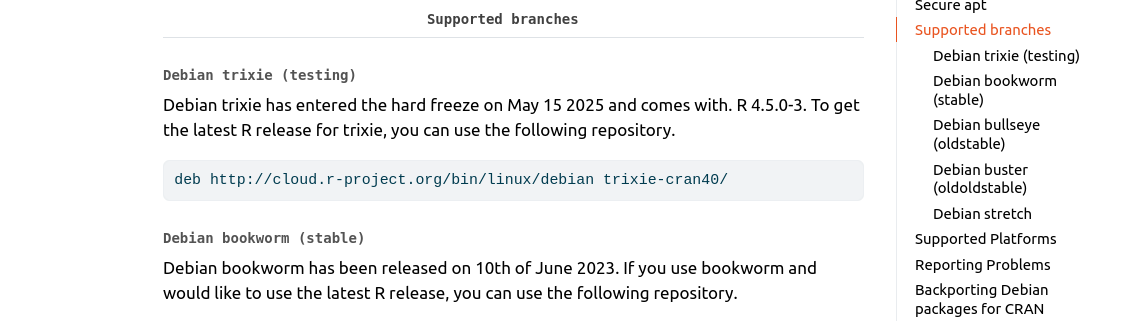
Since we are running on Debian stable (Trixie), we would add the following line to sources.list
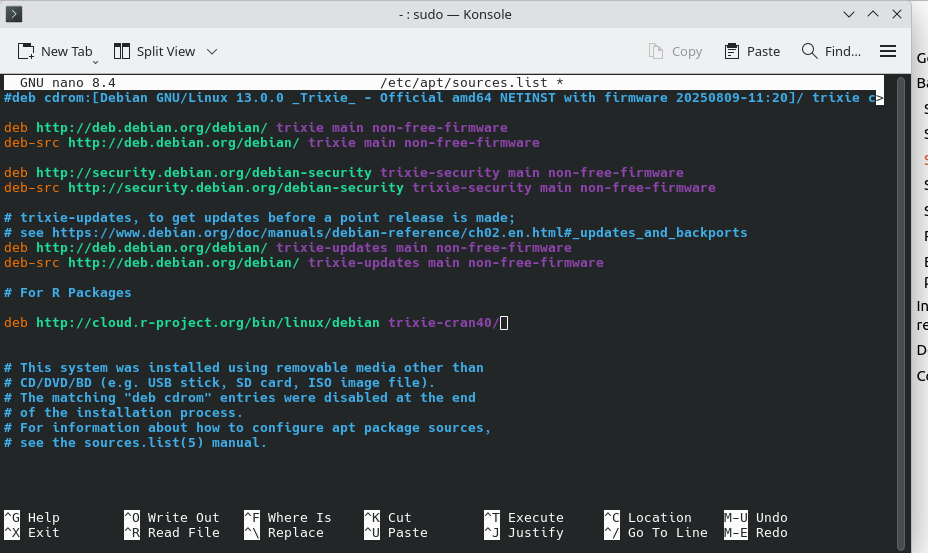
So in practice, open sources.list:

Paste the line, and “Ctrl + O”; “Enter”; “Ctrl + X” to save the changes.
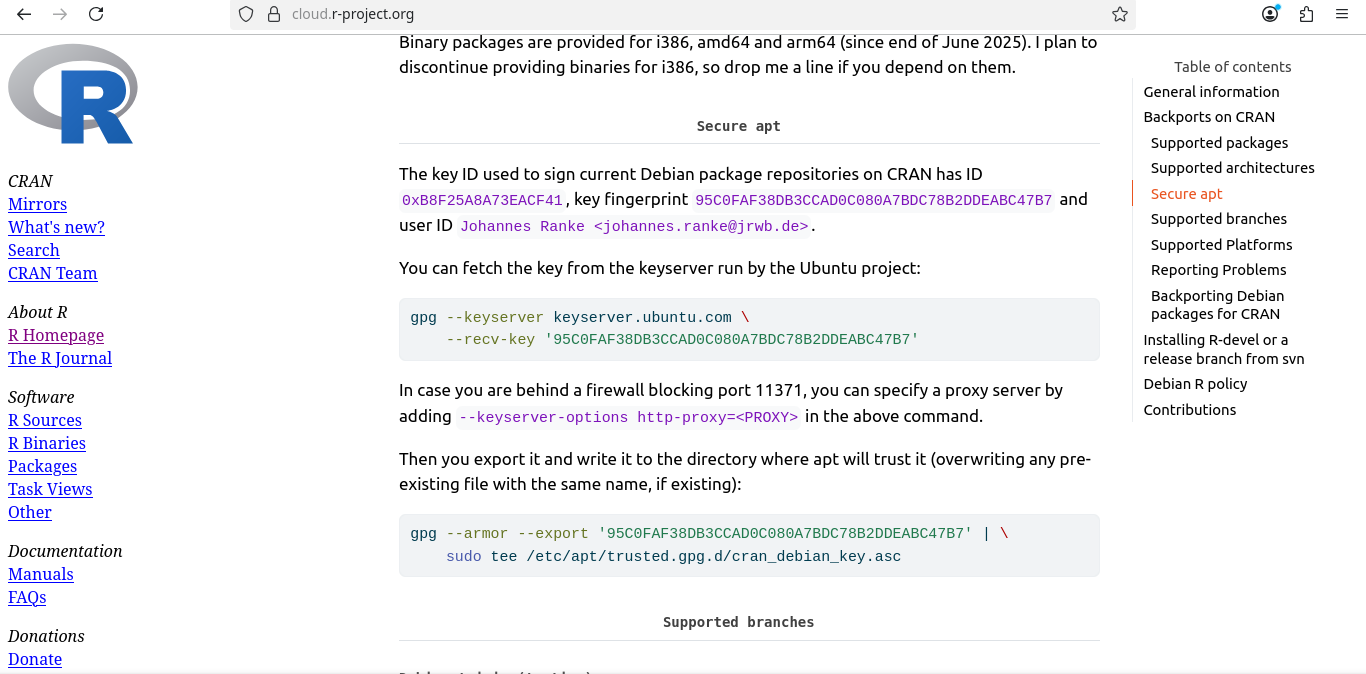
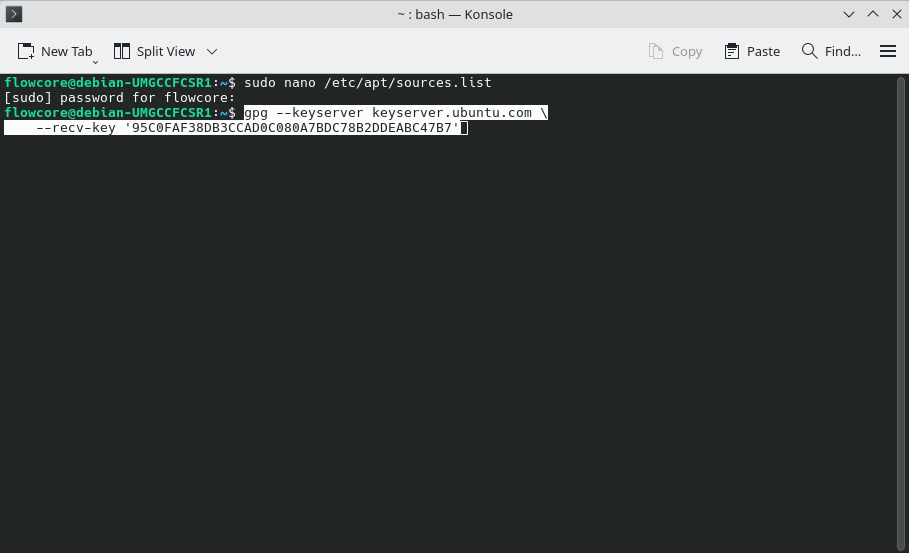
Next, we will need to retrieve the keyID used to sign. This can be fetched from Ubuntu via the terminal.
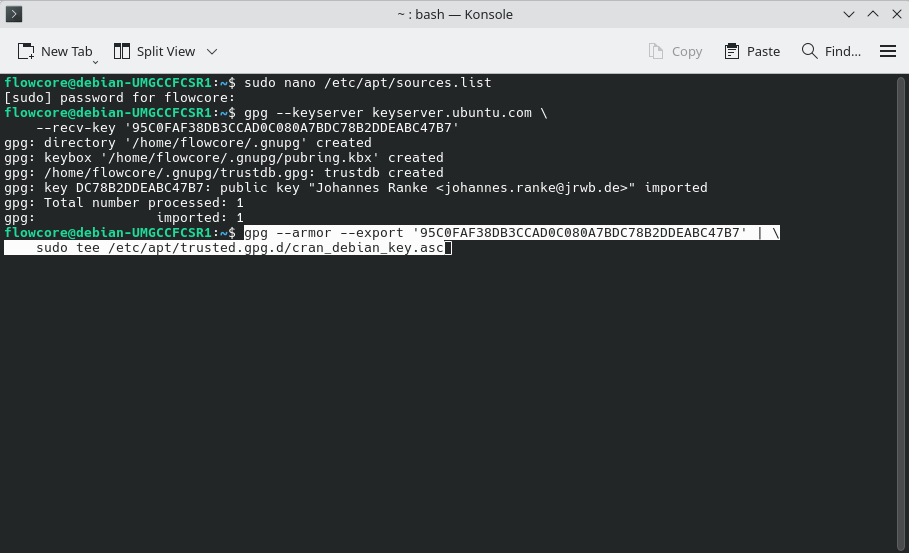
Then we need to export and write it
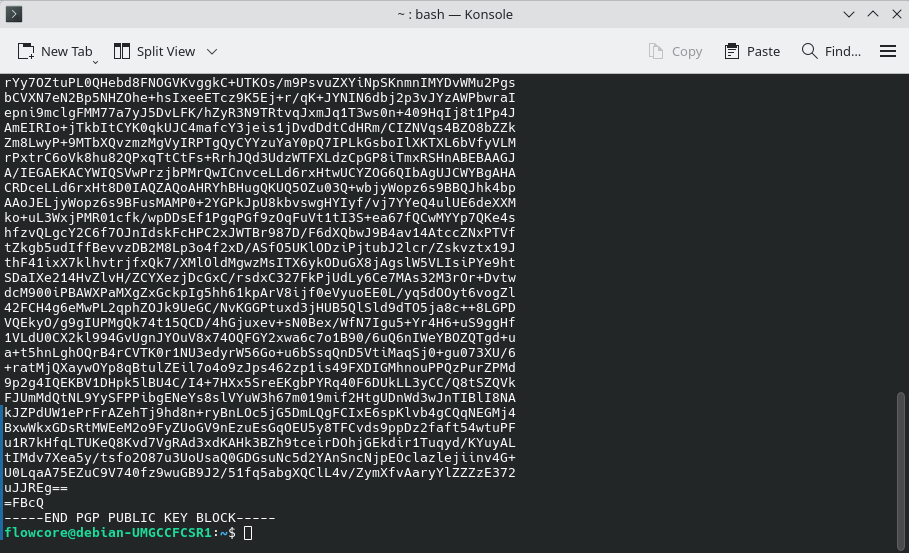
Which if successful, will display the public key.
With the above set up, we can proceed via our apt package manager to install both r-base and r-base-dev (which contains the equivalent of Rtools for Windows, or Xcode Command Line Tools for macOS).
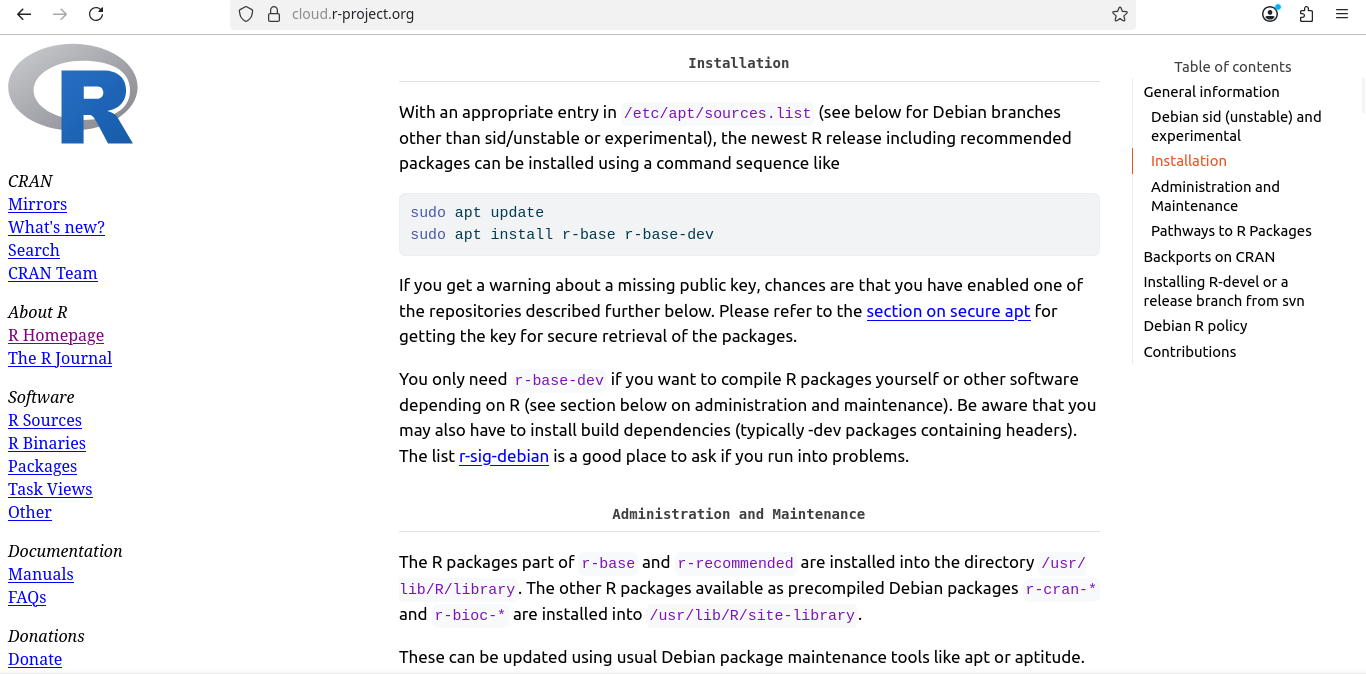
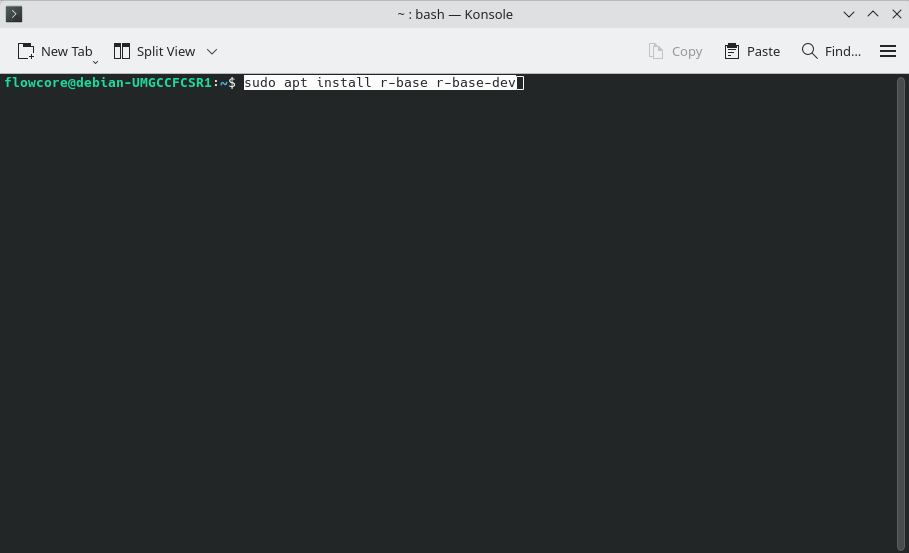
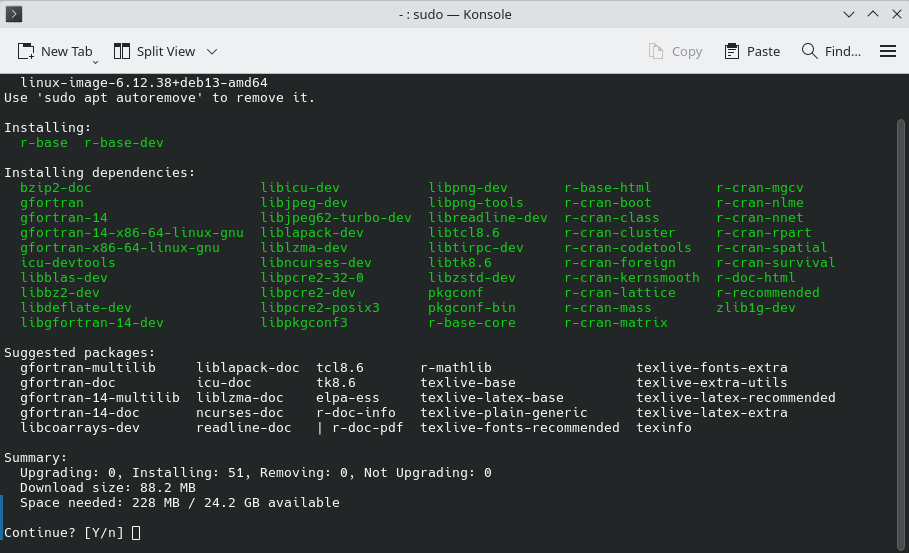
And if all goes well, R should now be installed.
Installing Git
Installing Positron
Finally, you will need to install Positron. It will be the integrated development environment (IDE) we will be using for the course.
First, navigate to their homepage, and select the blue Download option button on the upper-right.
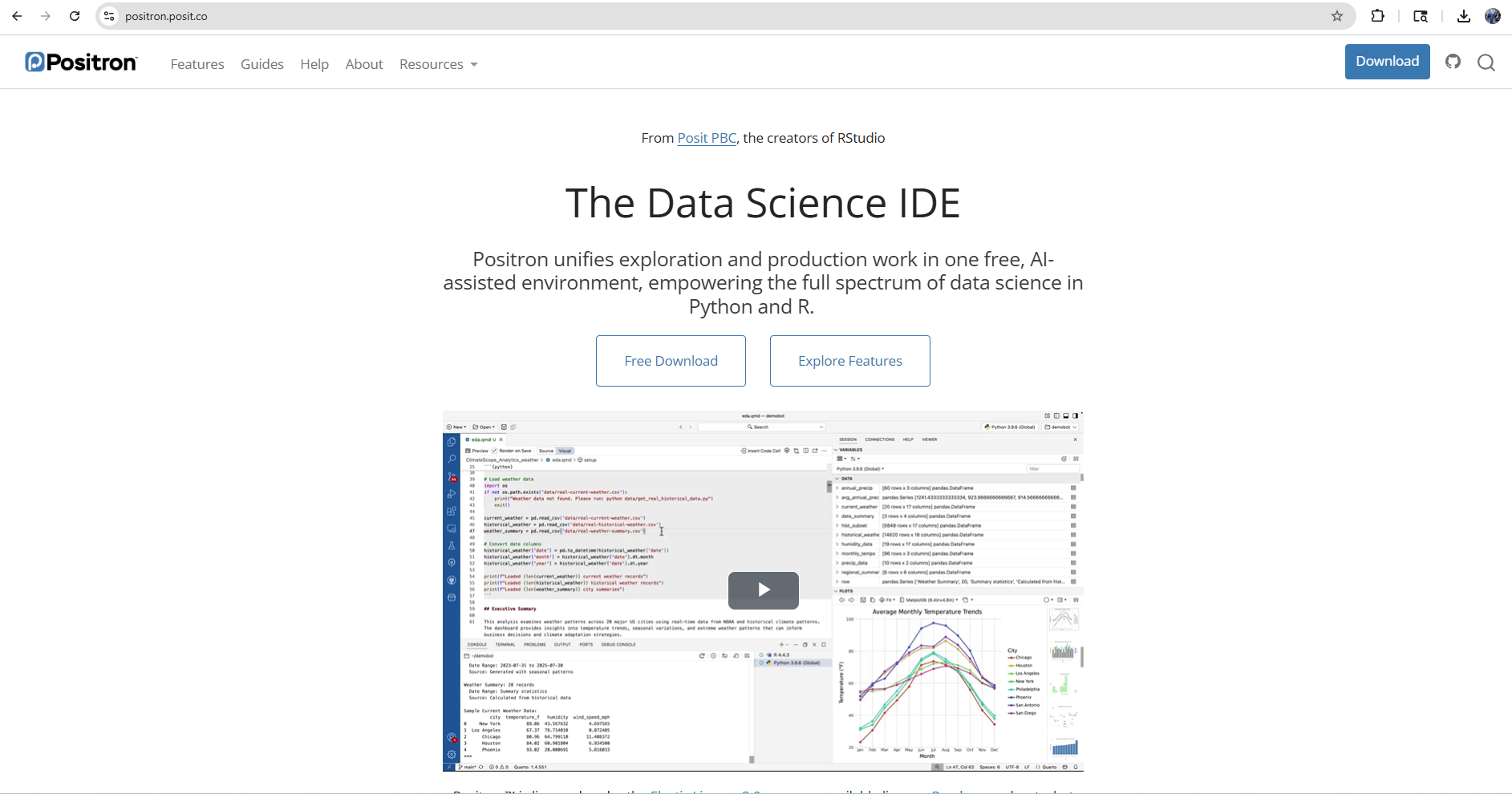
You will then need to accept the Elastic License agreement to use the software (we will cover this source-available license type and what it does later in the course).
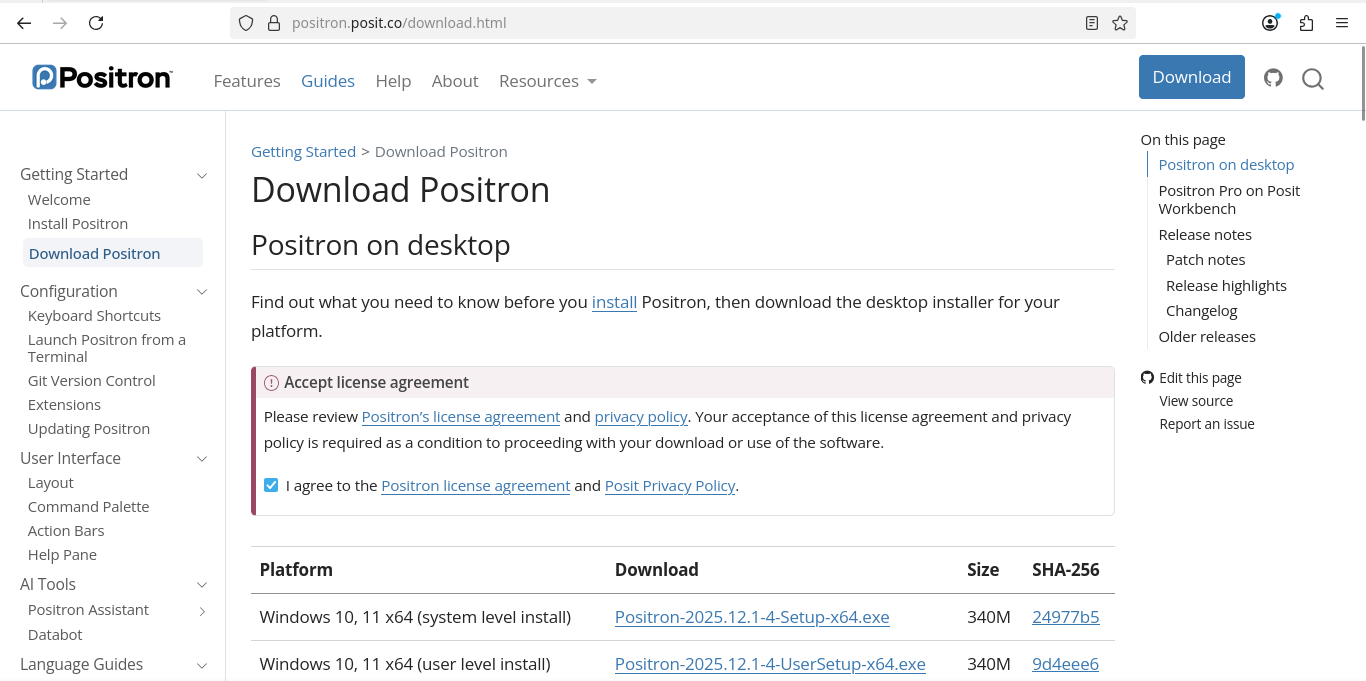
With the license accepted, you will be able to select distribution and architecture.
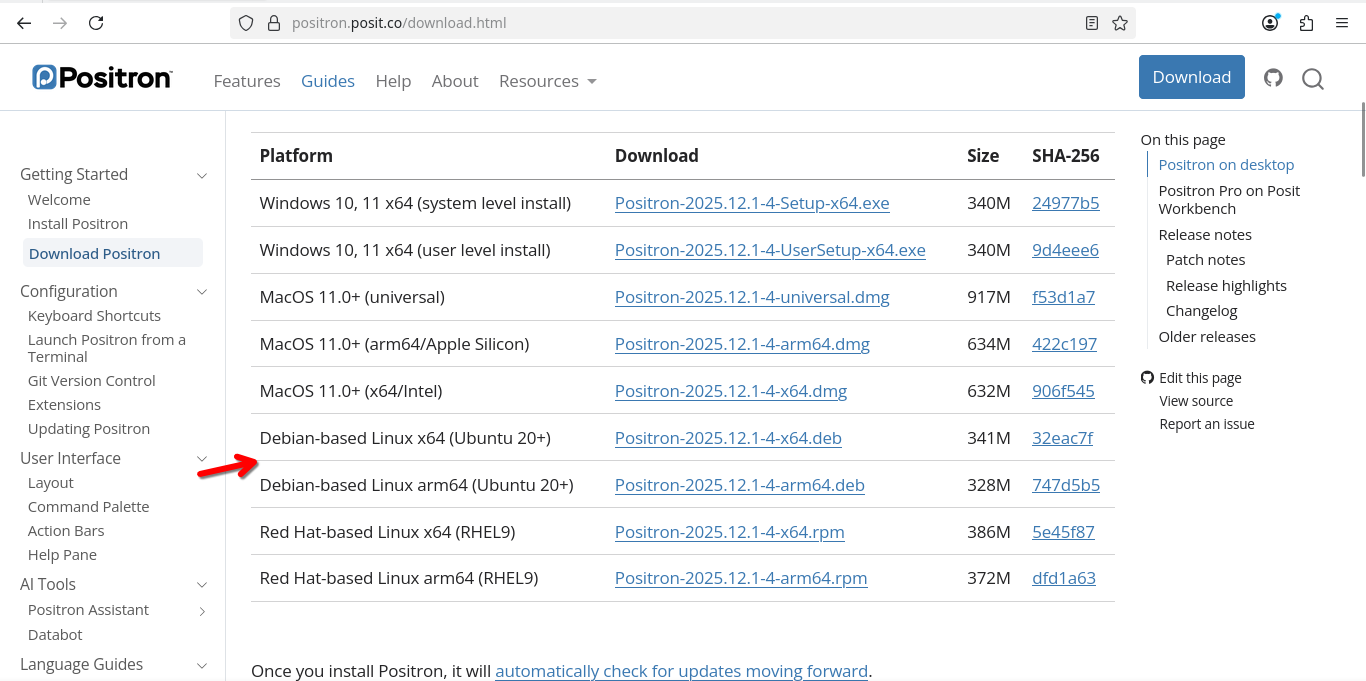
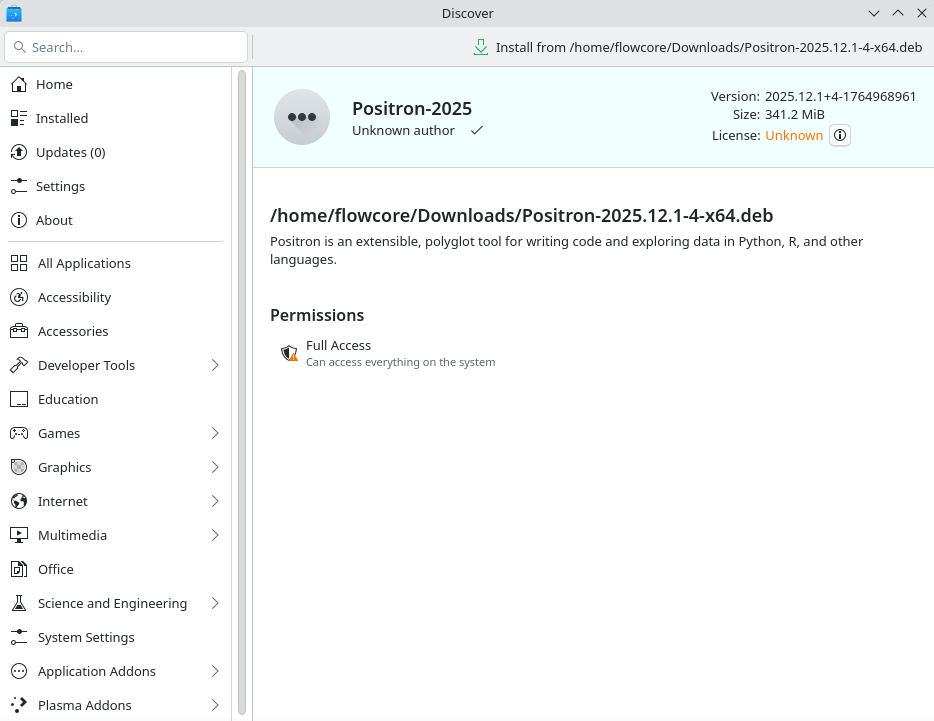
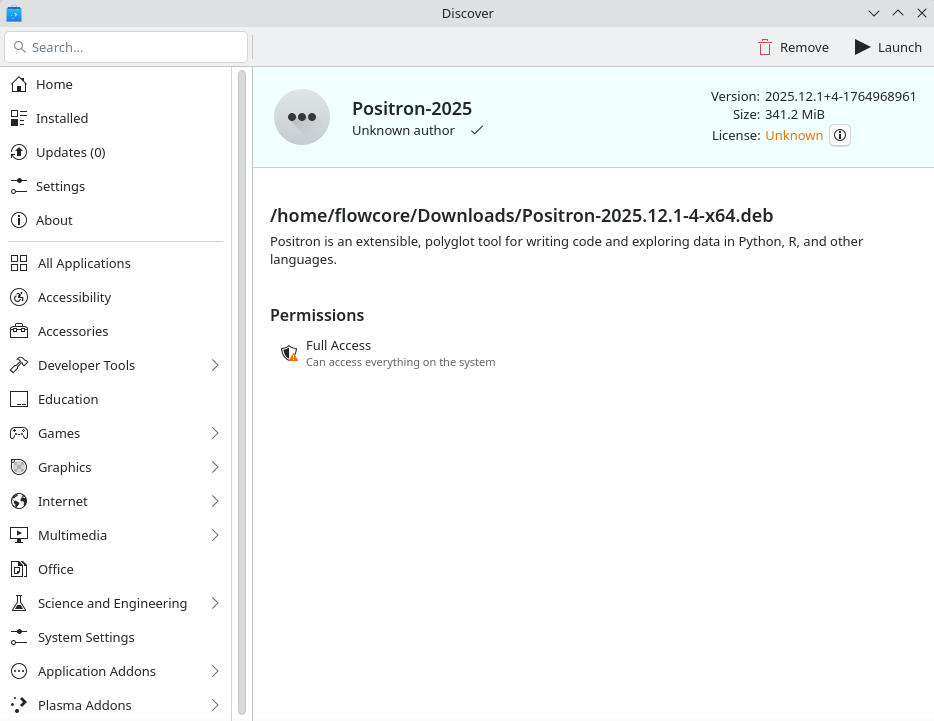
Once the Download completes, proceed to install the .deb package as you would nornally. GUI example via Discover below.
Depending on your configurations, you may be asked to exert your sudo powers.
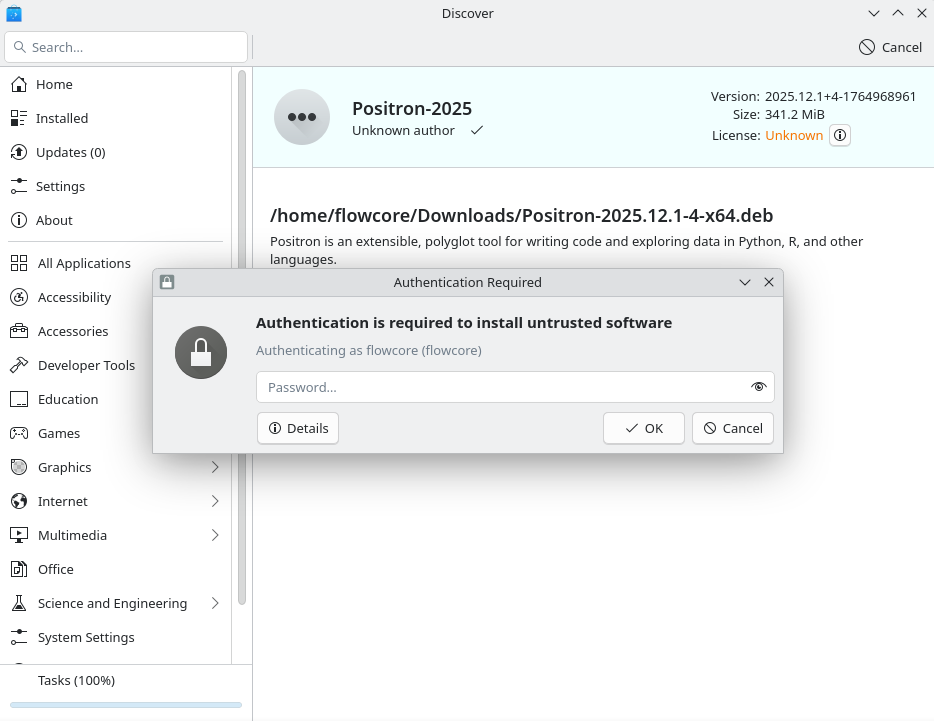
Once this completes, you should now be able to launch the software for the first time.
Connecting GitHub and Positron
Now that you have all the software installed, we need to make sure that everything is communicating properly with each other. To do this, we will start by making sure your GitHub account and Positron are connected.
When opening Positron for the first time, you will encounter the following view:
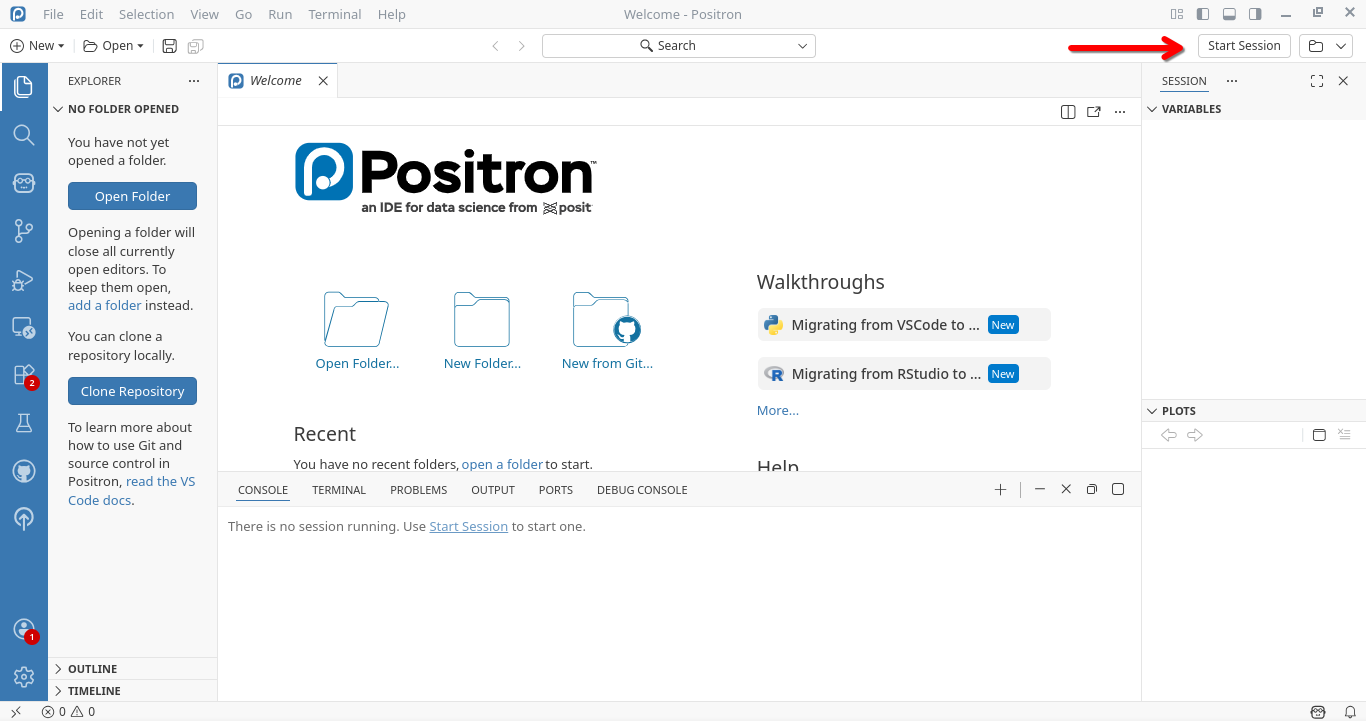
We will go over the various aspects of using Positron in the next section. For now select the “Start Session” button on the upper right.
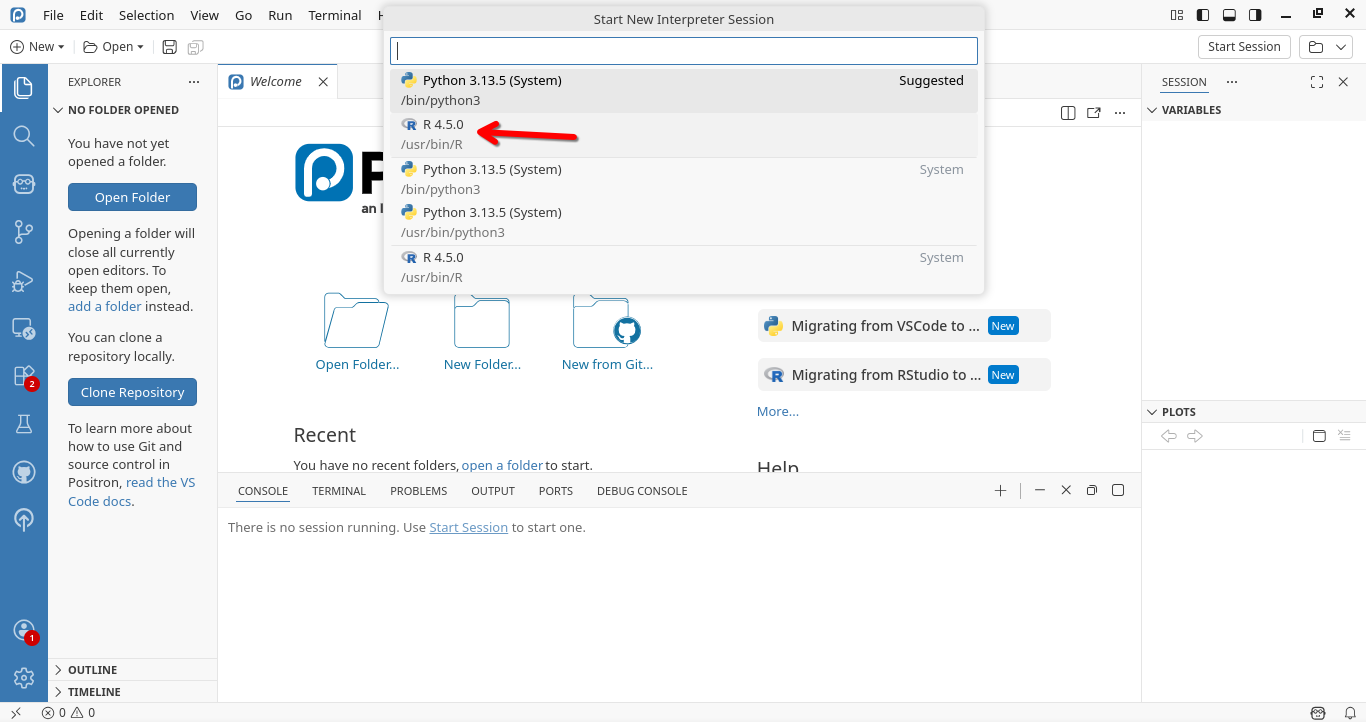
Then select the most recent/up-to-date R version.
R will proceed to activate, and you will see a message appear in the bottom center window (ie. console)
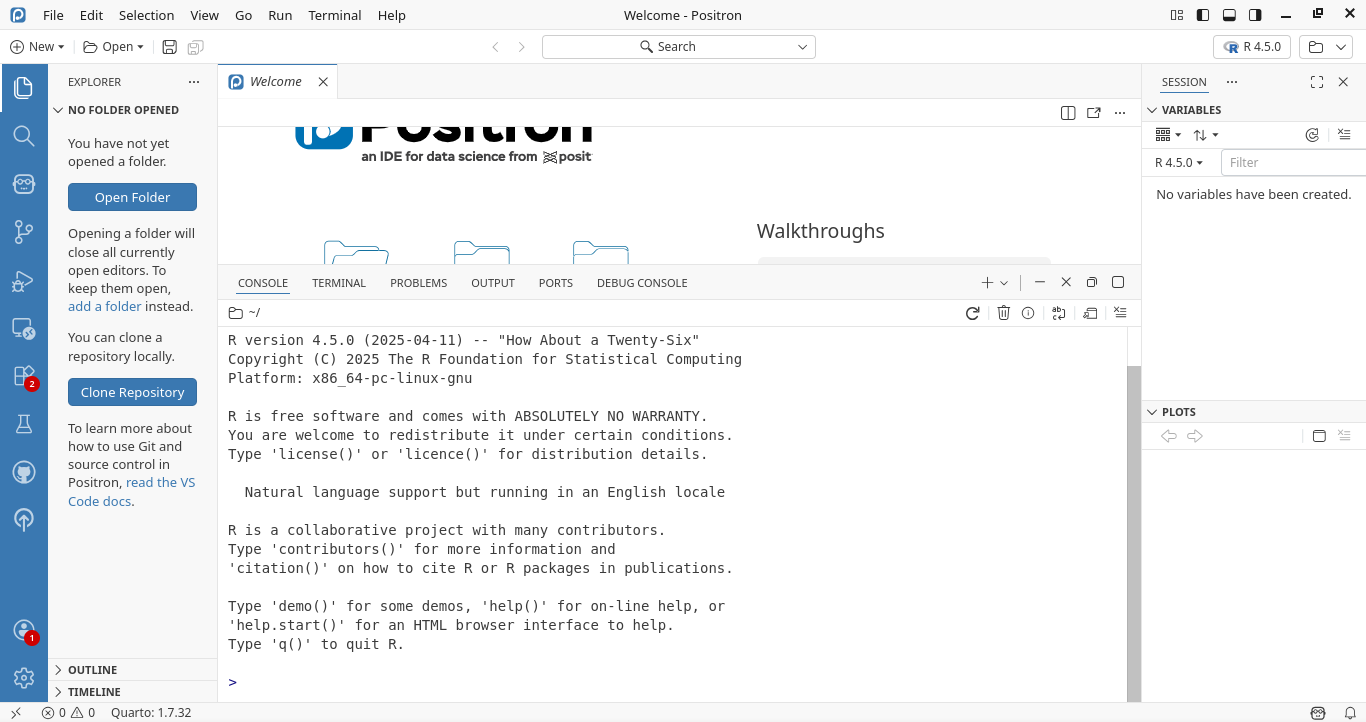
Congratulations, we now know R is working correctly. Next up, connecting your GitHub account to Positron. To make this process easier, first log into your GitHub account from your preferred web browser.
Once this is done, return to Positron, and click on the profile Icon and select “Sign with GitHub” option.
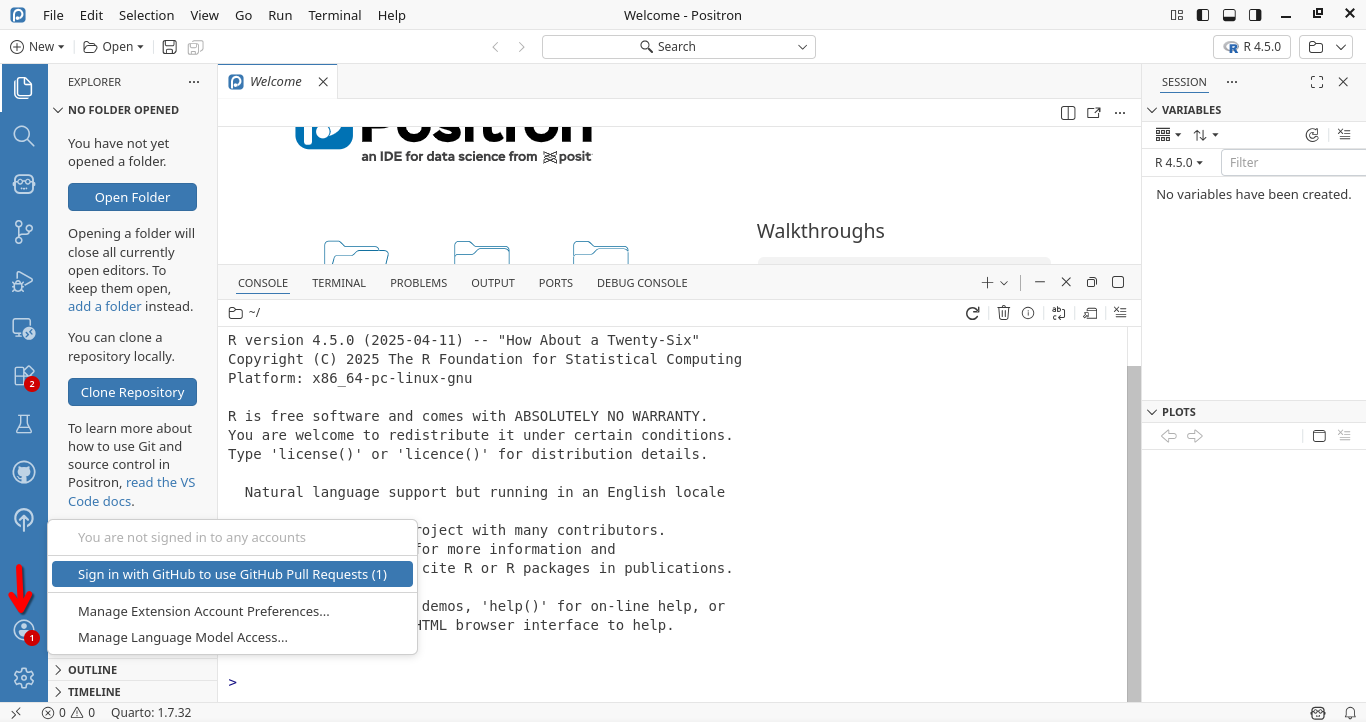
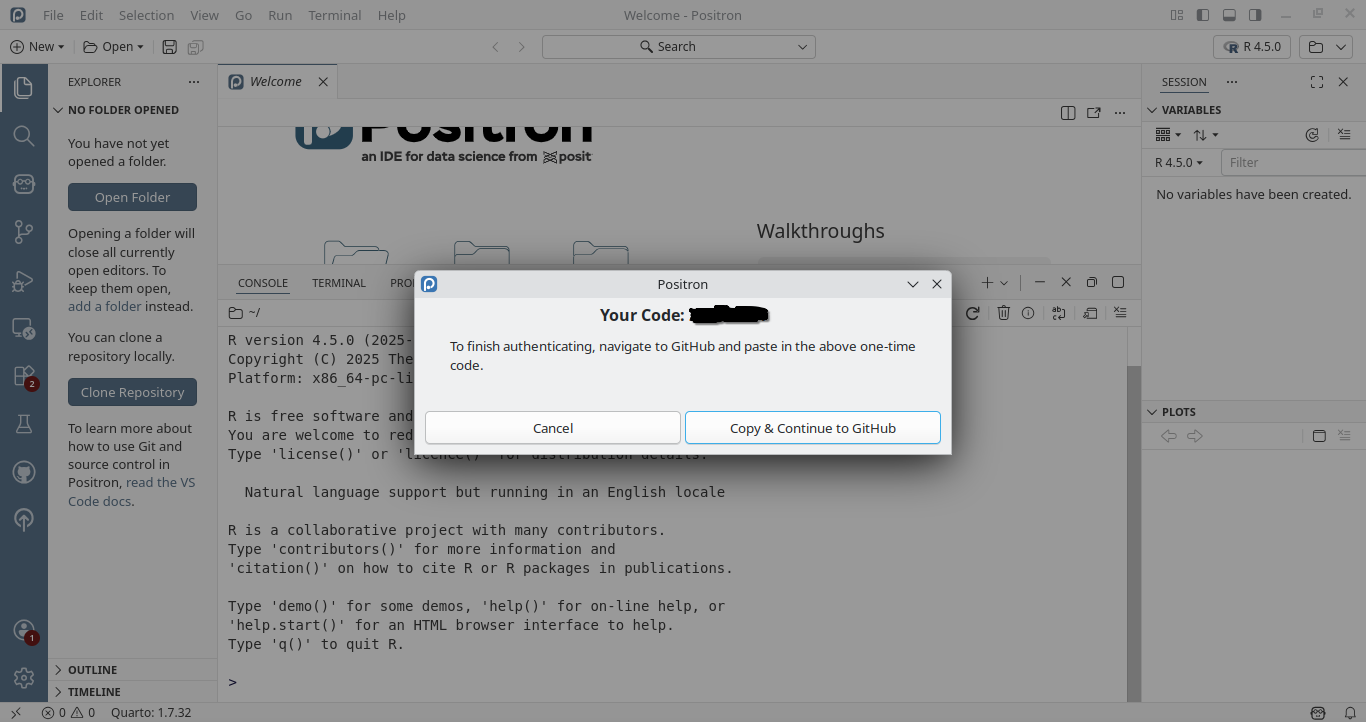
Positron will provide a popup containing a code you will need to give to GitHub to set up authentication. Proceed to click on the “Copy & Continue to GitHub” button.
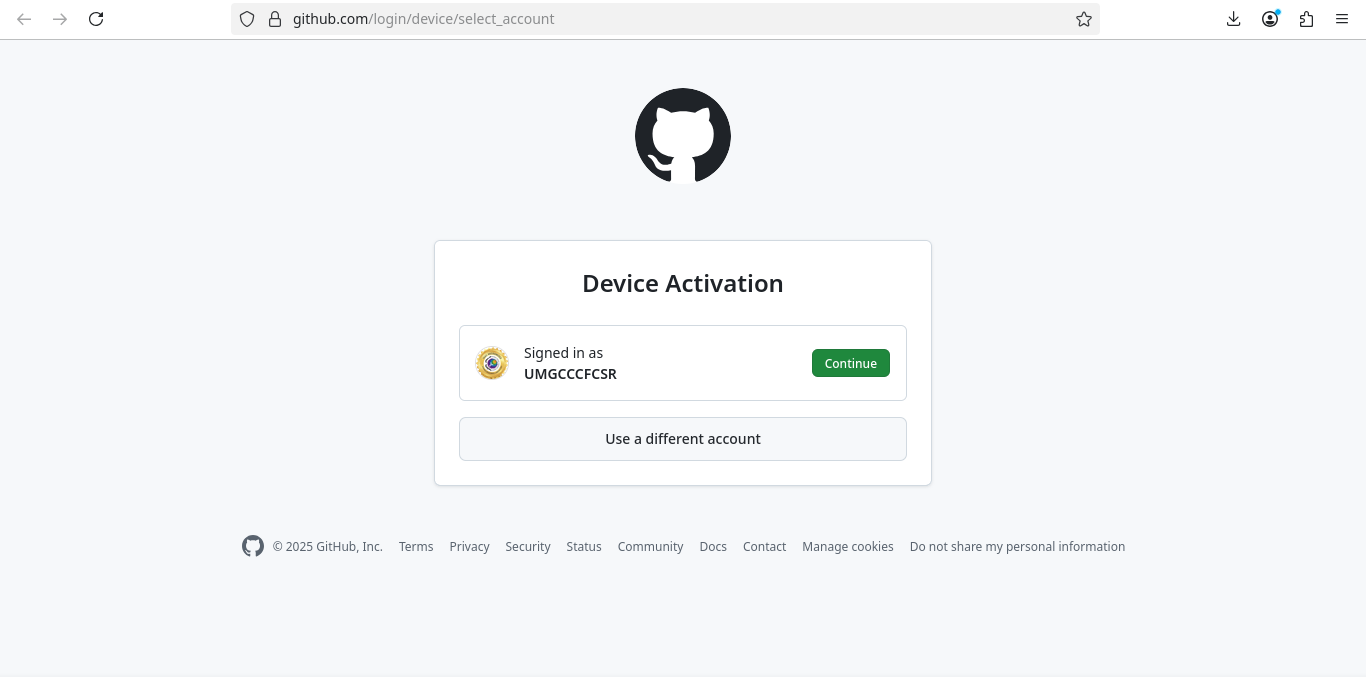
If you are already signed in, it will ask which account you want to connect Positron with. Select your GitHub account.
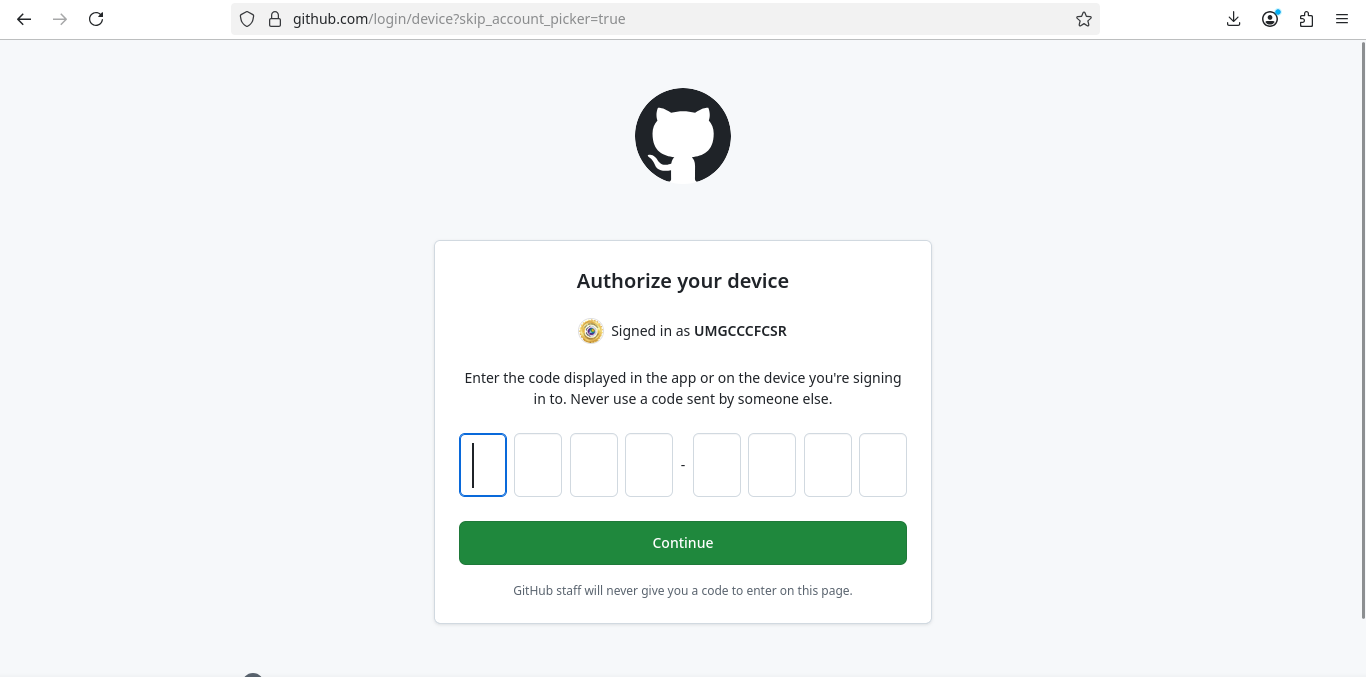
You will then be prompted to paste the one-time code provided by Positron. Once pasted, click on Continue.
And select “Authorize posit-dev” to authorize Positron to interact with your GitHub Account.
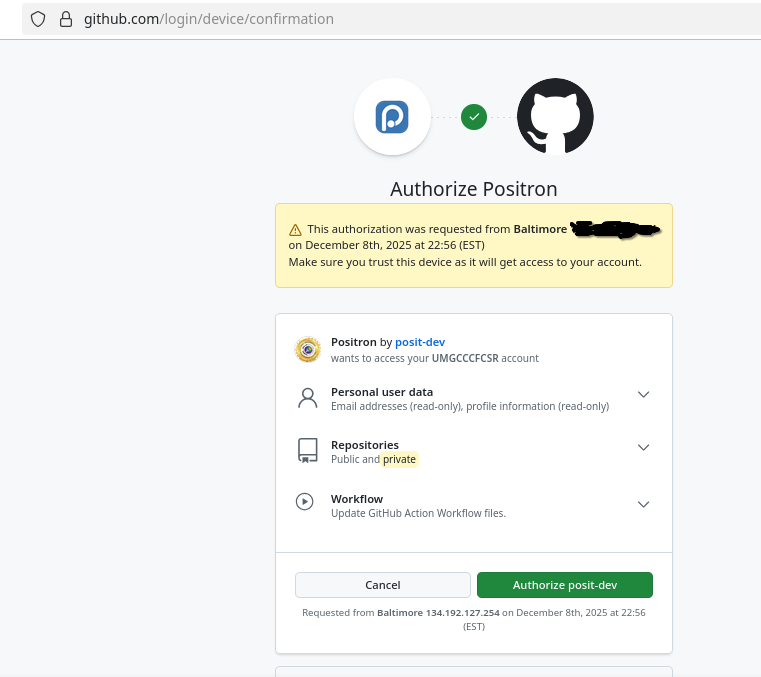
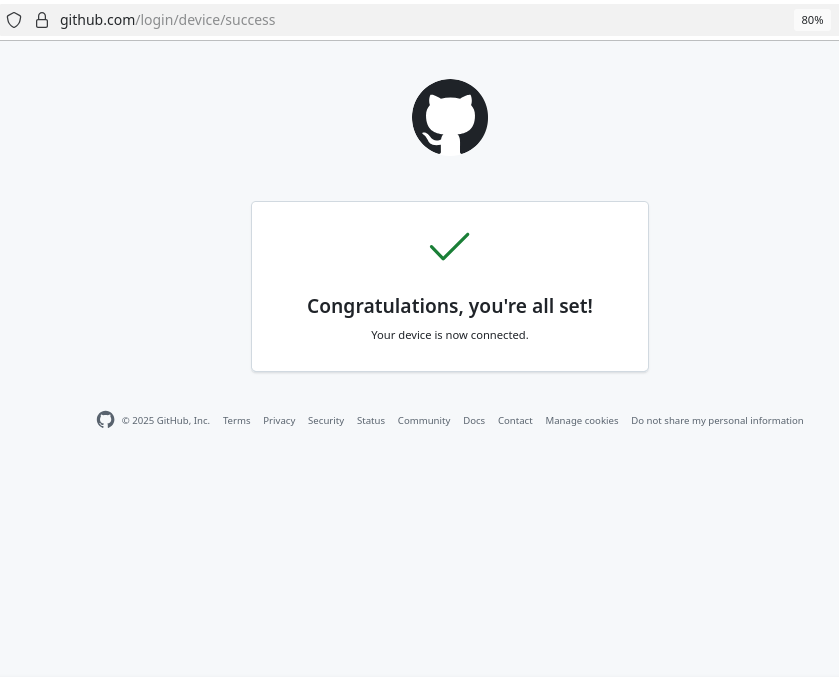
And if all works out, you should see the following succes page
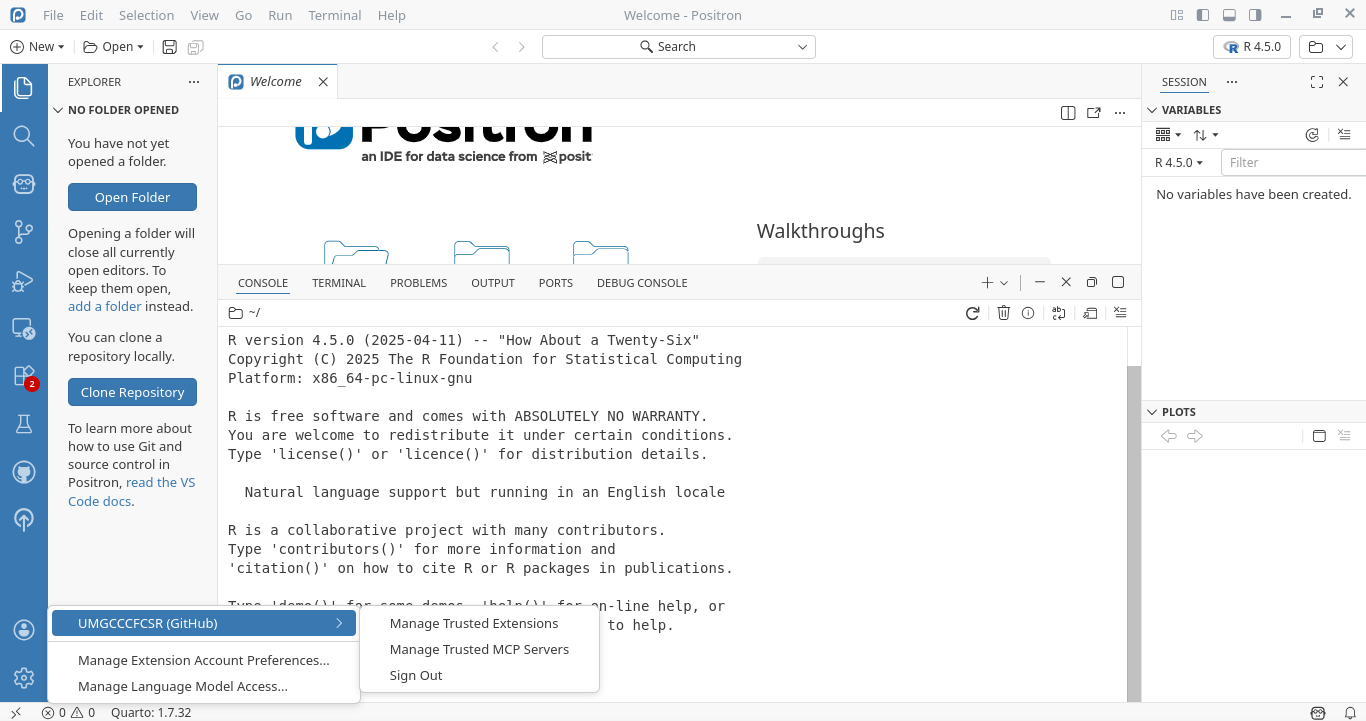
Returning to Positron, check the profile tab on the lower left and verify that it now shows your GitHub account. If it does, congrats! If not, close Positron, check the tab again, and repeat the above one-time code steps if needed.
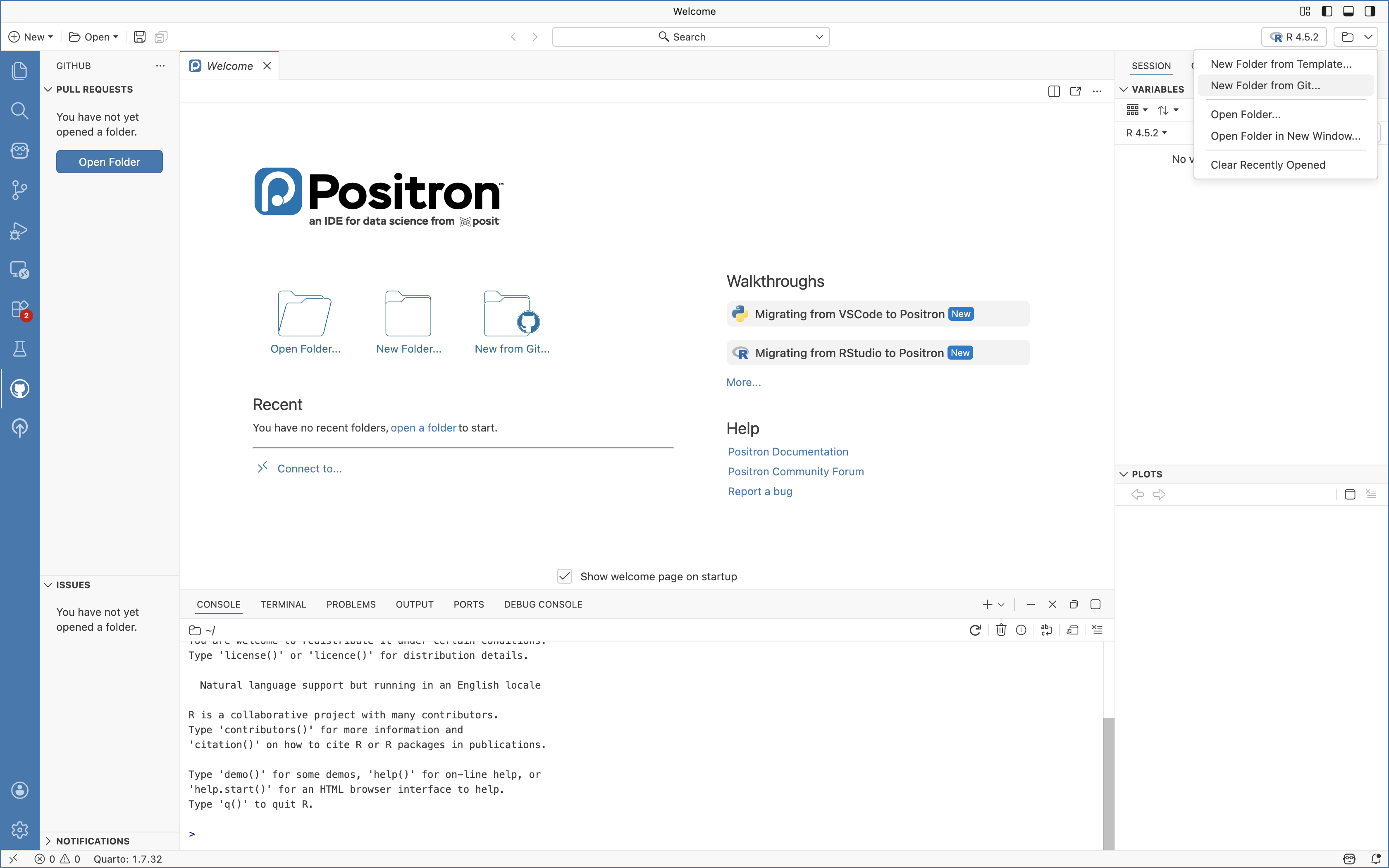
New Folder from Git
With GitHub and Positron now connected, we will bring your two repositories (the README and the fork of CytometryInR) from GitHub to your local computer.
To this, first navigate to the Folder icon on the upper-right, and select the “New Folder from Git” option
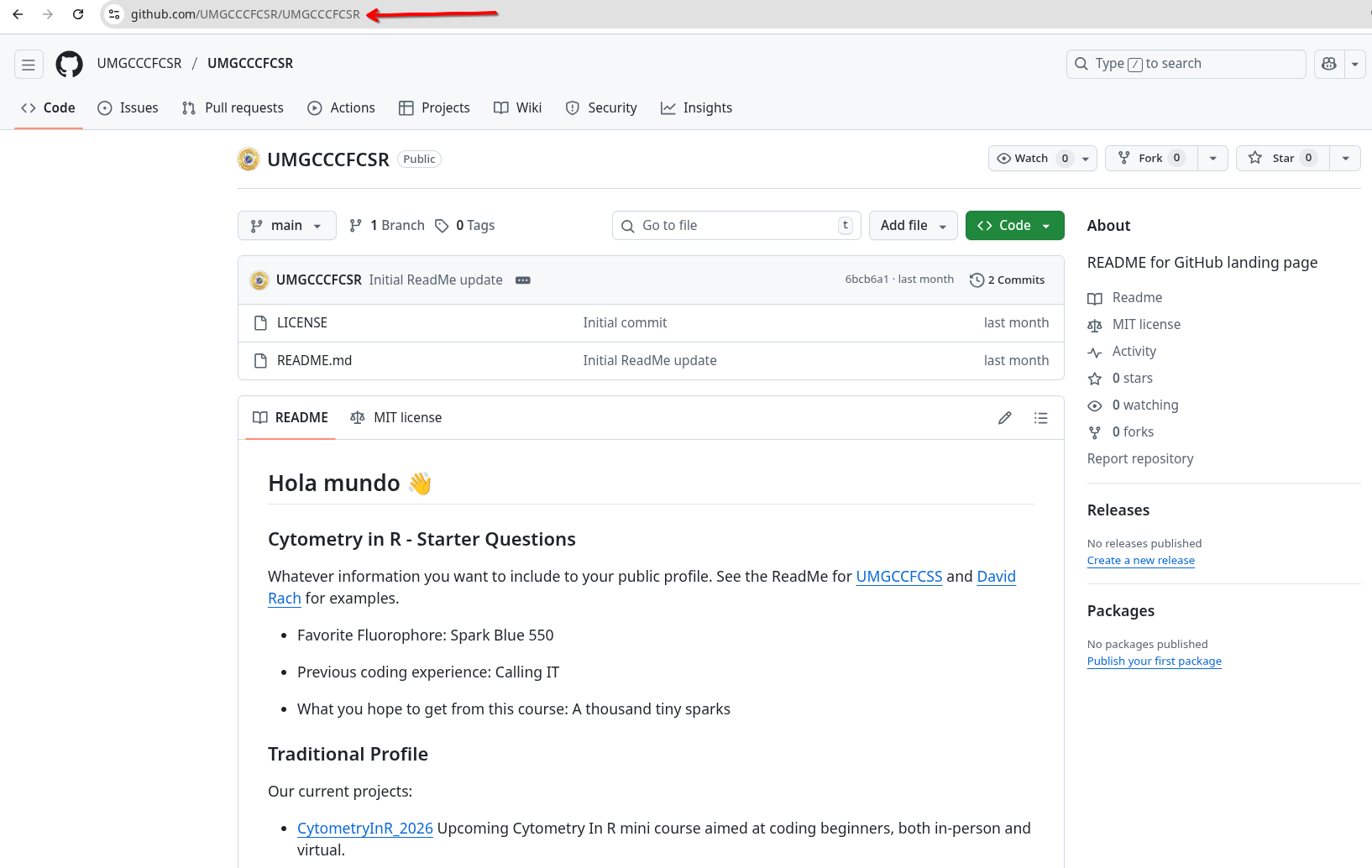
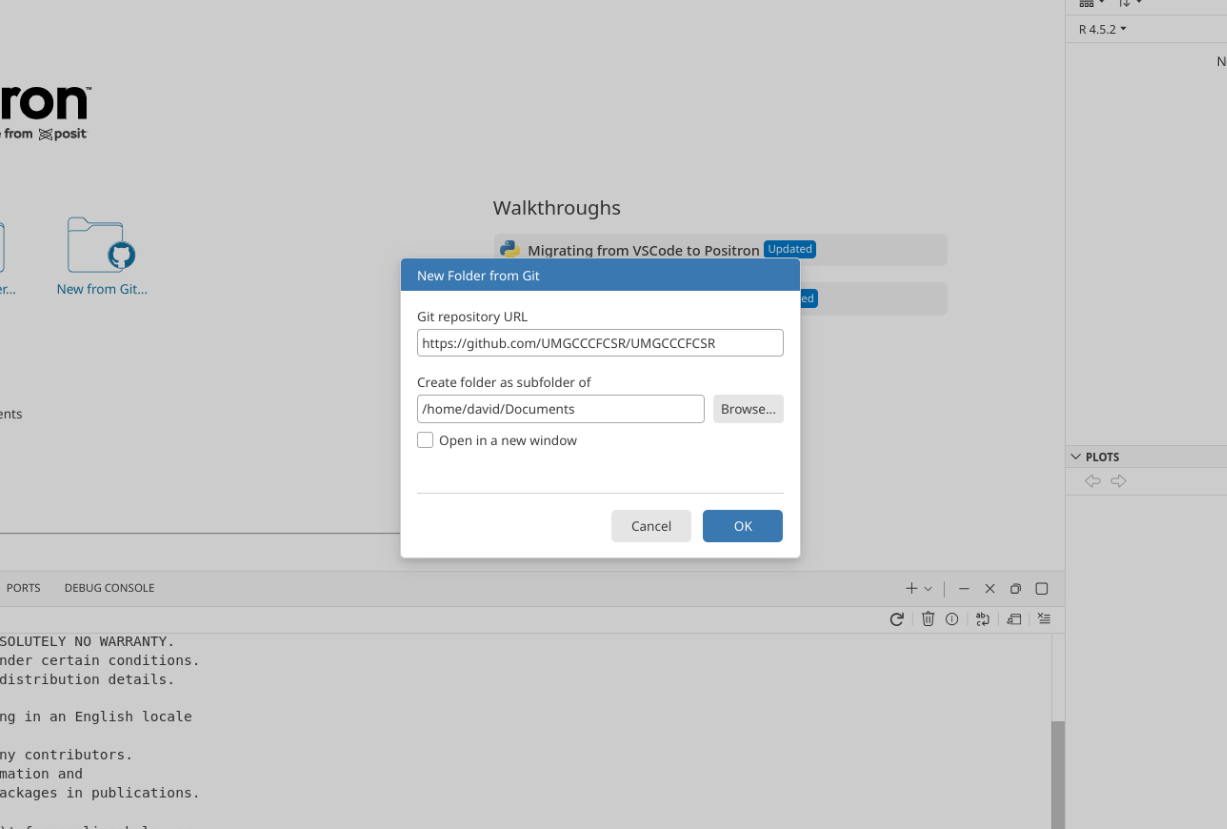
Lets first bring in your forked version of the Cytometry in R repository. Depending on your GitHub username, you would either need to copy the URL from your browser, or swap in your username in place of UMGCCCFCSR in “https://github.com/UMGCCCFCSR/CytometryInR”
You will also be asked for a location to store your project folder. It is best to save the folder locally (avoid using OneDrive or other cloud locations for now), as it makes things easier to save or modify without running into permission issues. For most of our course examples, we will be saving our Project Folders under the Documents Folder.
You may encounter a pop-up asking whether you trust the authors for that particular folder. For your own projects, you are the author, so go ahead and select Yes. Selecting No is a good precaution when bringing in a random GitHub project that you haven’t had time to properly vet.
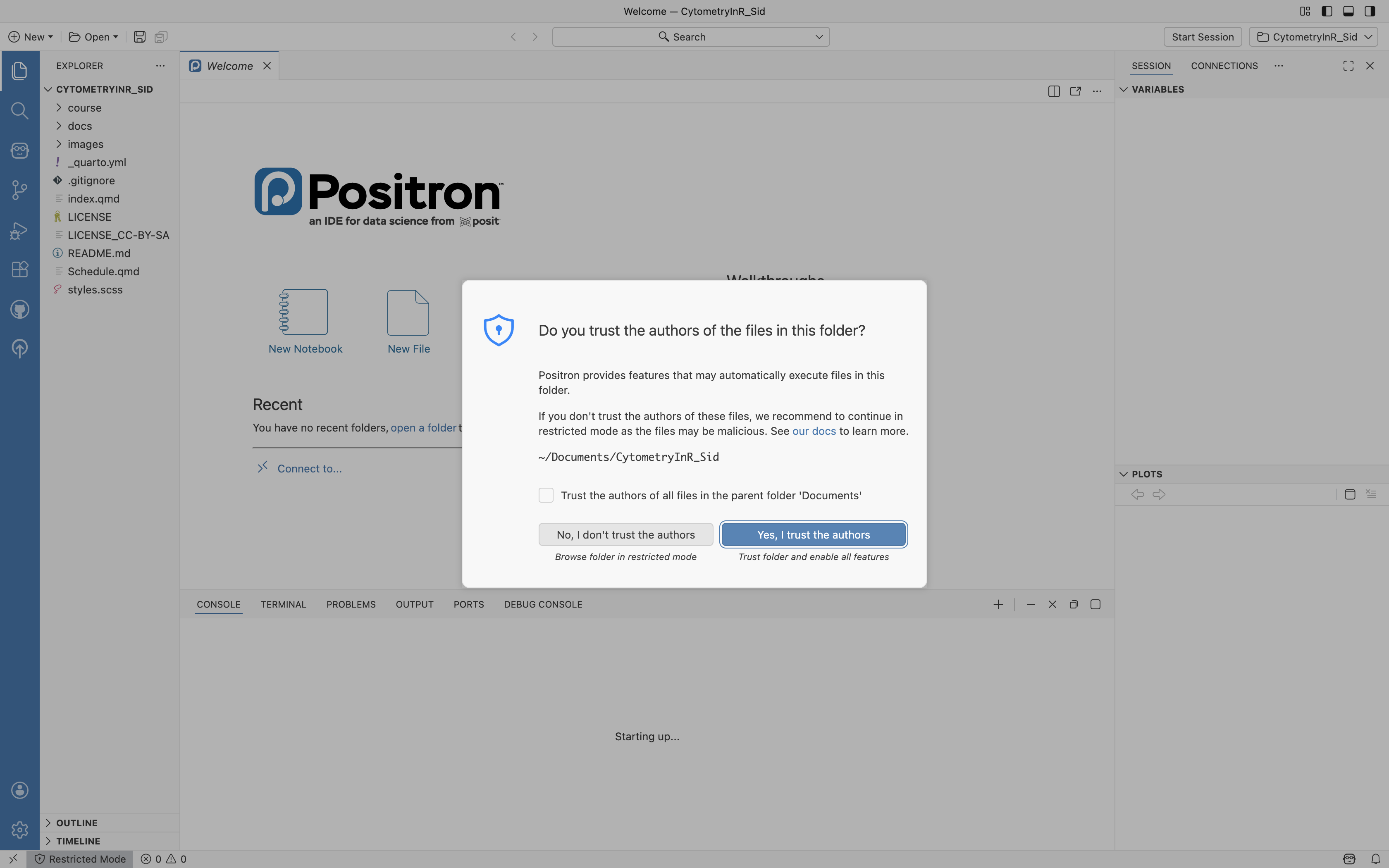
And with that done, you should now see the forked Cytometry in R course contents appear within Positron.
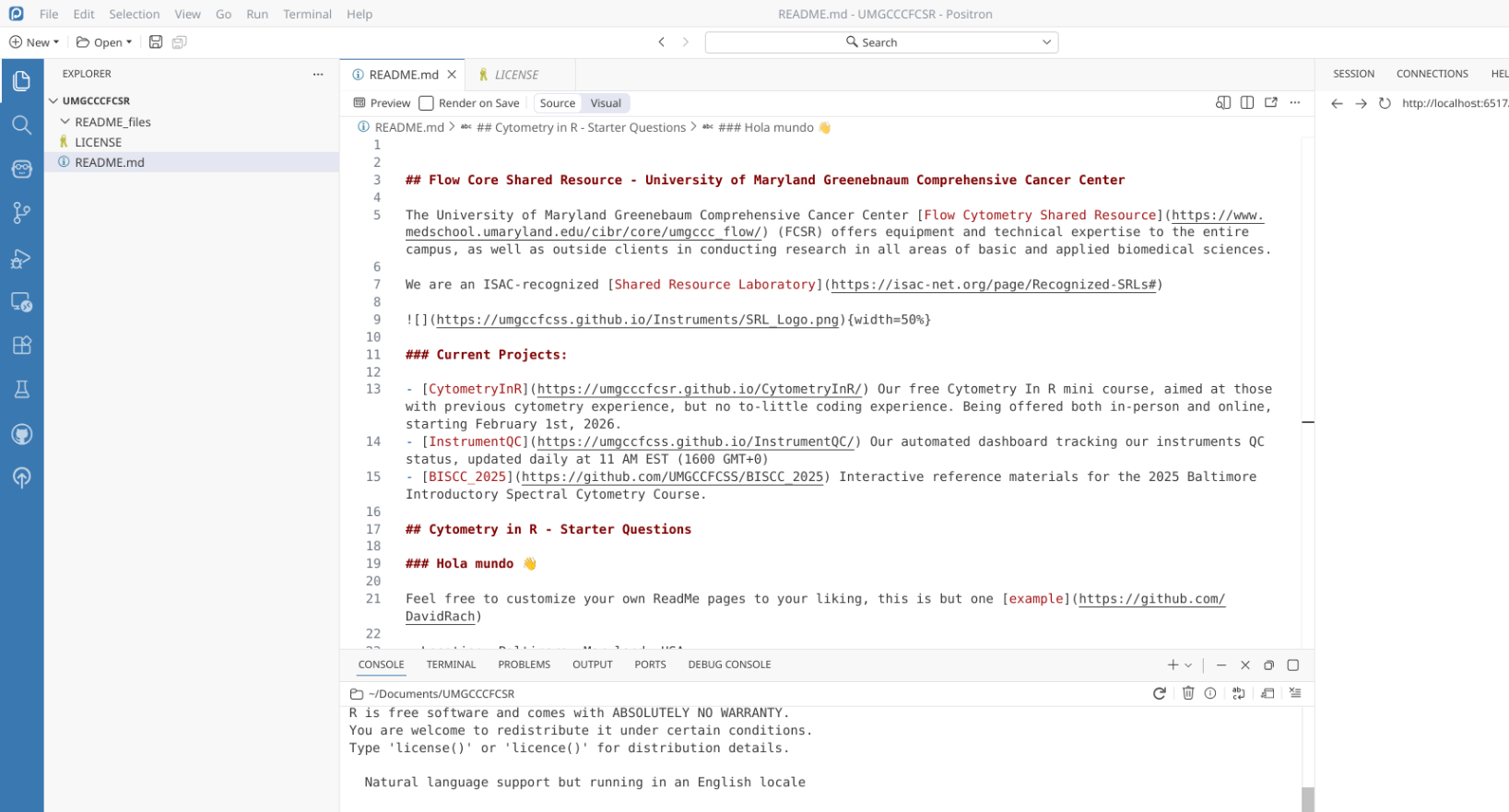
We will now repeat the process to bring in youir GitHub profile’s ReadMe repository. Depending on your GitHub username, you would either need to copy the URL from your browser, or swap in your username twice in place for each UMGCCCFCSR: “https://github.com/UMGCCCFCSR/UMGCCCFCSR”
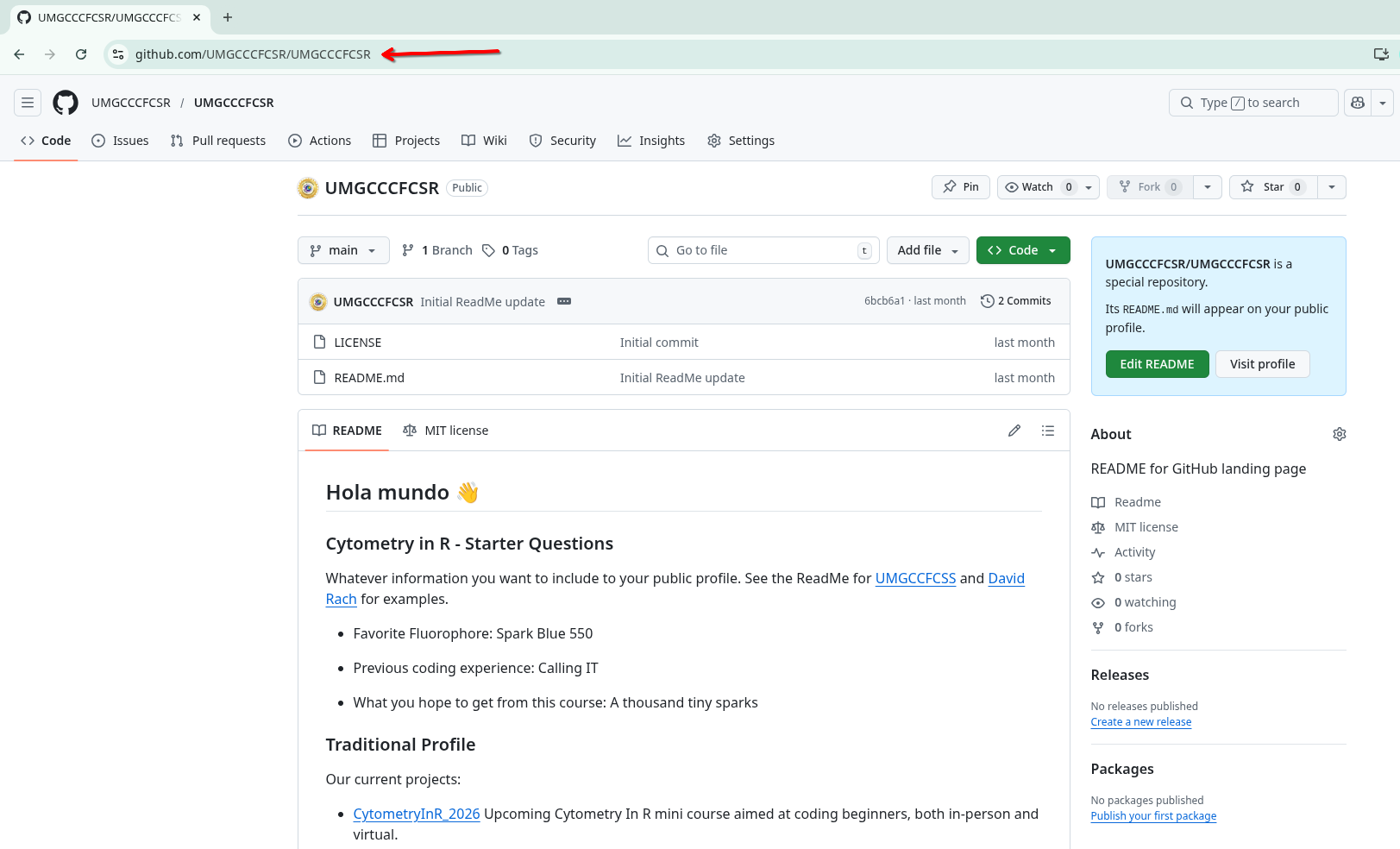
After pasting the URL, and selecting the folder to save your project folder to (Documents in our case), select OK.
And after a quick import you should now see your ReadMe repository files available and ready to be modified on your local computer.
Wrap-up
In this walkthrough, we installed R, Rtools, Git and Positron. We also made sure to connect Positron and your GitHub account, and brought copies of your repositories into local project folders. With this, you now have on your workstation the major pieces of software needed for the course.
In the next section, we will delve into how to use Positron, and explore more how to use the connection you set up with GitHub to send changes from your local repositories back to GitHub.
Additional Resources
How to Download and Install Software on Linux
Riffomonas Project: Installing R, RStudio, and packages for Windows and Mac OS X (CC077)
A brief introduction to Git for beginners