Introduction to Quarto



For the YouTube livestream recording, see here
For screen-shot slides, click here
Background
In the previous section, we briefly introduced Quarto Markdown Documents (.qmd) while working our way through version control concepts. Since we will be using .qmd files extensively throughout this course, this section will explore how we can build on these concepts to modify these files to create a variety of outputs (ranging from Word documents, pdfs, html webpages). We will also take a look at how to use code-chunk arguments to control what code is run or displayed within.
Getting Started
We will start off by creating a a new .QMD document within our GitPractice repository. As we saw in the previous section, the basic elements include:
- A YAML header, that dictates formatting
- The text body, where we can include documentation
- Code-block chunks, in which we can write code that can be executed, as well as # comments
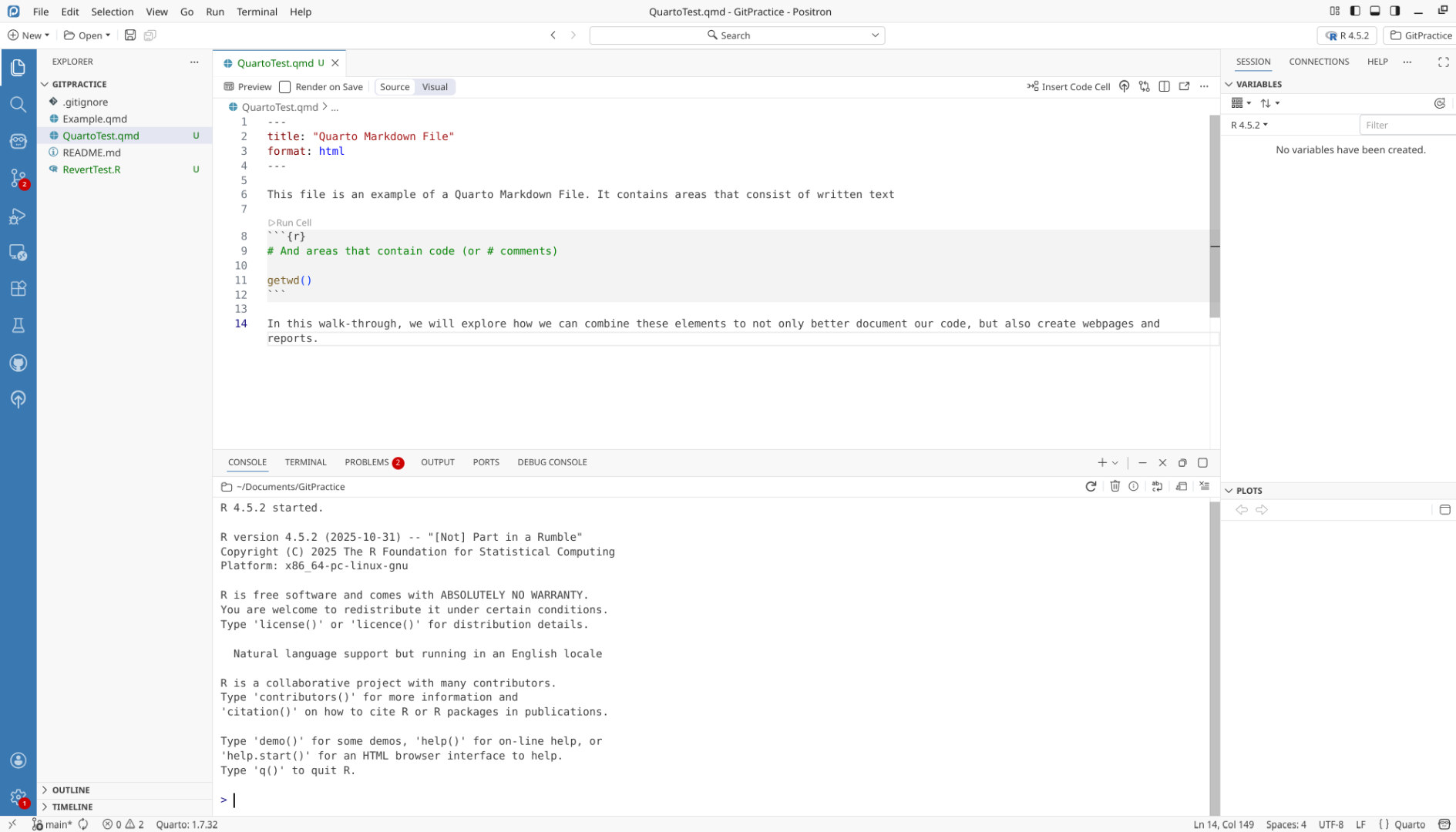
Render/Preview
The preview button, at the upper-left end of the Editor, is used to render/knit a quarto document. This triggers the process by which code-chunks are run, and then the outputs are cobbled together into the file format type designated by the YAML header.
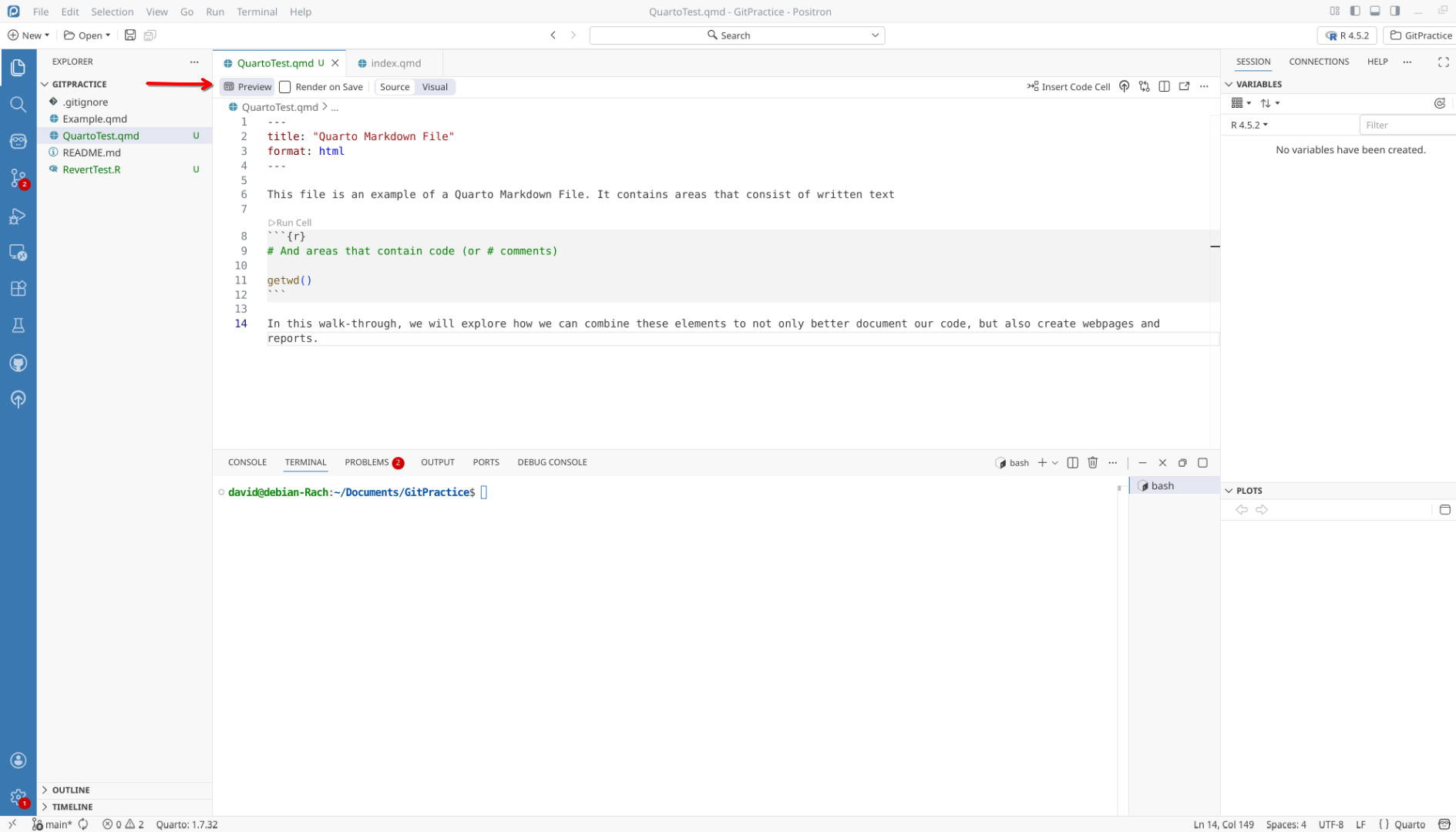
HTML
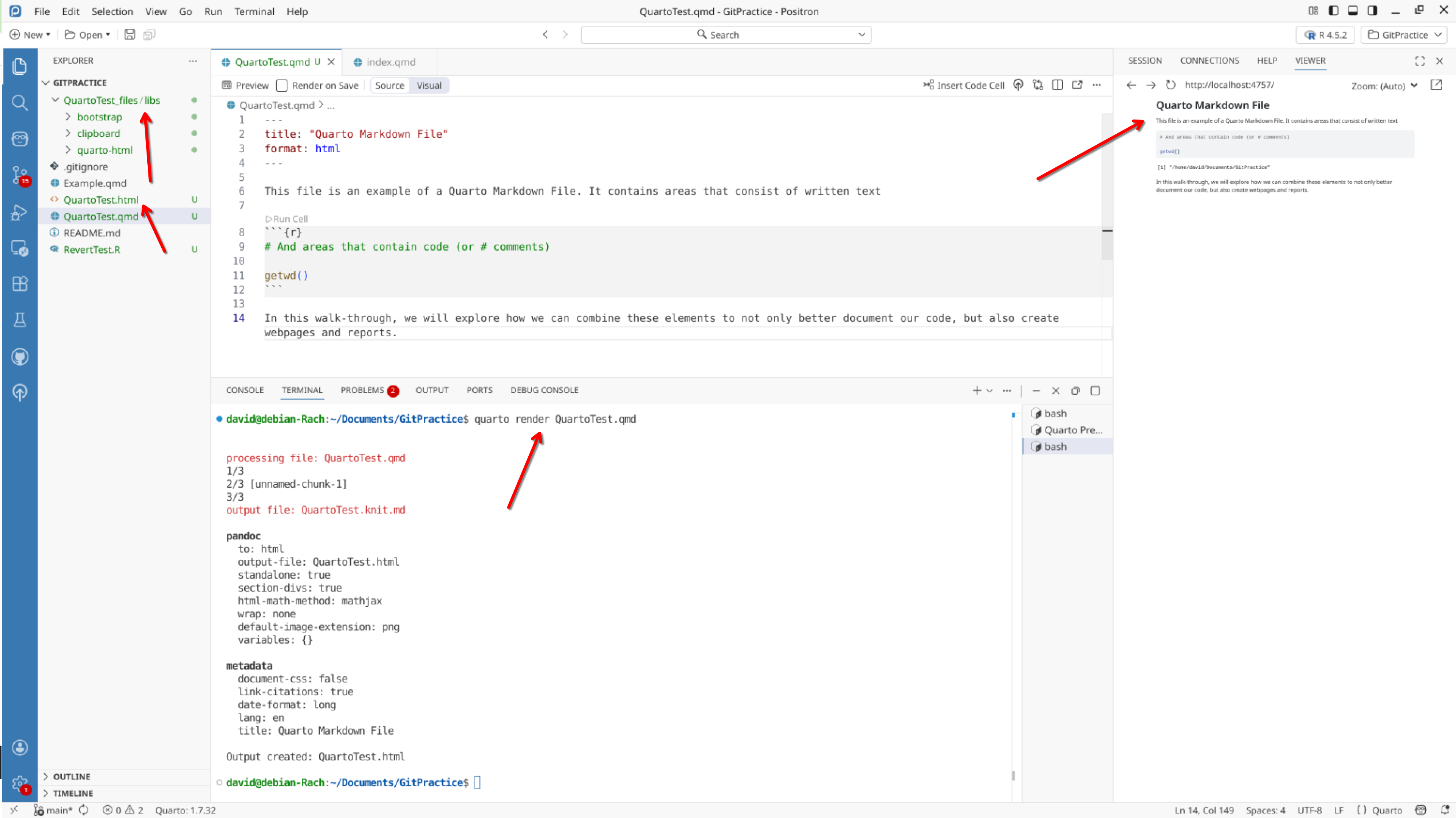
In this case, the YAML header’s format argument is set to html. After clicking preview, we can see the various rendering steps appear in the console below. Since no errors occured, the html document was formed succesfully and appears as a file in the left side-bar. Additional, a preview of the document appears in the View tab of the right side-bar, allowing for quick visual inspection.
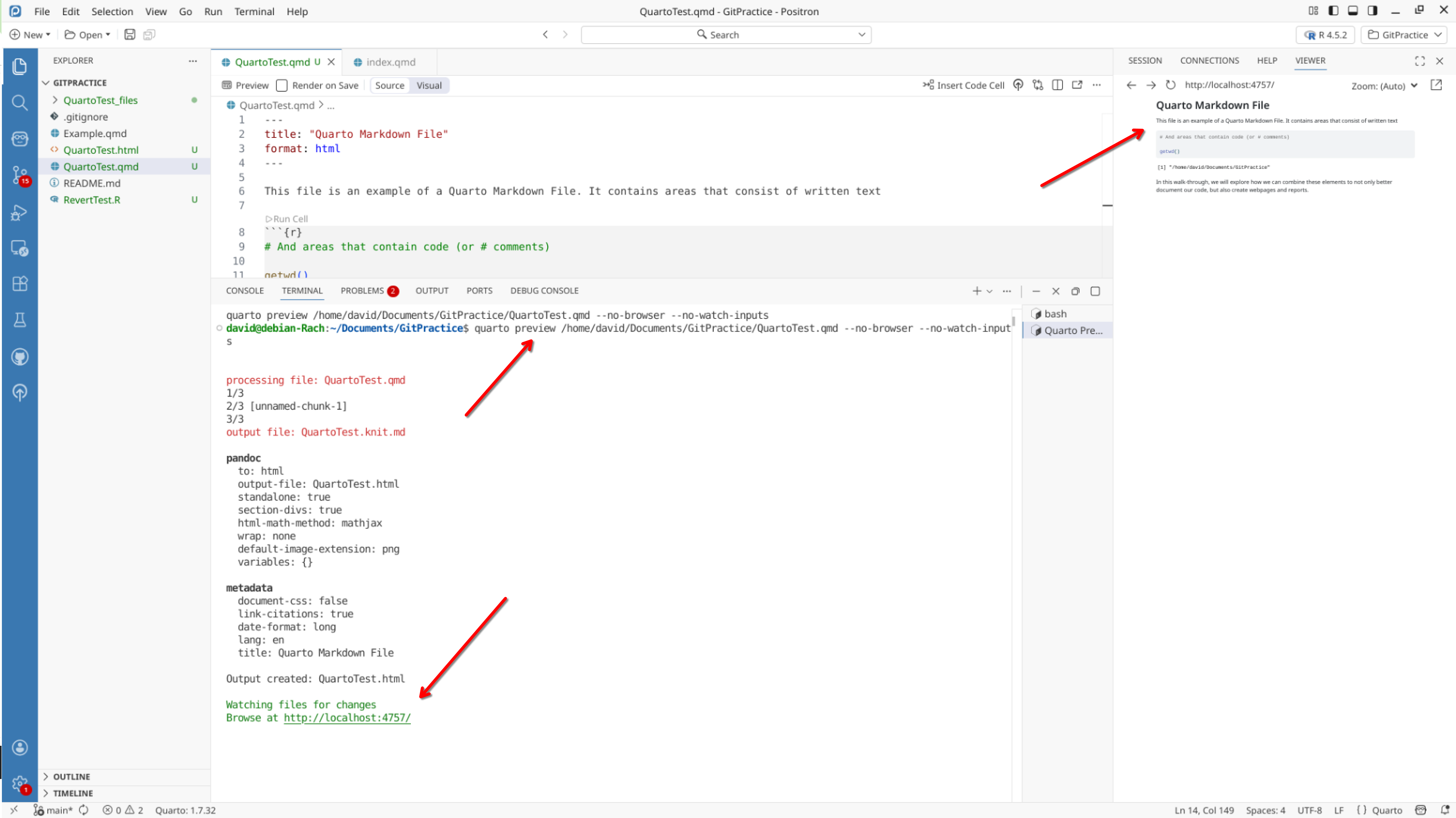
Alternatively, we can render a document via the terminal, by entering “quarto render”, followed by the name of the document.
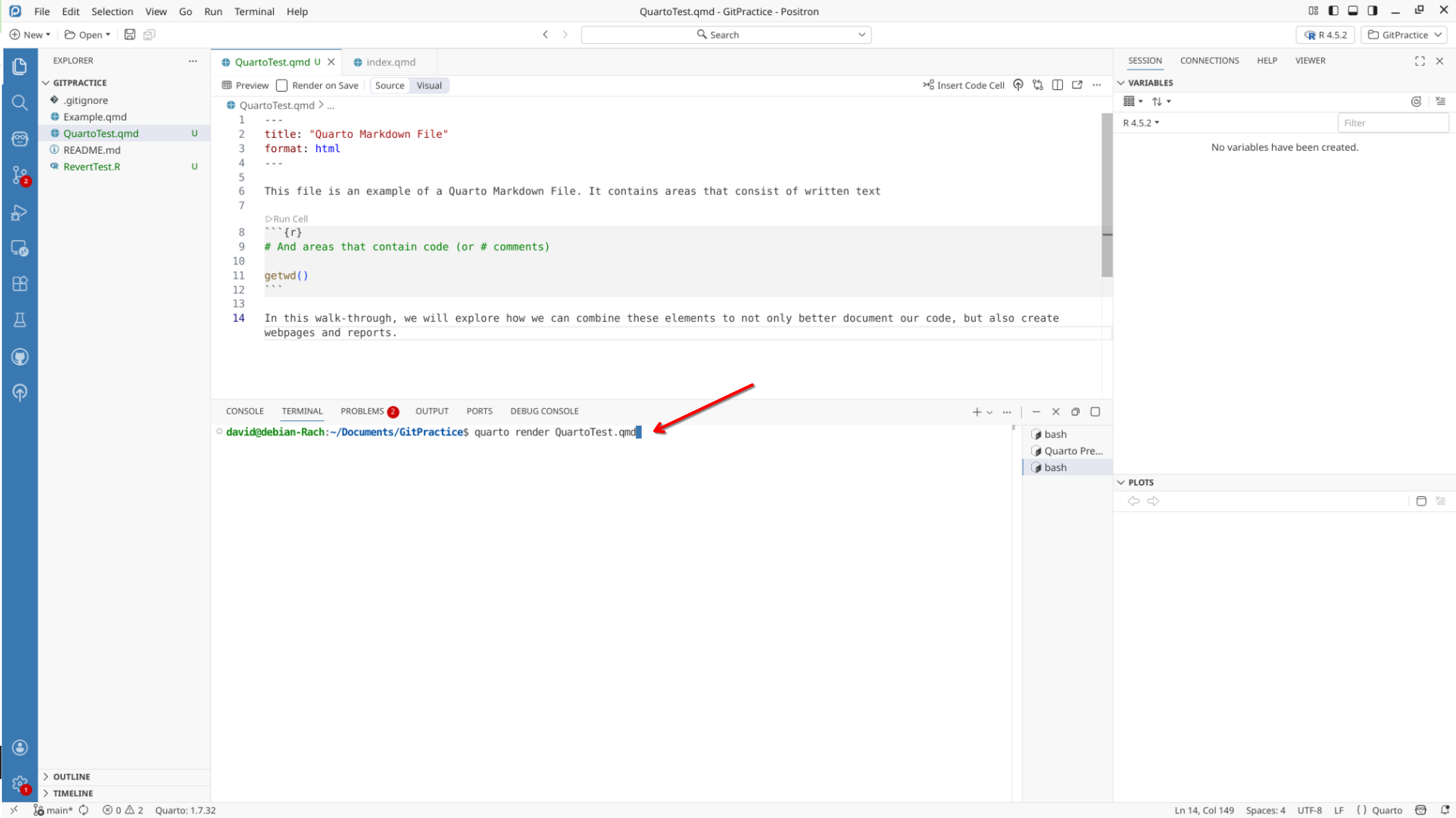
This results similar process as what we saw with the preview button
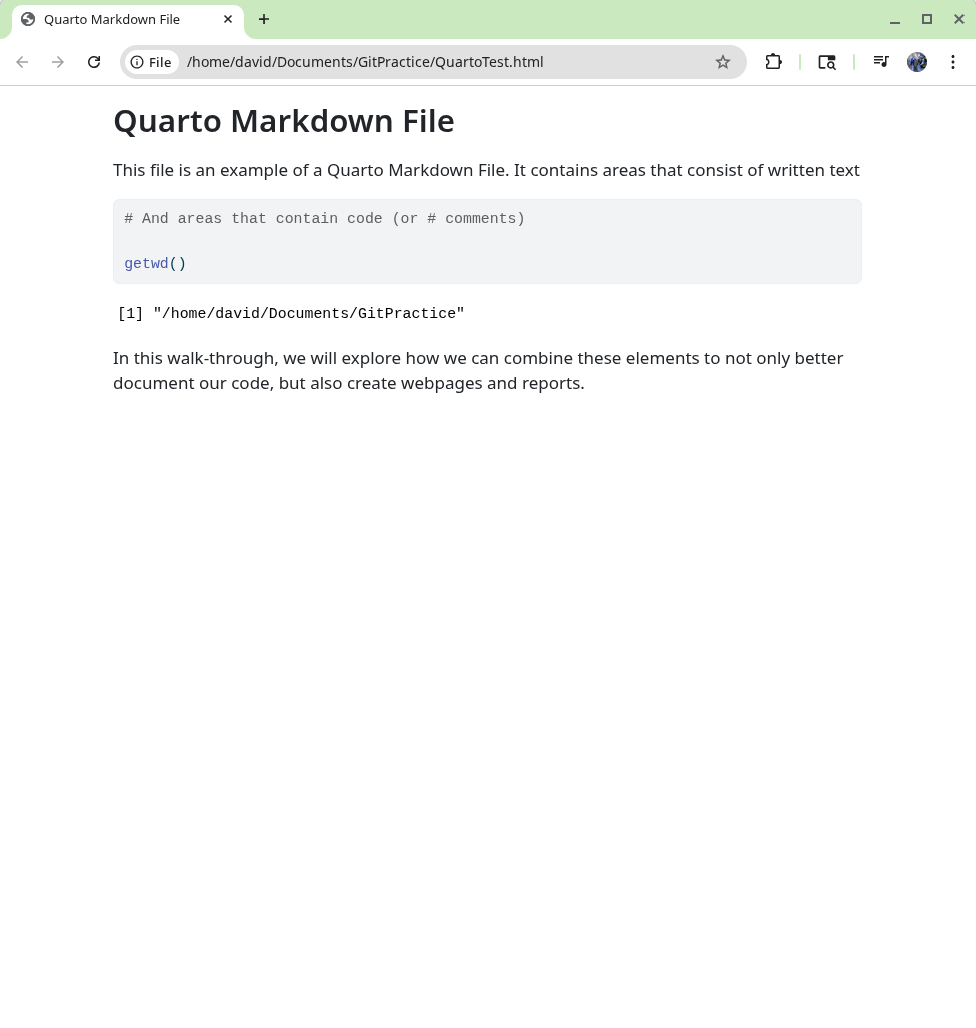
We can also open the .html document via our File Explorer, which will open it within our web browser.
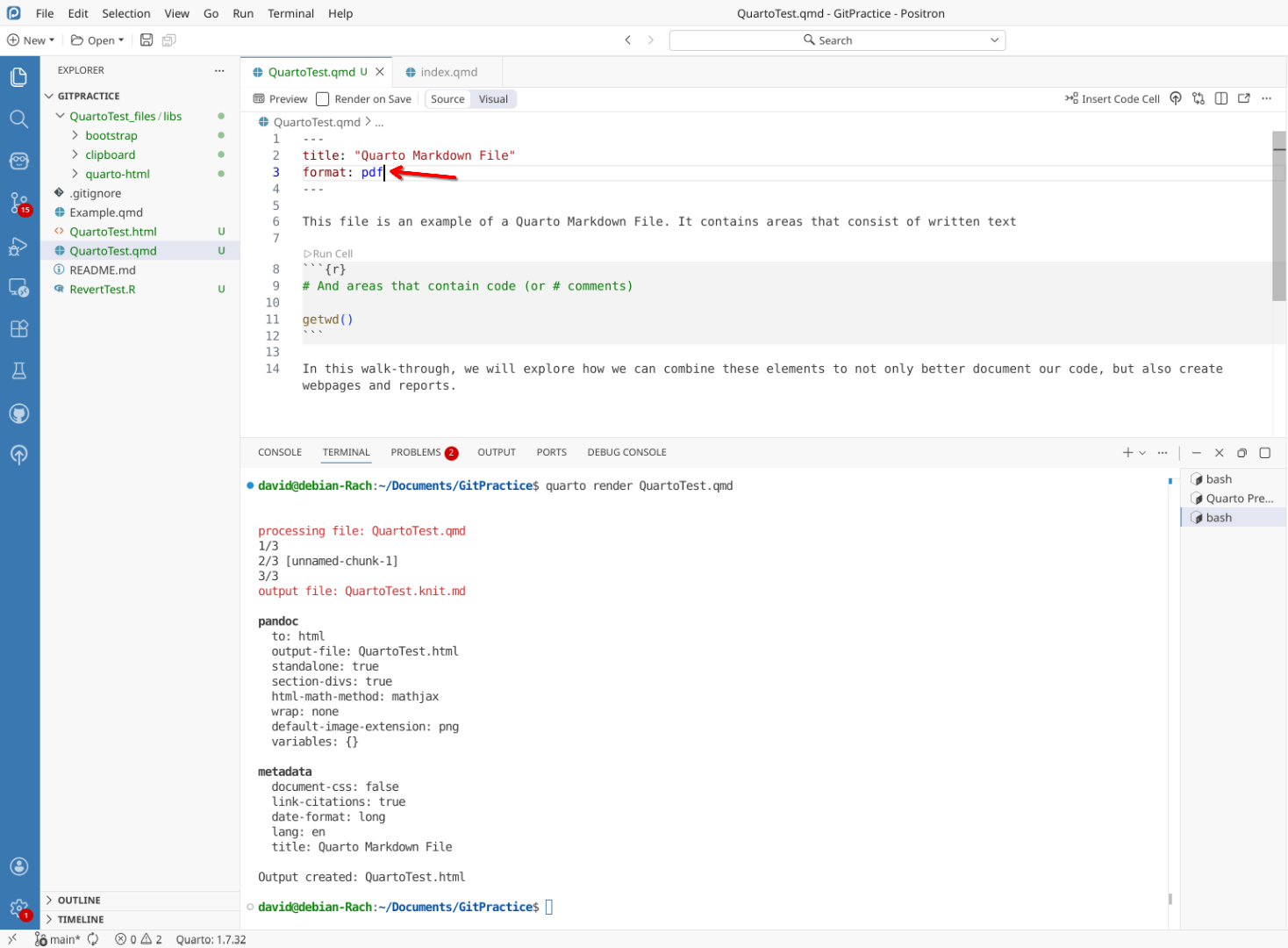
Quarto documents can be rendered (previewed) in other formats besides html. These include pdf, Word documents (docx), and slides (revealjs). This is set by the format argument within the YAML header.
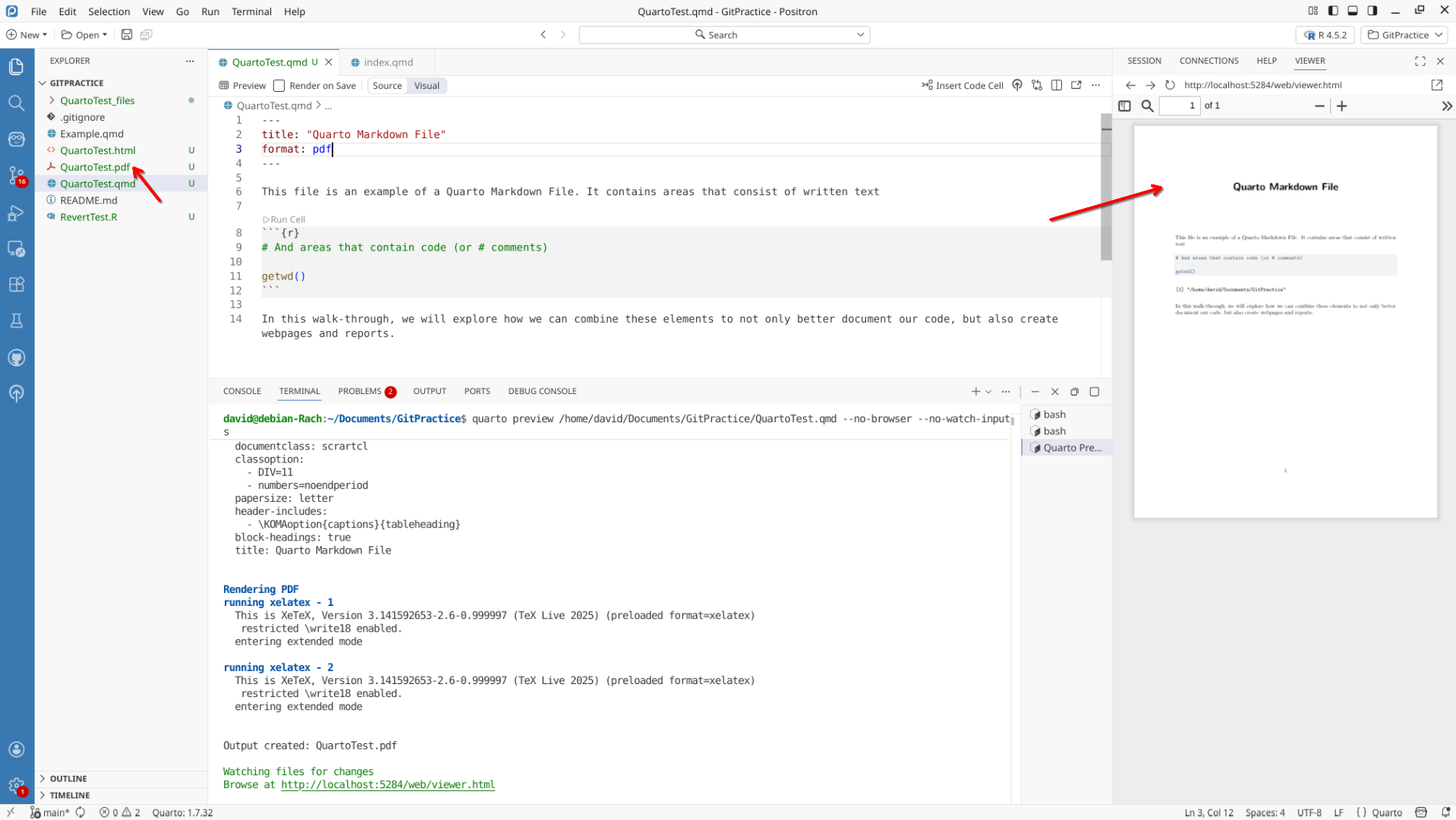
By switching the format argument from html to pdf, we can render the document as a pdf
We can see the pdf is now listed in the list of files, with a preview shown on the right side-bar.
Docx
We can also generate Word documents (.docx) as well.
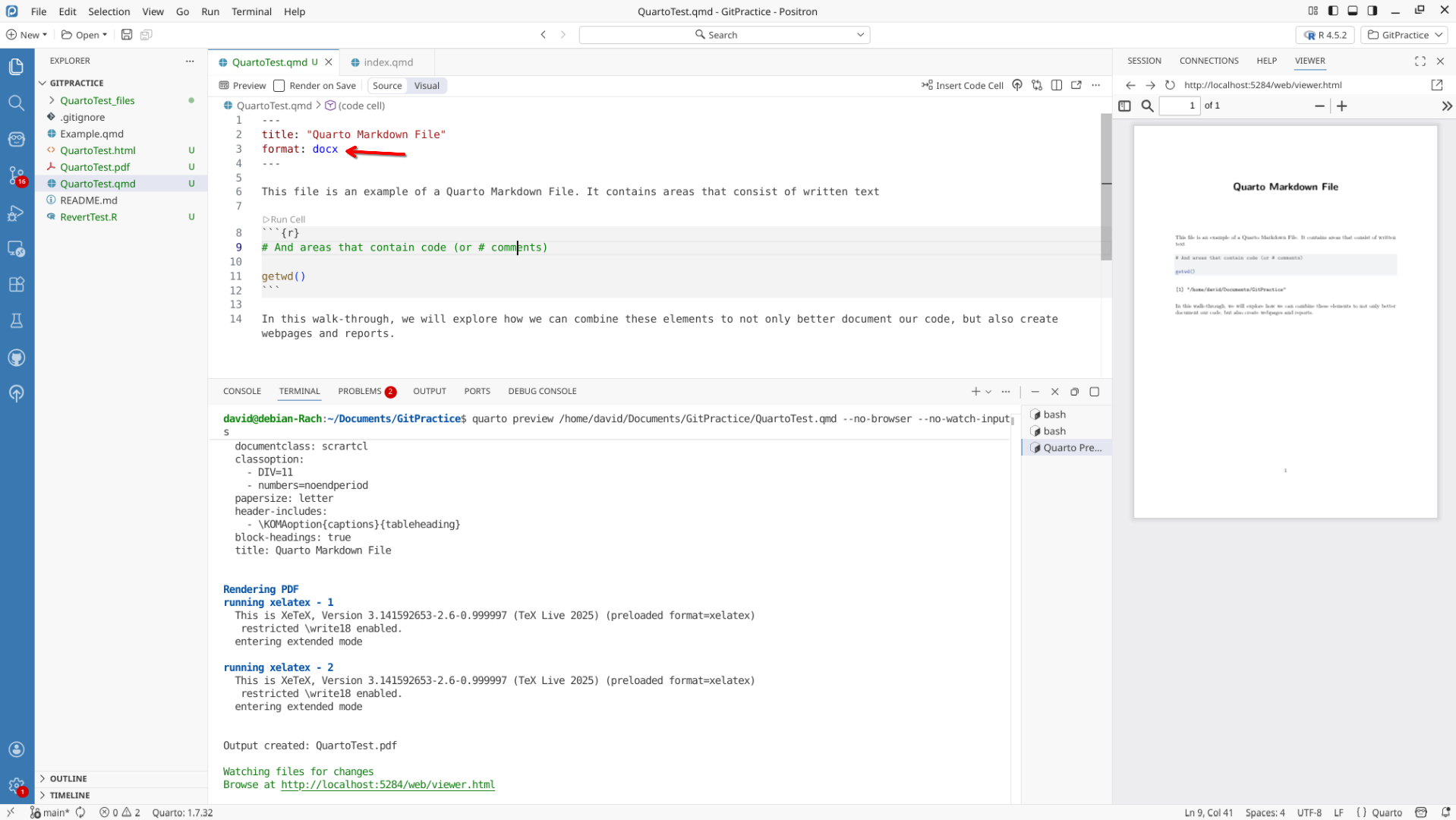
In this case, we can see that a Word document file was created, but nothing appears in the View tab. This is because the format is not yet supported for the View tab. We can however open and view the Word document via our File explorer.
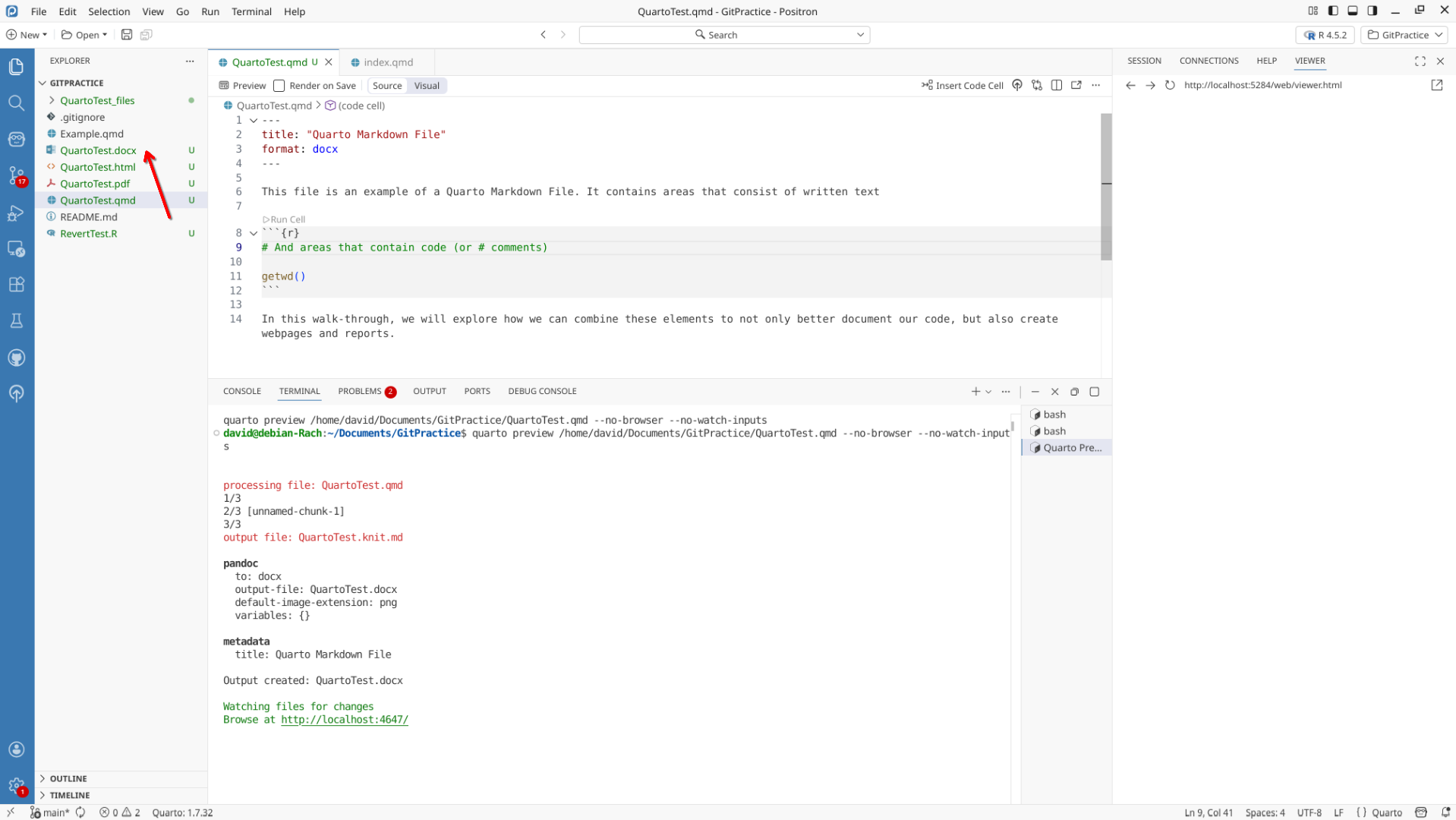
Which shows a Word Document style output.
YAML
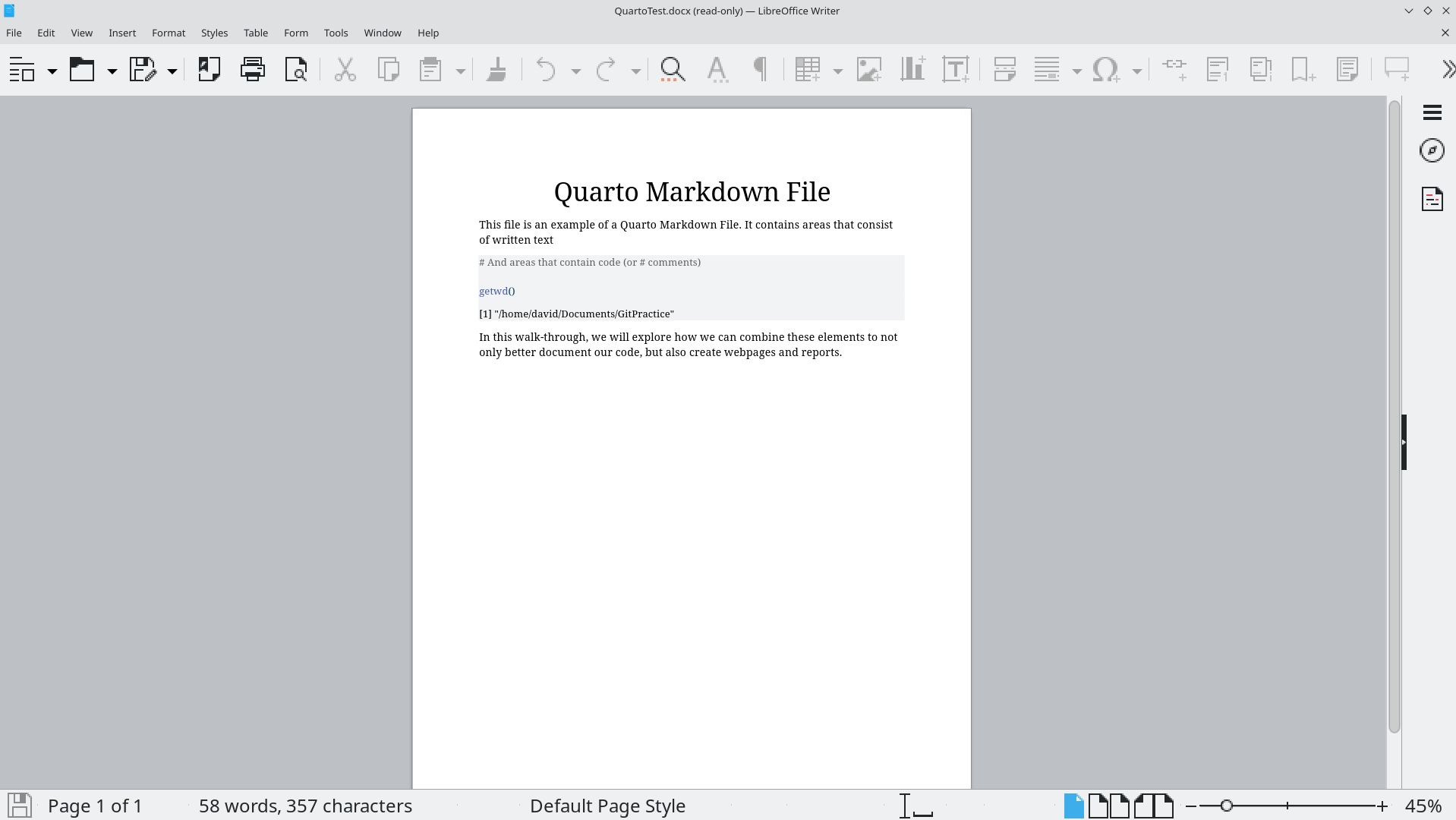
We can additionally provide additional custom inputs to the YAML header. A couple examples include providing the document author and date.
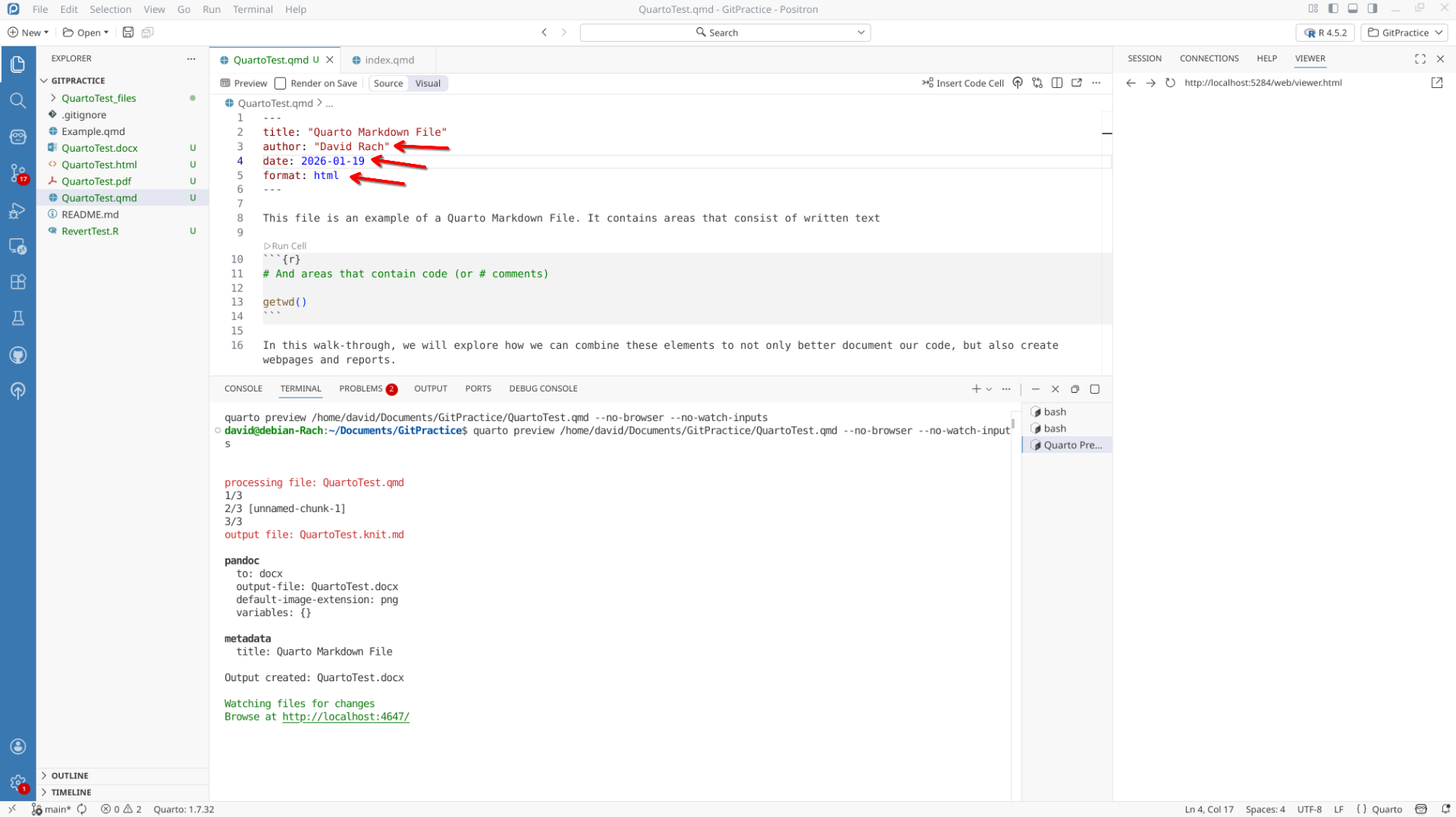
Which we can see are updated after we preview/render.
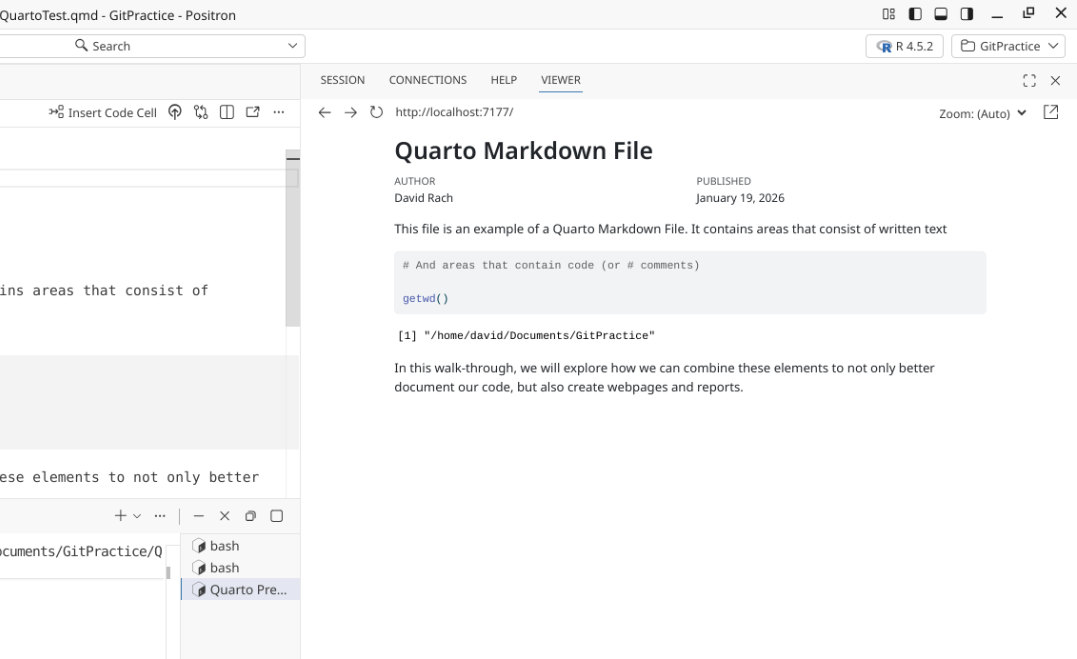
Table of Contents
In the previous section, we saw that we could provide headings and subheadings to our .qmd file by placing a # at the start of a line in the text portion of the document. A subheading was designated by a ##, with additional hierarchy being designated by appending an additional #.
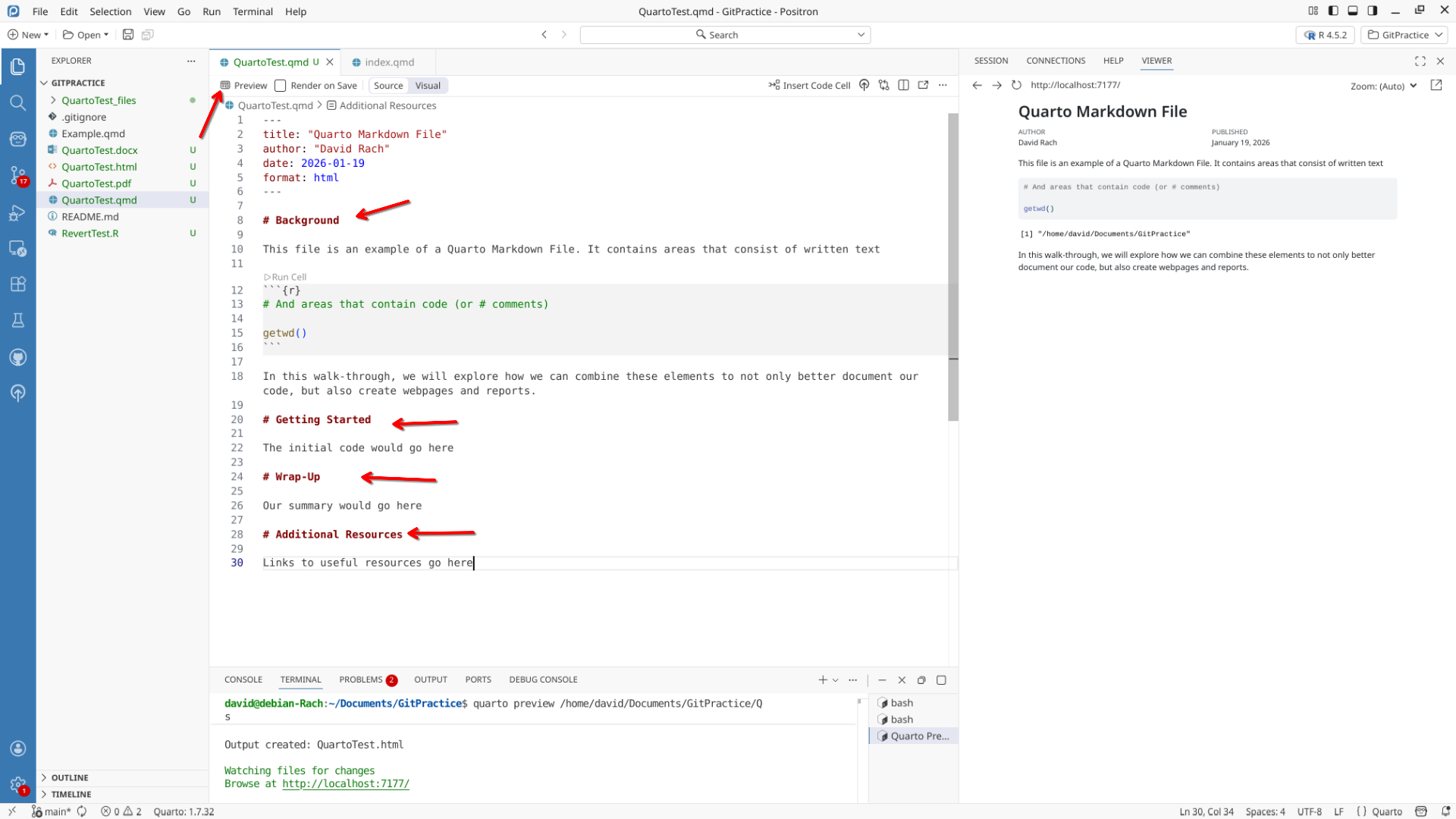
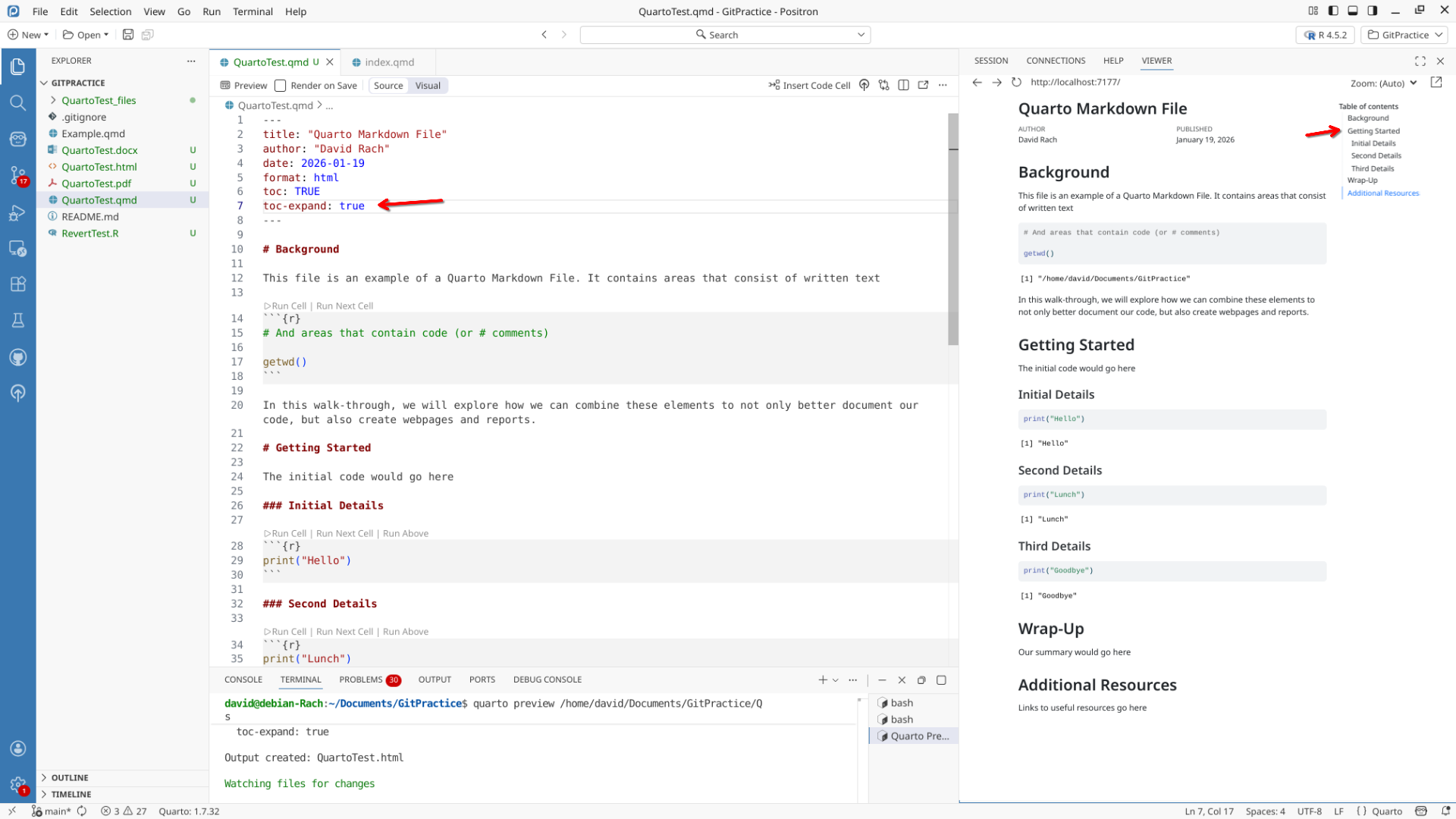
We can use the heading information to generate a table of contents for our document. To do this, we add a toc argument to the yaml header, and set it to TRUE. After rendering, it appears on the upper-right side of the document.
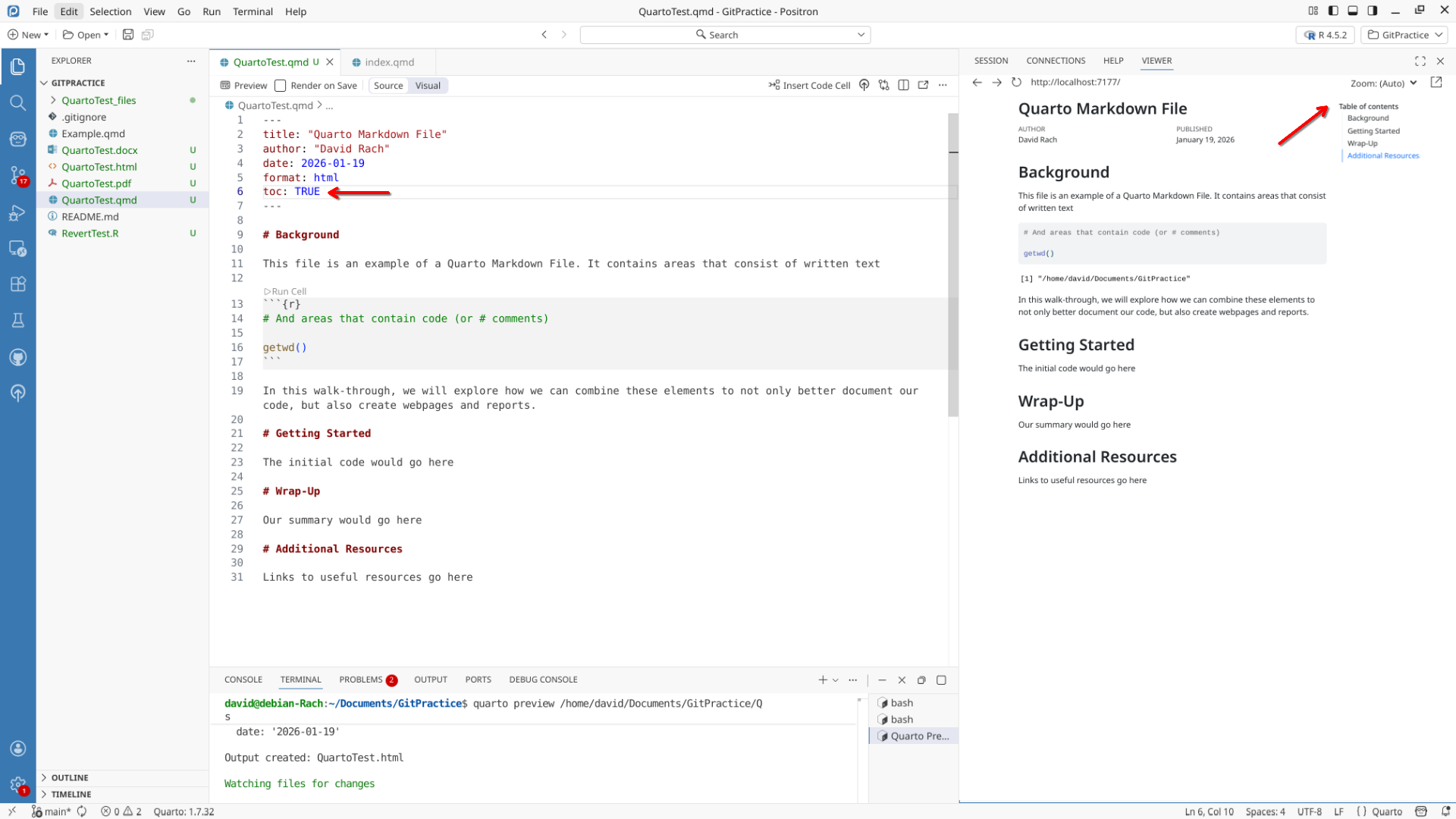
Notice, that the subheaders do not appear currently within the TOC.
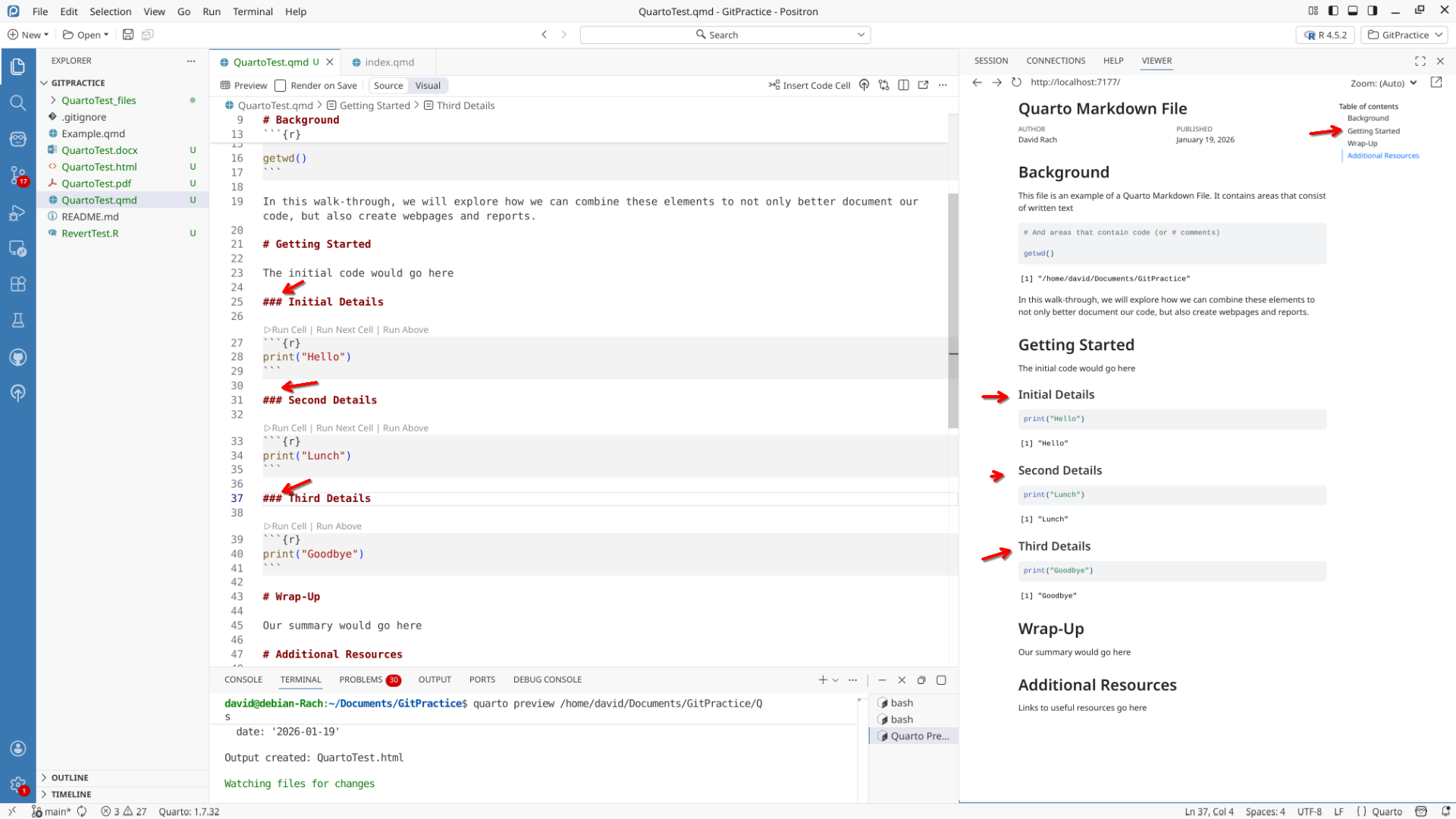
We can fix this by setting a toc-expand argument in the YAML to true.
Code Chunk Arguments
As we briefly touched on in the last section, code-chunks can be modified by including arguments, which affect whether a particular code chunk gets evaluated. In that example, we included a “#| eval: FALSE” to the install commands since we did not want them to be re-run subsequently. We will take a closer look at the other arguments in this section.
Eval
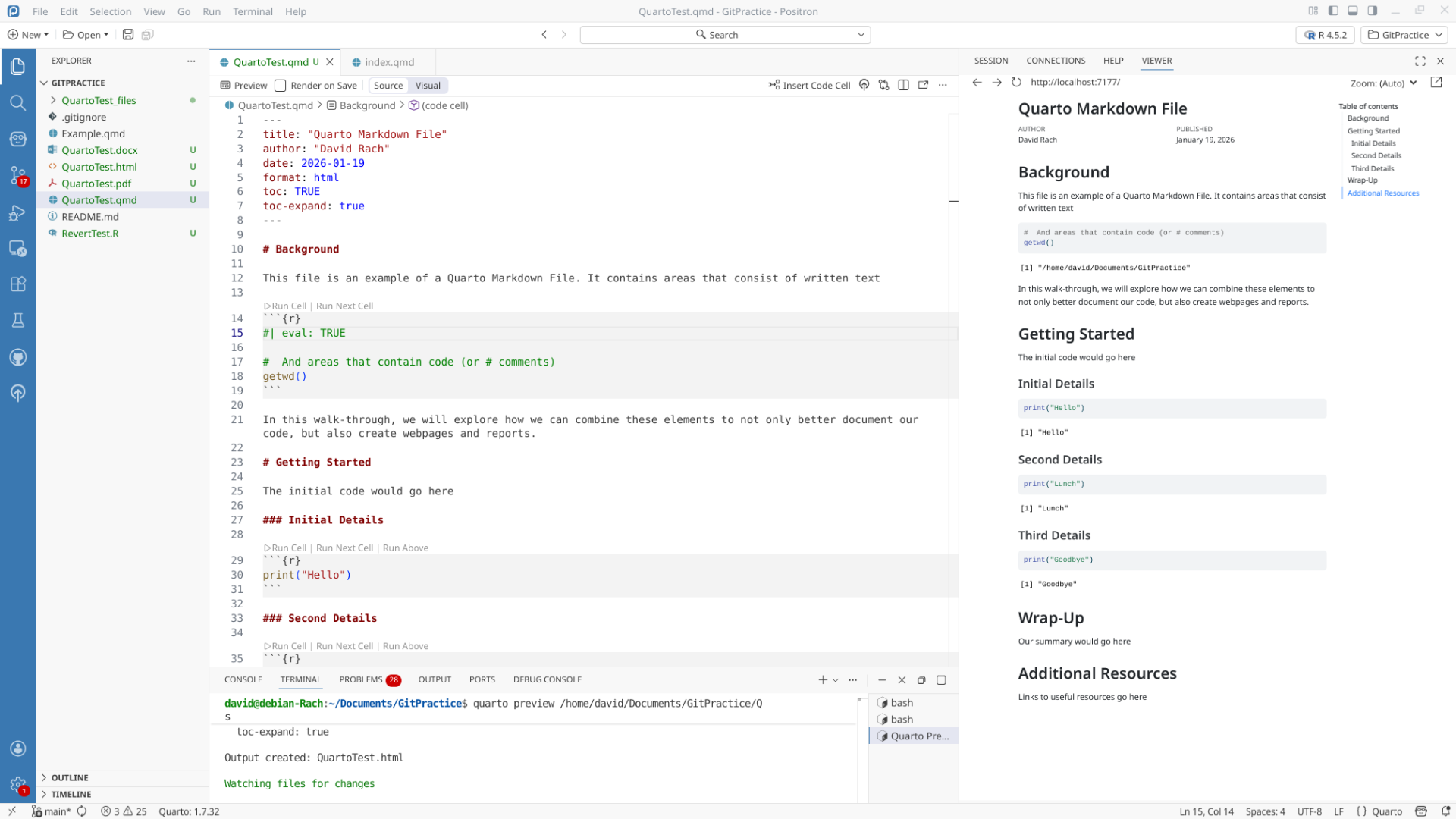
The code-chunk argument, “Eval”, is used to determine when a code-chunk get’s evaluated. When set to true (or by default if no eval argument is included), the code-chunks contents will be run/executed, and the output will appear. We can see this in the html output, as below the code block, we get back the address of my working directory.
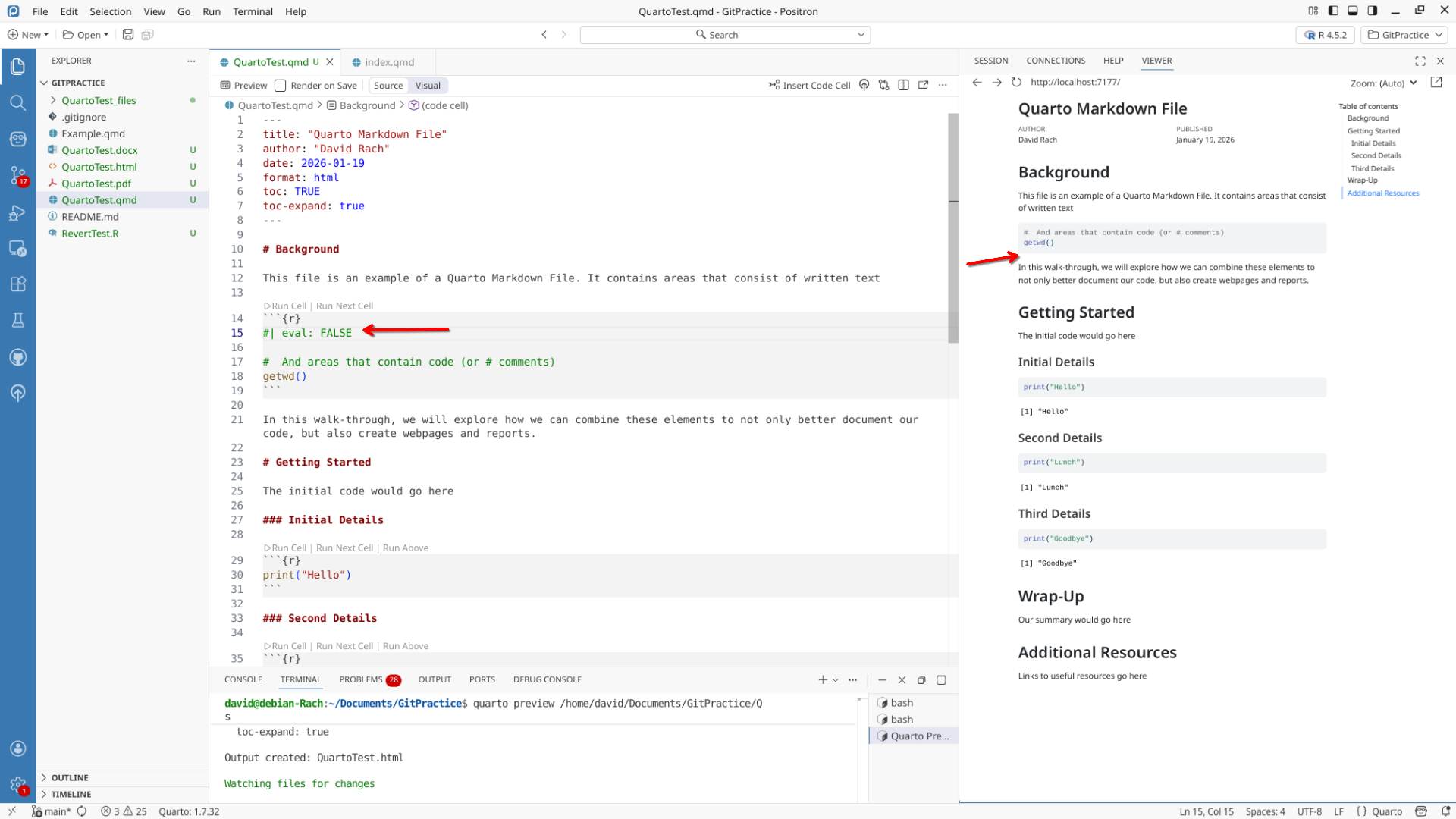
When we switch the Eval argument to FALSE, and then render the document, we can see that the code block remains, but we do not get any output for the code contained within.
In every-day practice, we will “use eval: FALSE” arguments when we want to keep the code for later use, but want to manually run the code contained within ourselves.
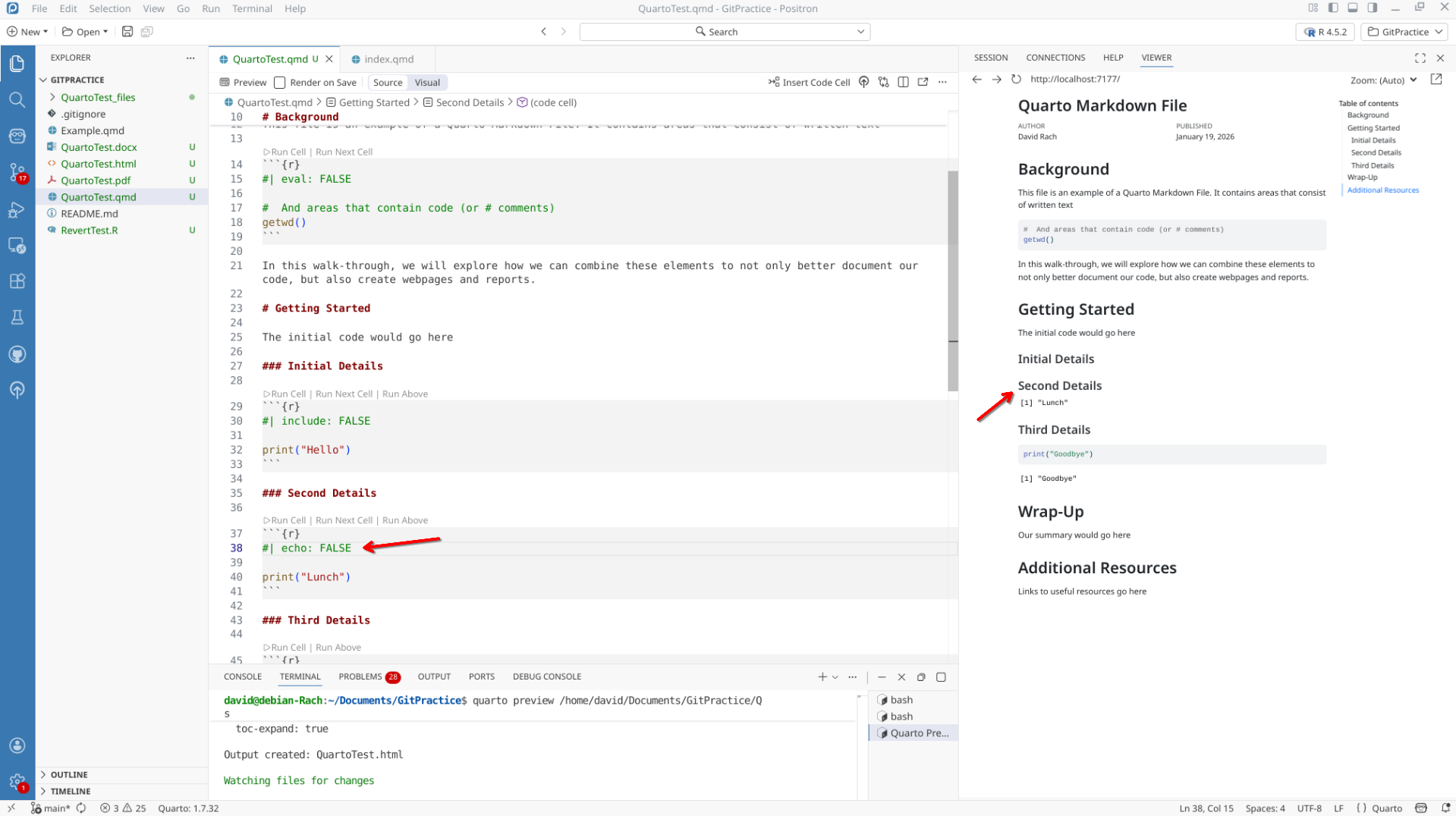
Echo
The code-block argument “echo” dictates whether the code within the code-block is displayed within the document. So in the case when “echo: true”, we get both the code displayed, as well as the output that gets returned by the code.
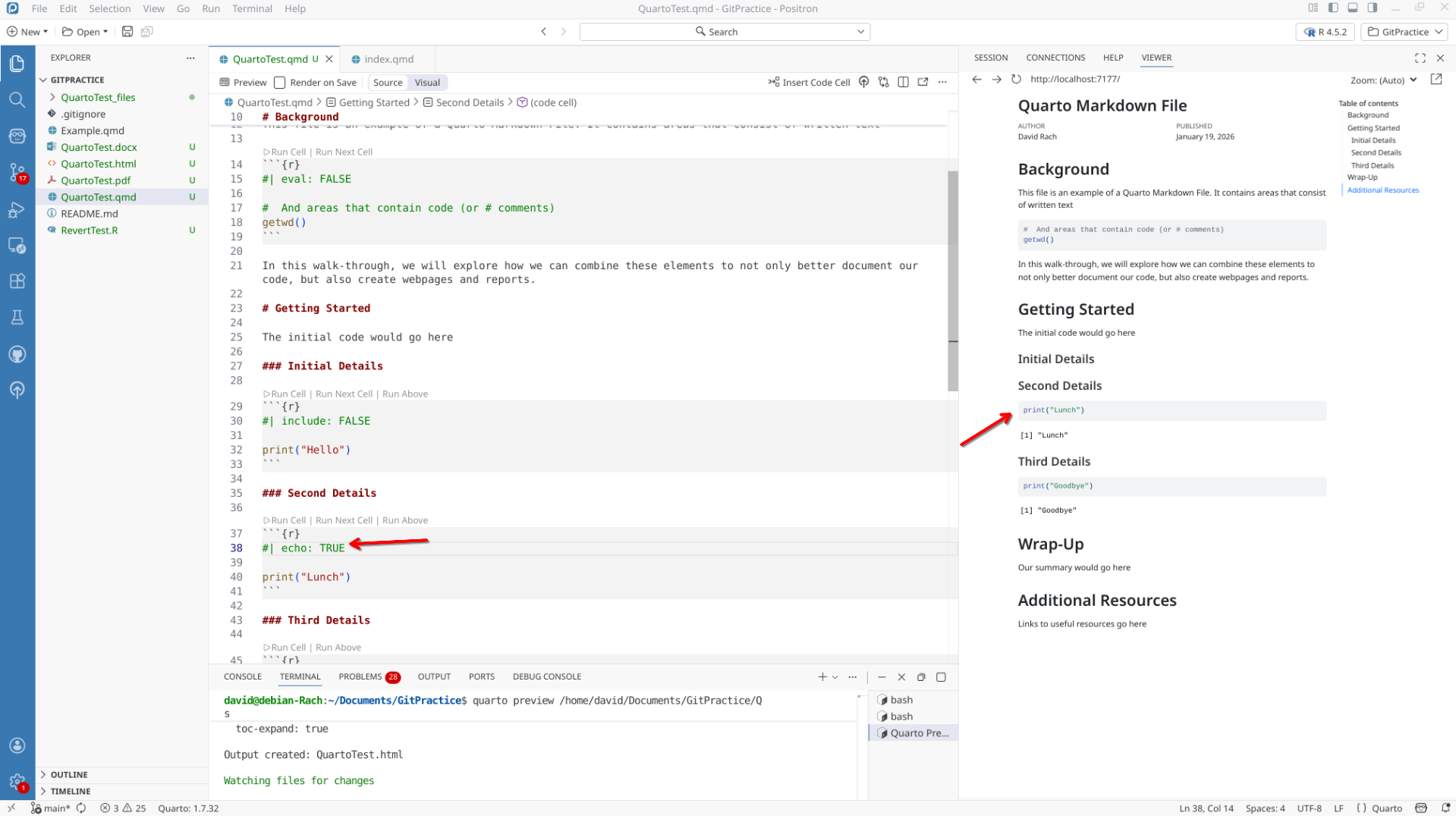
By contrast, when “echo: FALSE”, we do not have the code displayed, but do get the output of that code being run.
In daily-practice, “echo: FALSE” gets often used when generating plots that we want to include in the report, without the code that generated them being displayed.
Include
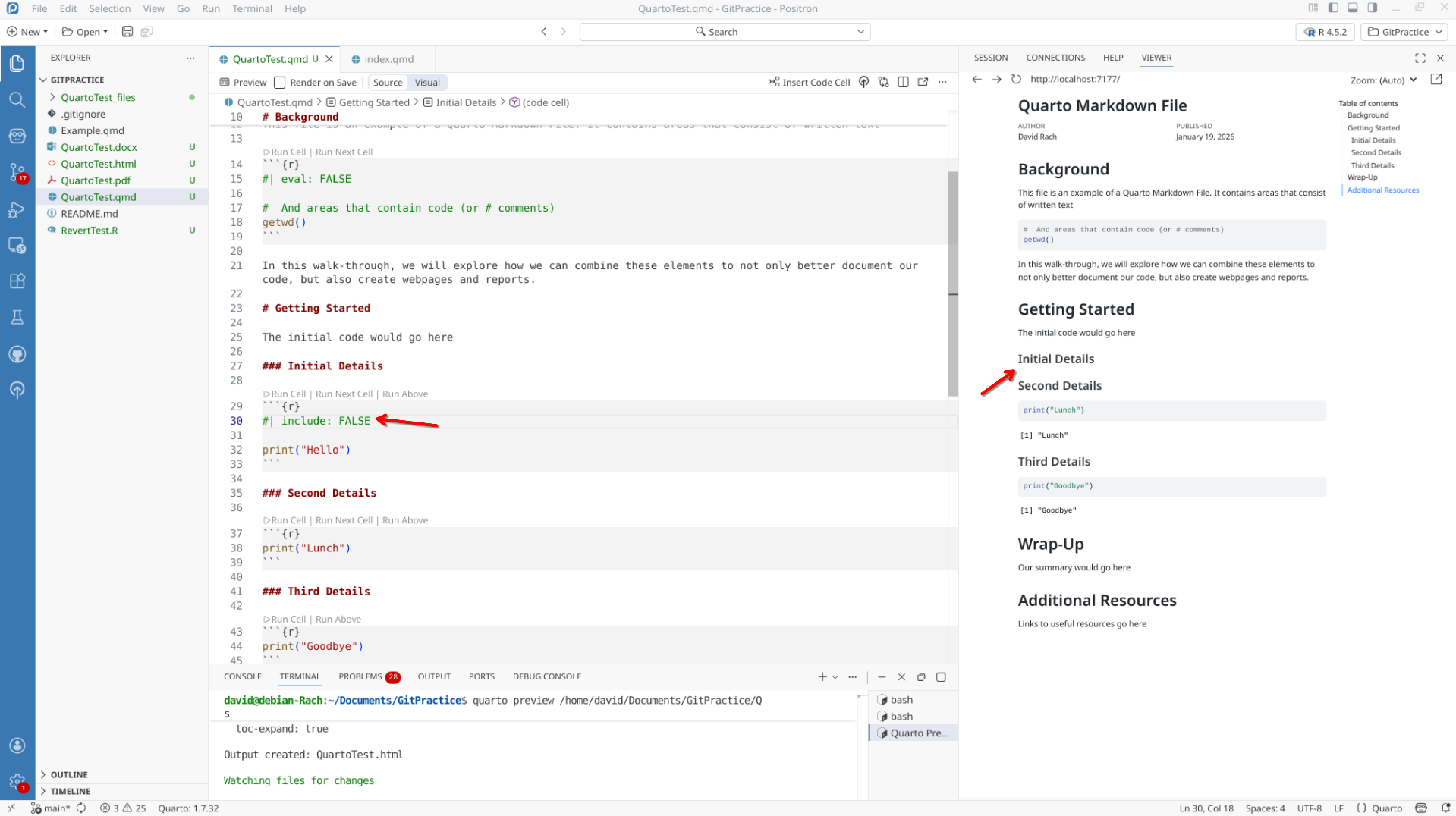
The next code-chunk argument is include. Unlike echo, which focuses on whether the code is displayed, but still returns the output, include dictates behavior of both the code-block and it’s output. Unlike eval however, it will still run the code, which allows it to be available for the next code-chunk that might need it. When we set “include: false”, no trace of that code-chunk is present in the document. This is useful when making reports where we do not want to include the code used to generate a particular figure.
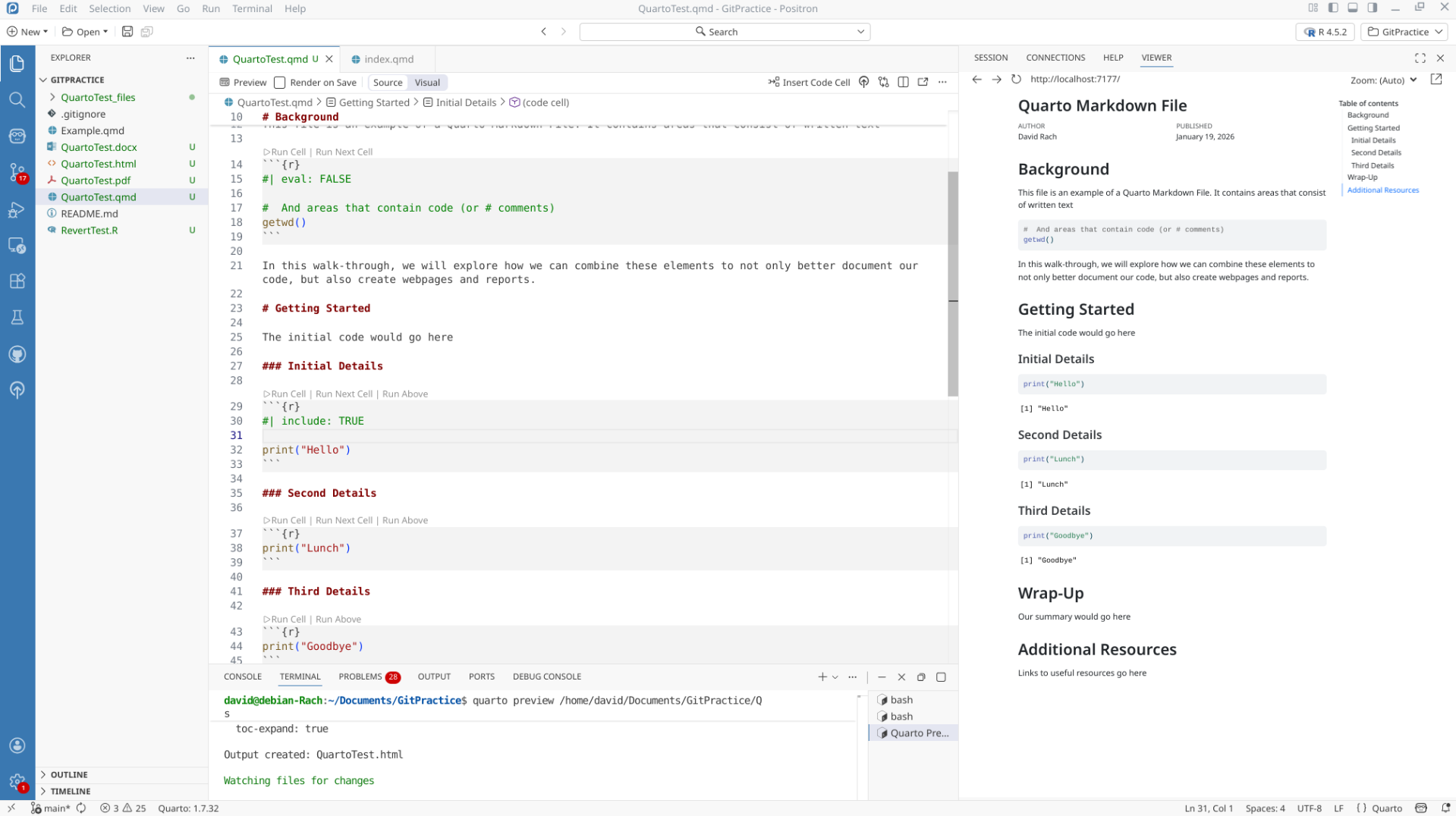
By contrast, when we set “include: true”, the code block and it’s output is once again included within the rendered document.
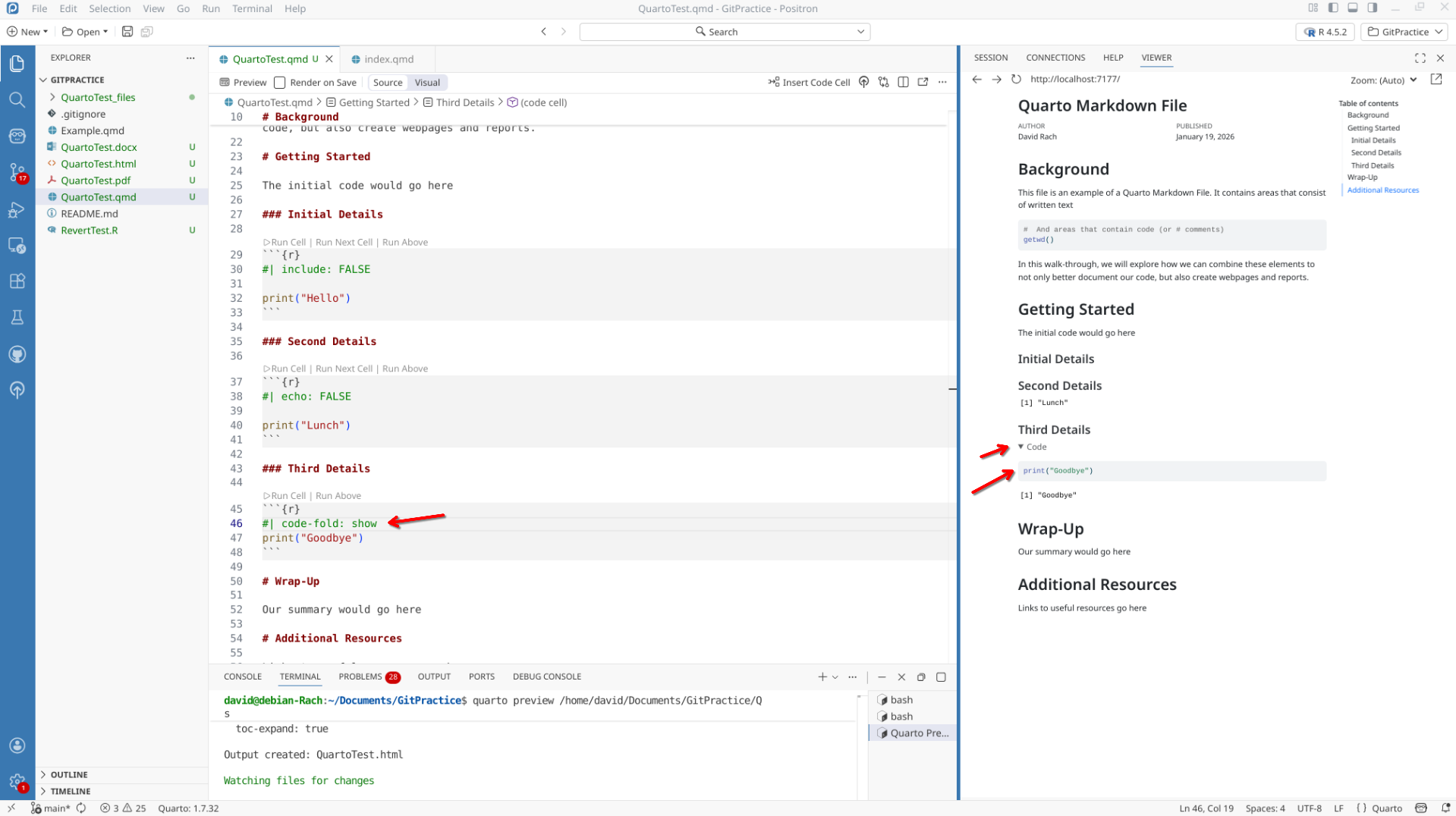
Code-Fold
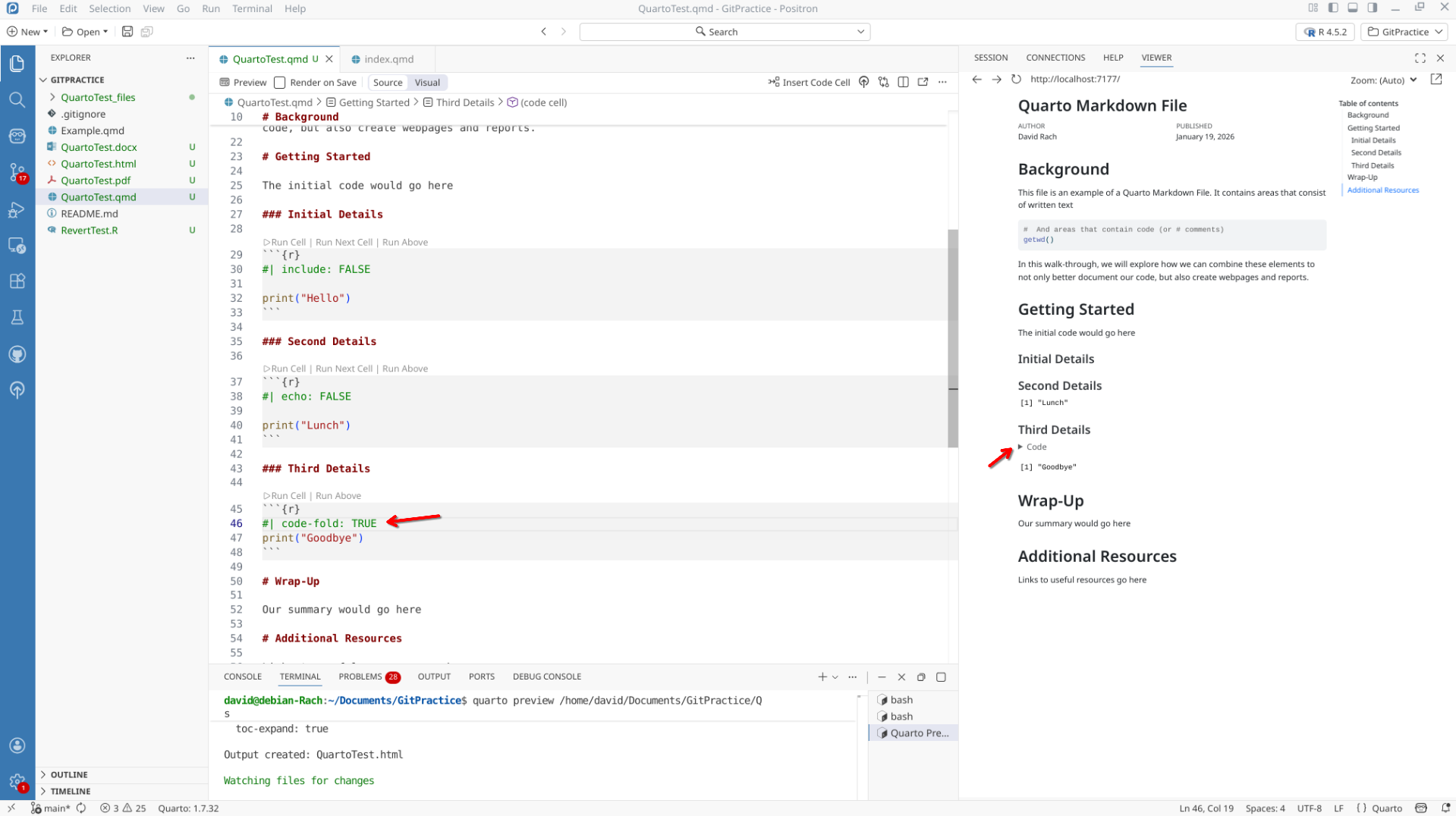
One of my favorites is “code-fold”. When we set it as “code-fold: show”, it displays the code, but provides a drop-down arrow that can be closed to compress the code.
In contrast, if we want to make the code-available for those that are interested, but not directly visible, we can set as “code-fold: true”
Warnings
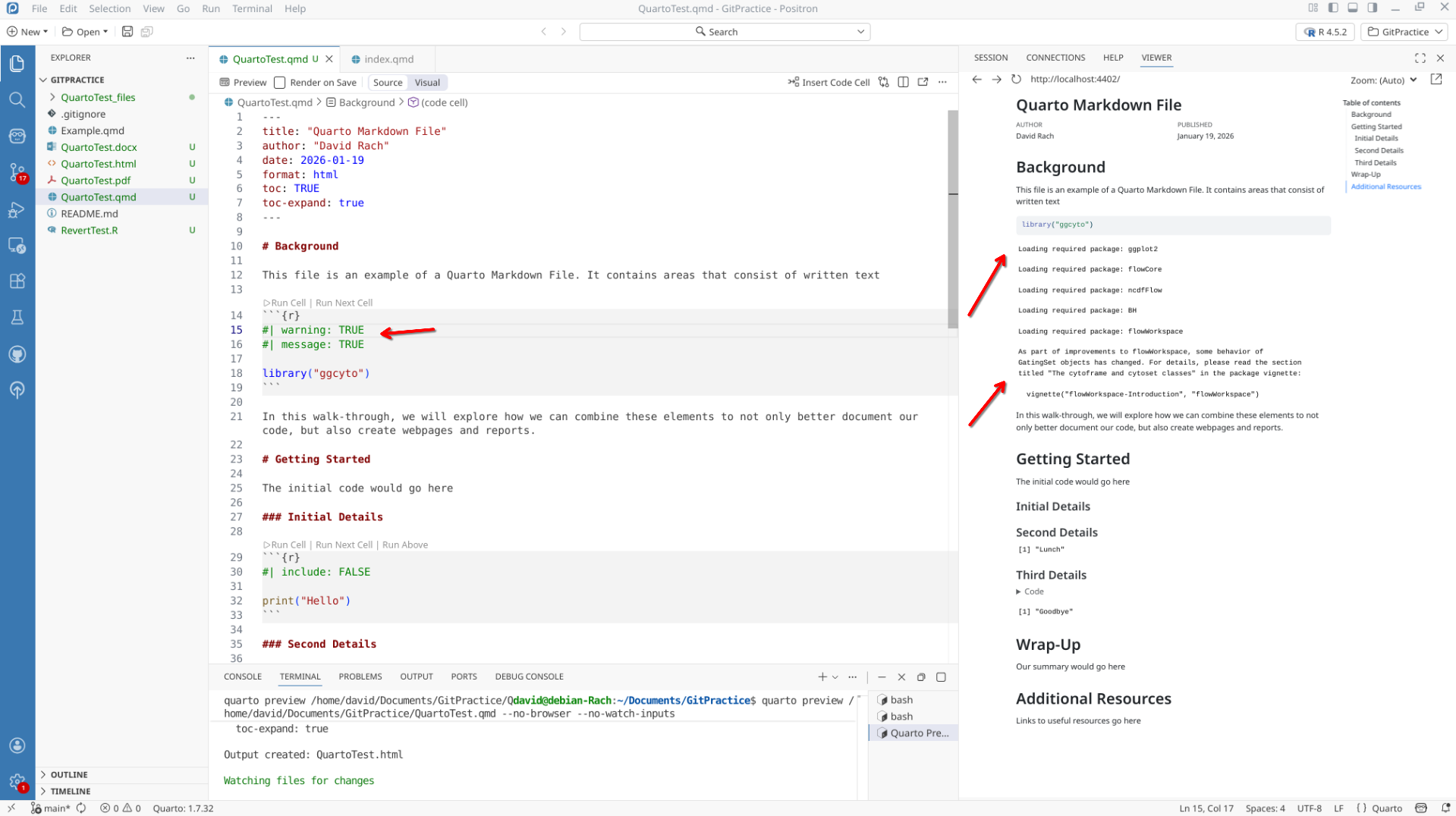
Within R, when code is executed, in addition to returning the output, R is capable of returning warnings (when something is not as expected, but not sufficient to elicit an error with a complete stop) or a message (text output that gets displayed, often telling about progress). While these are useful when running code yourself, it can be annoying when generating a report and the 2nd page is a bunch of warning text being displayed.
For example, when the R package ggcyto is loaded via the library call, it will automatically load several other packages, which typically results in these messages being outputted:
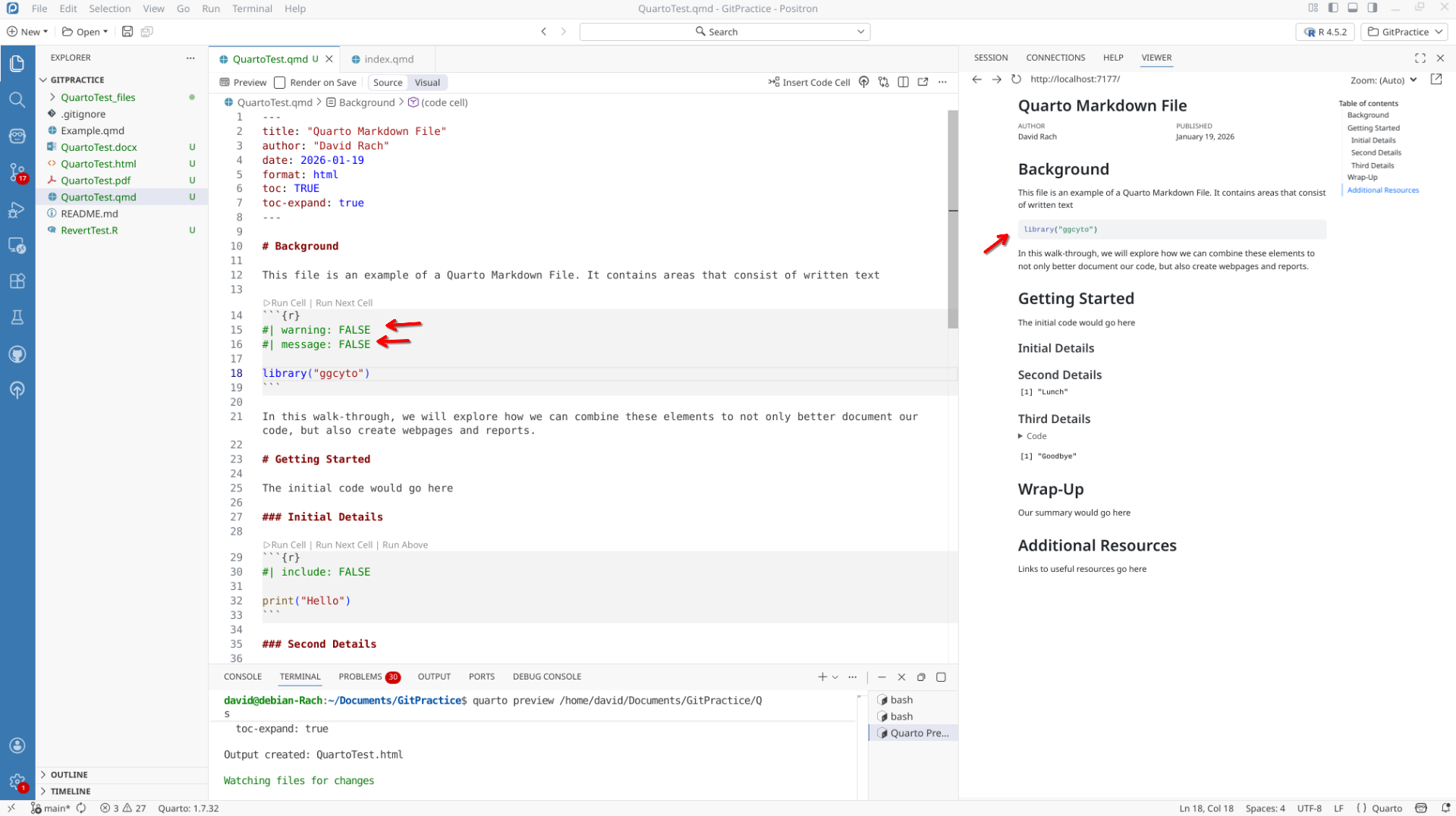
We can therefore set that code-chunk’s warning/message arguments to FALSE, therefore silencing the message outputs that would otherwise clutter up our report.
Text Styles
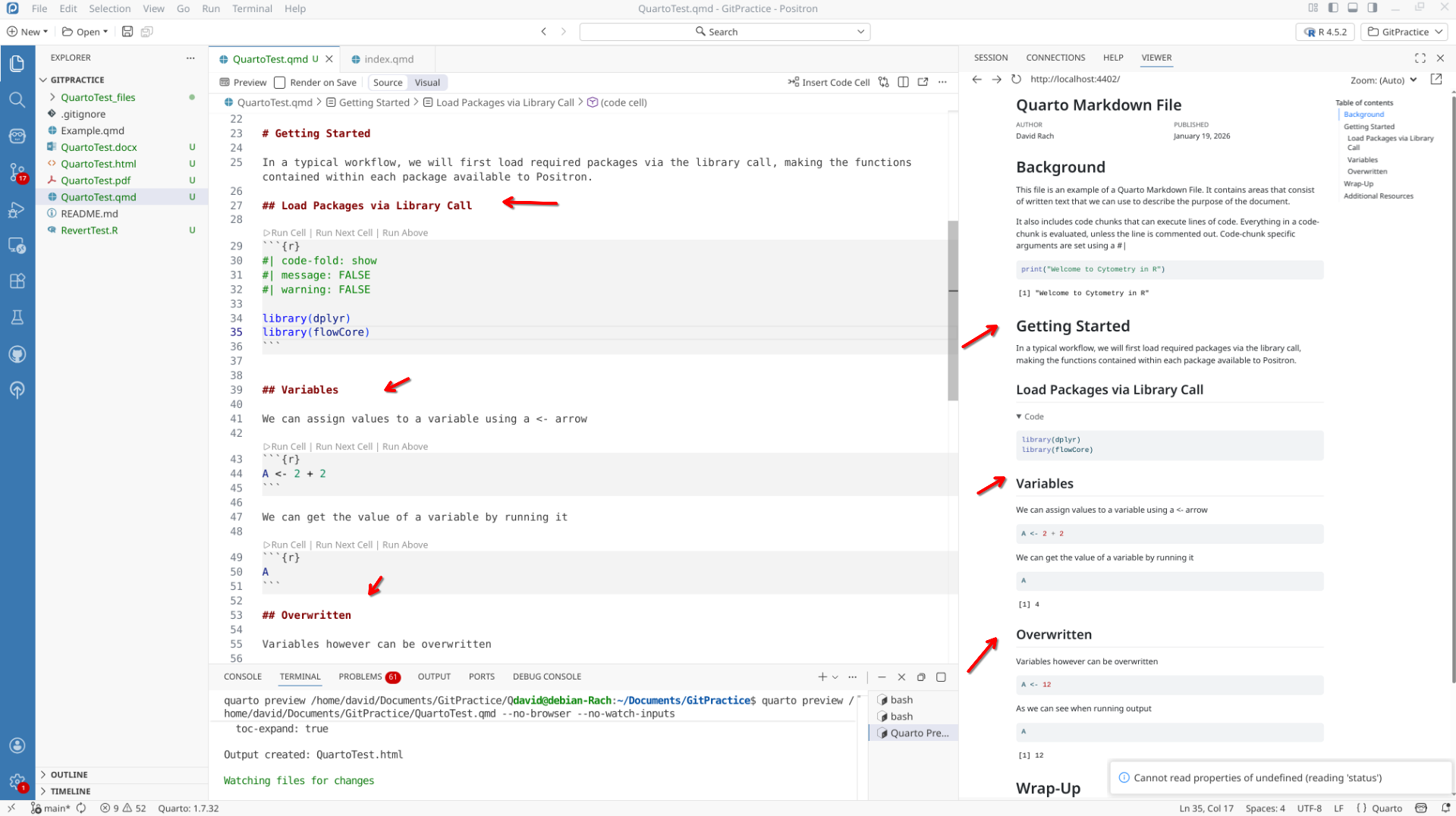
Quarto primarily uses Markdown for text styling. Consequently, markdown arguments can be used within the text to change how various text appears.
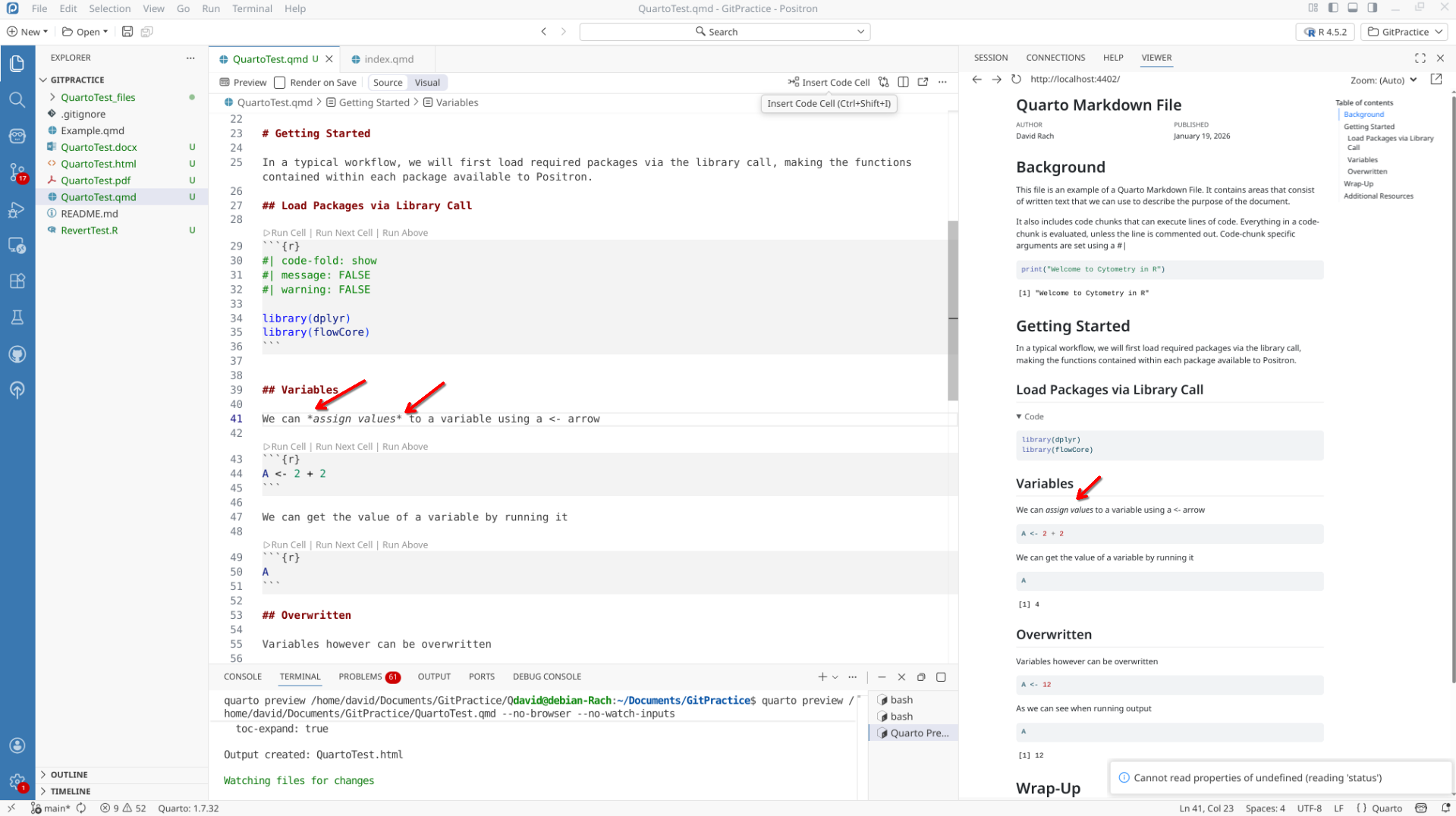
For a regular text, This single asterisk on each side of a word will italicize.
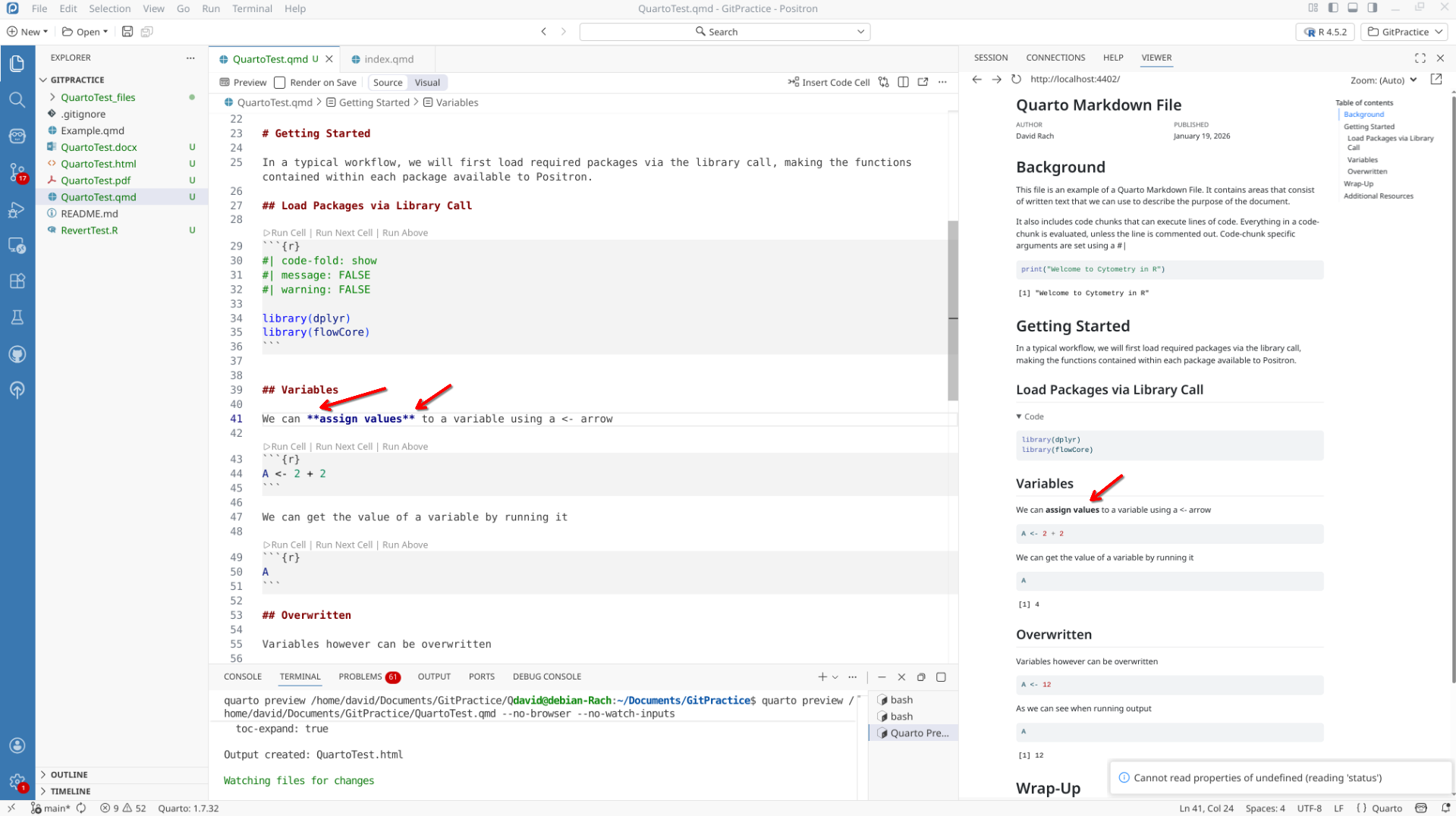
When the number of asterisk is doubled, This word is bolded.
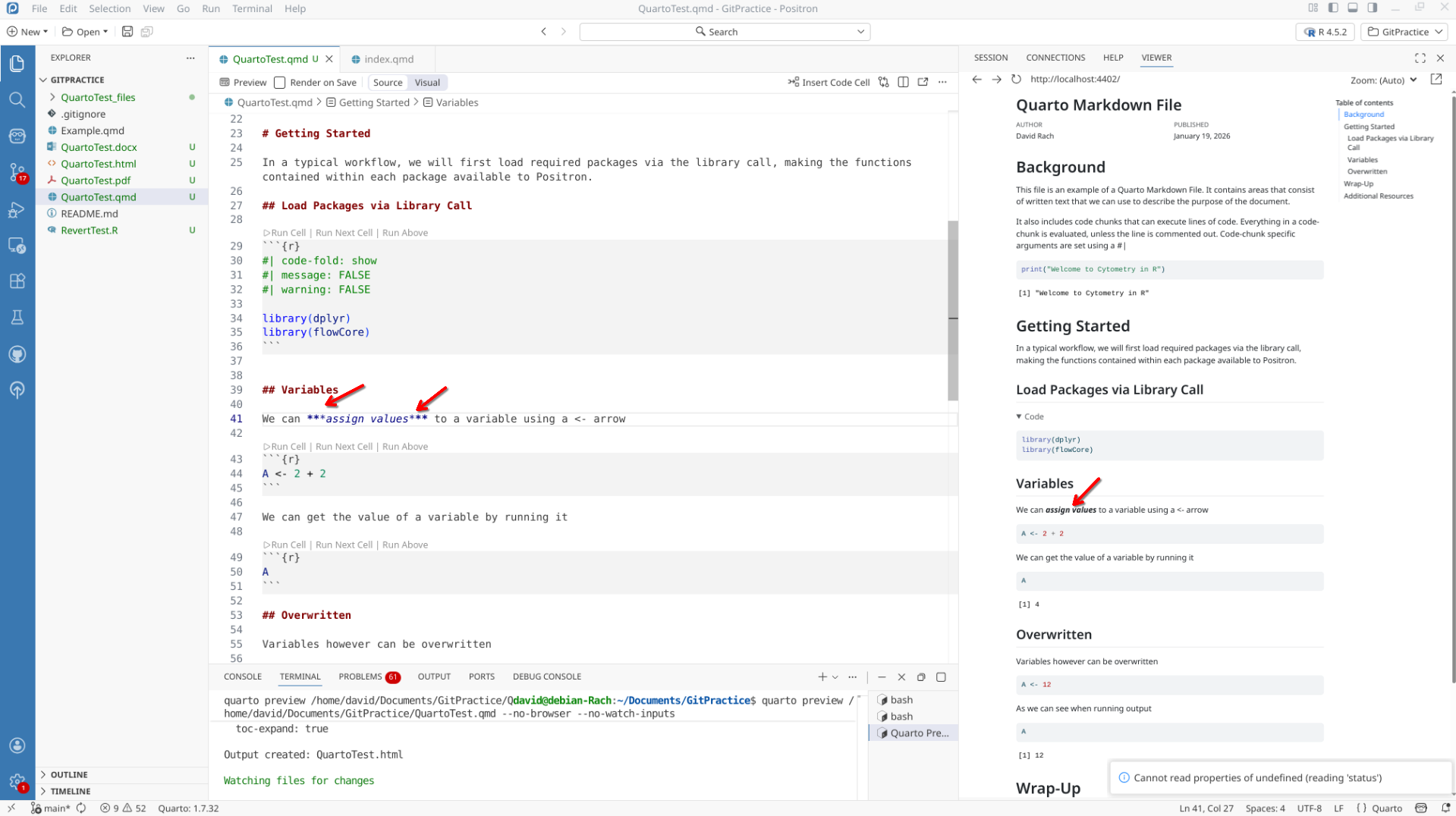
When three asterisk are used, both are applied.
For an underscore, the word of interest is surrounded by square brackets “[]”, with “{.underline}” adjacent.
Hyperlinks
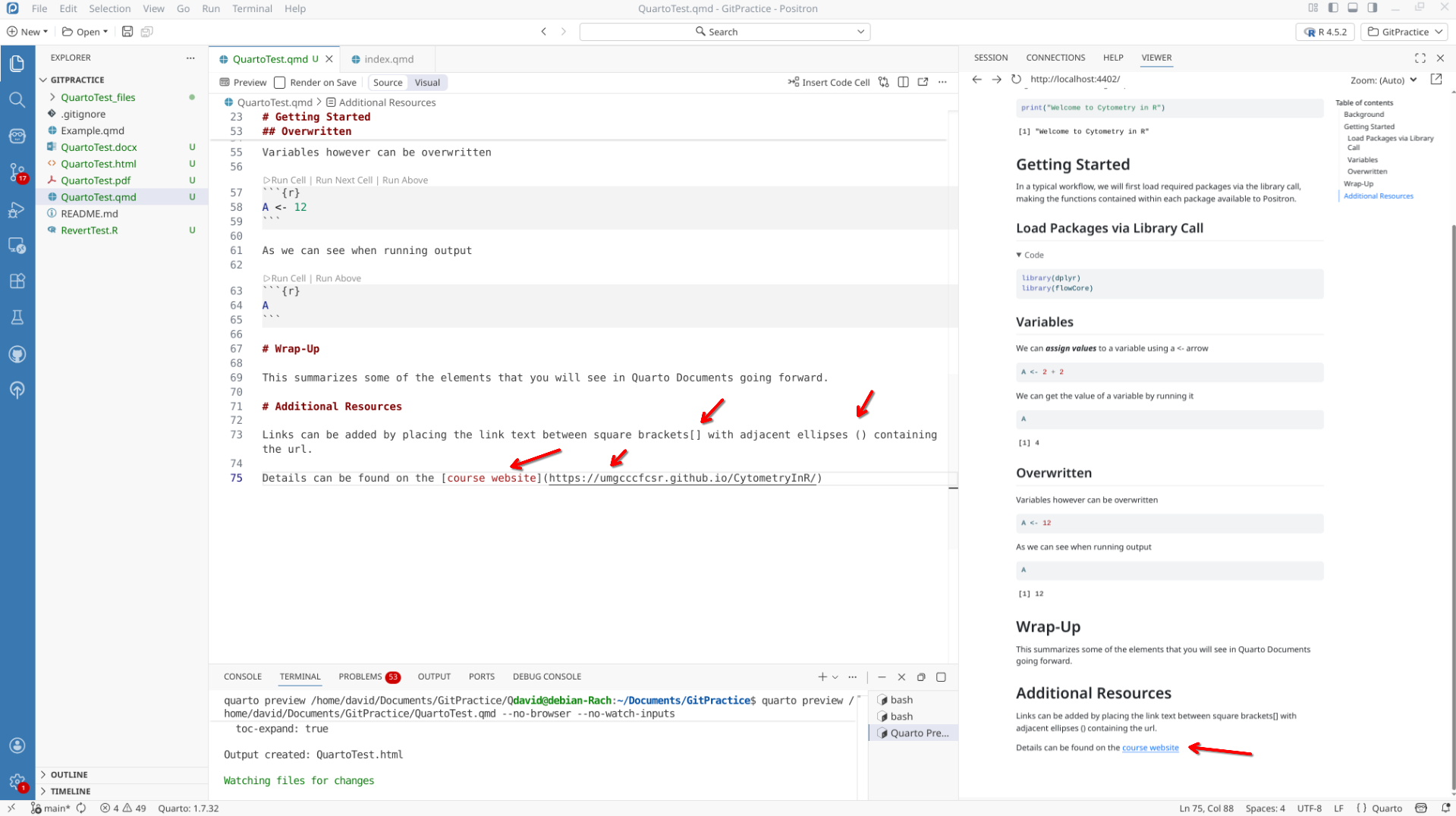
You can link to a website by surrounding word of interest in [] and placing the url within () adjacent to it.
Images
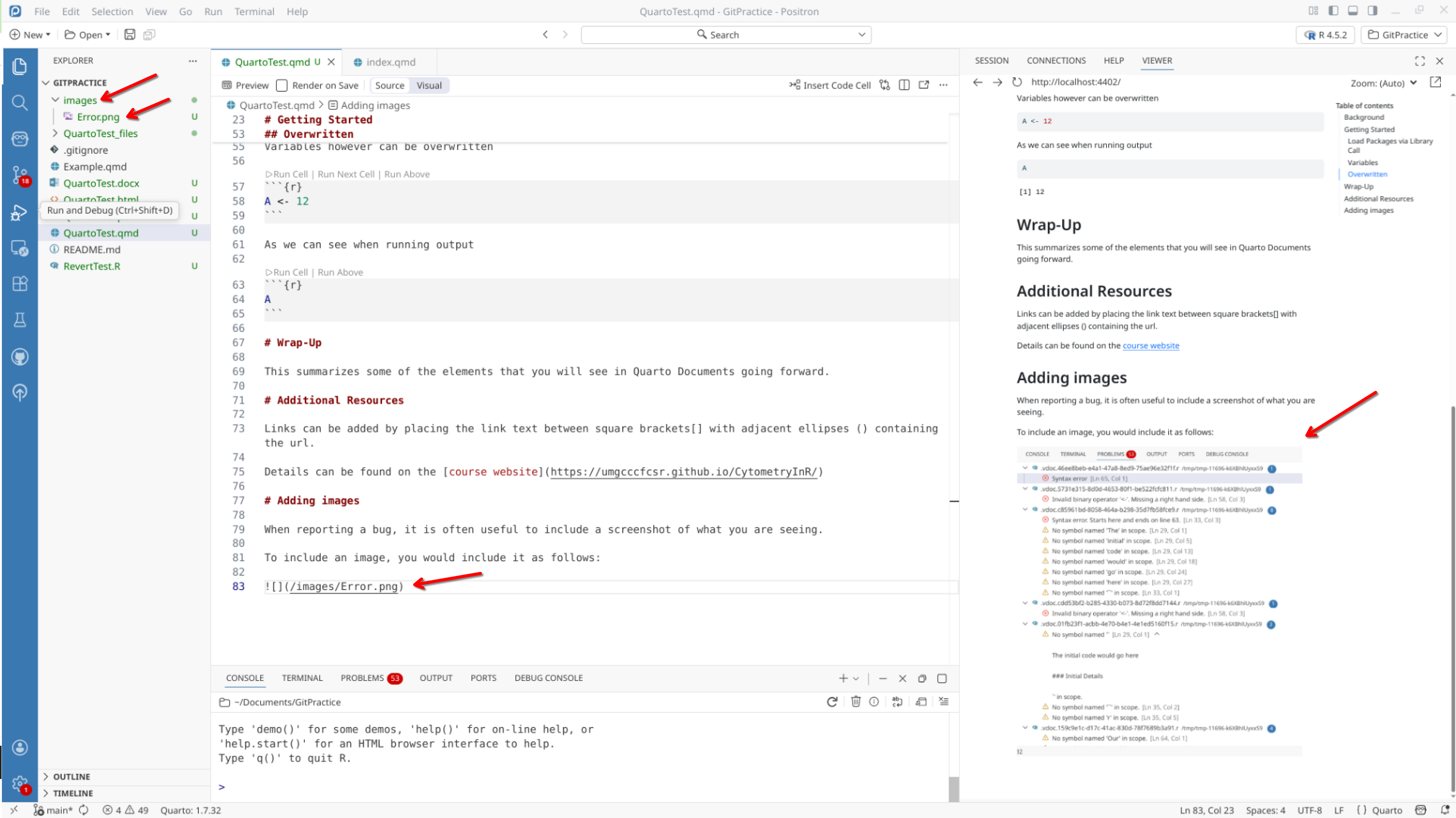
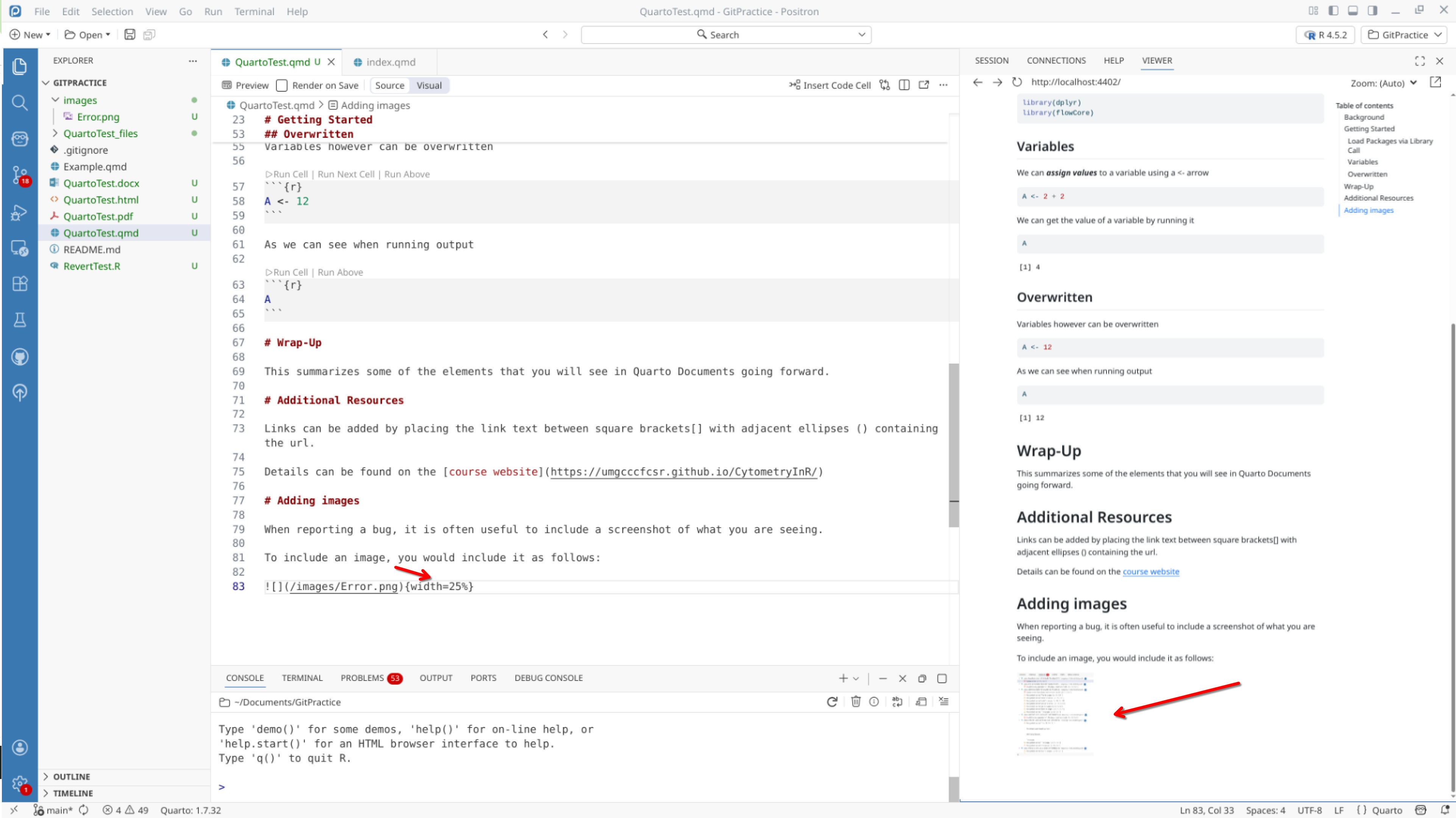
You can place images by adding the following, as long as the file.path to the image is correctly formatted. In my case, this is why I include images folders within my folders to simplify the copy and paste.
Wrap-up
We have now briefly looked at various common customizations within a Quarto Markdown Document that can allow us to better document what we are doing, and control whether various code chunk outputs are displayed in the final rendered document.
In the next section, we will cover some course logistics by investigate using the Discussions Forums to get community feedback throughout the course, when to use the Issues page, as well as how to open a pull request to submit any completed optional Take-Home problems to get course instructor feedback.
Additional Resources